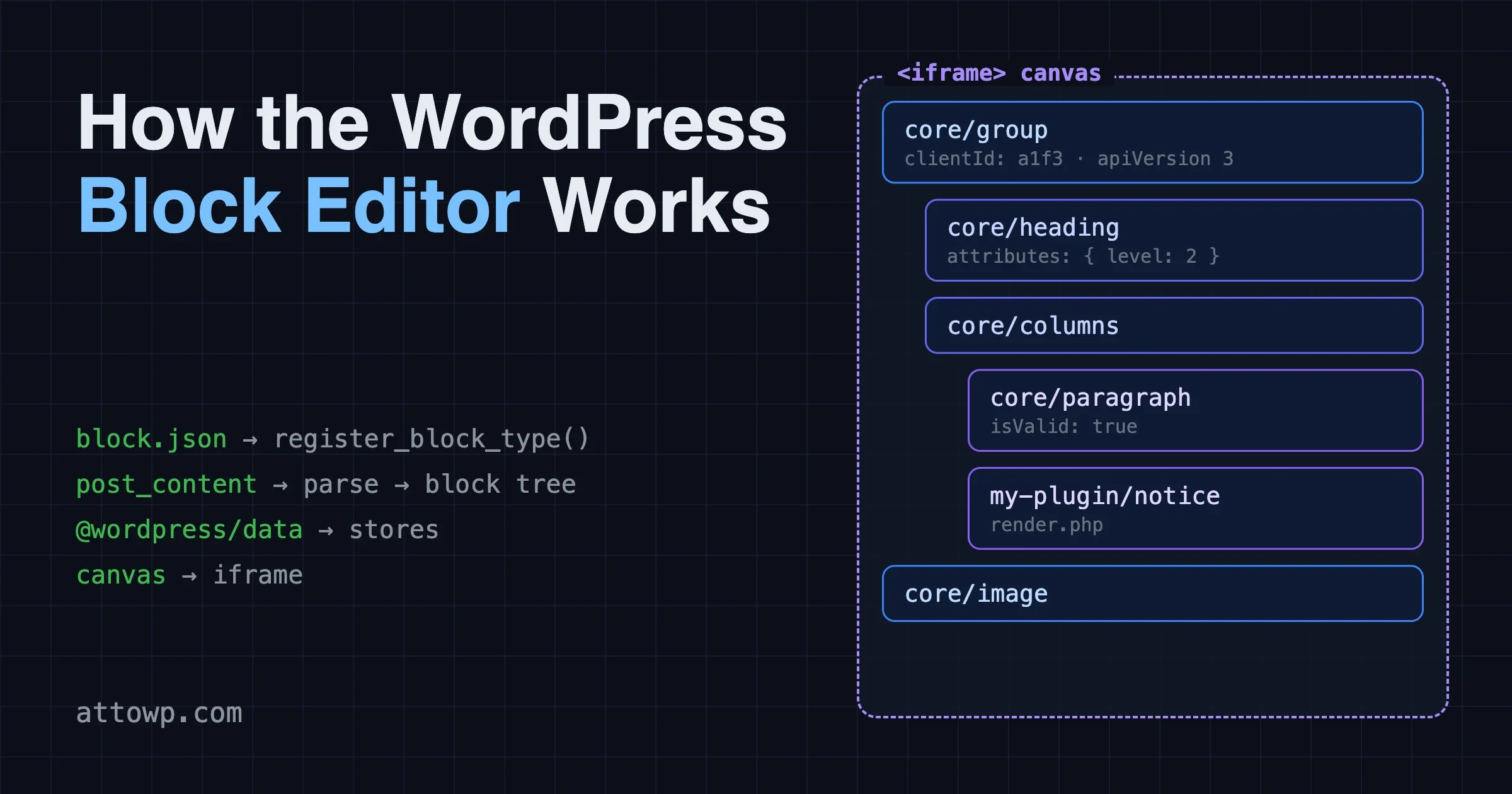
The WordPress block editor looks like one big app, but it is a stack of small pieces that each do one job. A block.json file describes every block. A parser turns saved post content into a tree of block objects. A set of data stores holds the state of that tree and of the editor around it. And since WordPress 7.1, the writing canvas always runs inside an iframe. This guide walks through how the WordPress block editor works, in that order, so you know where to look when a block misbehaves.
Every fact here comes from the Block Editor Handbook and the code reference on developer.wordpress.org. I did not run any of the code in this post, so each sample is marked as untested. Where the handbook says nothing on a point, I say that instead of guessing.
The big picture: content in, content out
Start with one idea from the handbook’s data flow article: the editor’s input and output is a tree of block objects. When you open a post, the editor parses the saved document into that tree. When you save, it turns the tree back into something that can be stored in post_content. The handbook says this keeps one source of truth for the content, so there is no second copy to fall out of sync.
Each block object in memory has four main parts:
const block = {
    clientId,   // unique string identifier
    type,       // the block type (paragraph, image...)
    attributes, // key/value pairs for the block's content and settings
    innerBlocks // an array of child blocks
};
While you edit, a block can also gain extra data such as isValid and originalContent. Those matter later, in the section on validation.
How blocks are stored in the database
Blocks live in post_content as HTML with special comments around them. Browsers ignore comments, so the content stays valid HTML. The handbook shows two shapes. A static block has an opening and a closing comment with real markup between them:
<!-- wp:image -->
<figure class="wp-block-image"><img src="source.jpg" alt="" /></figure>
<!-- /wp:image -->
A dynamic block has a single self-closing comment, and its attributes are stored as JSON inside it:
<!-- wp:latest-posts {"postsToShow":4,"displayPostDate":true} /-->
The handbook points out that comments are simple to parse: a leading <!--, then anything except --, until the first -->. A formal grammar defines the process, and the parser does not need fully valid HTML to work.
That storage choice explains a lot of block editor behavior. Static blocks save their final HTML, so the front end can show them without PHP doing any work. Dynamic blocks save almost nothing, so the output is built at request time and can change when the plugin updates. Attributes that have no source in the markup go into the comment JSON.
block.json: the file that describes a block
Since WordPress 5.8, block.json is the recommended way to register block types on both the server and the client. The handbook lists four benefits:
- Performance. If the theme supports lazy loading of assets, the CSS and JS listed in
styleorscriptload only when the block is on the page. - Server-side registration. The Block Type REST API lists only blocks registered on the server, and
block.jsonmakes that registration simple. - Directories. The Plugins Directory detects
block.jsonfiles, and blocks submitted to the Block Directory must have one. - Tooling. A
$schemaentry gives editors tooltips, autocomplete and validation.
The page marks only name and title as required. Names use the form namespace/block-name. Here is an abridged example from the handbook:
{
    "$schema": "https://schemas.wp.org/trunk/block.json",
    "apiVersion": 3,
    "name": "my-plugin/notice",
    "title": "Notice",
    "category": "text",
    "textdomain": "my-plugin",
    "attributes": {
        "message": {
            "type": "string",
            "source": "html",
            "selector": ".message"
        }
    },
    "editorScript": "file:./index.js",
    "viewScript": "file:./view.js",
    "editorStyle": "file:./index.css",
    "style": "file:./style.css",
    "render": "file:./render.php"
}
Which field loads what
The asset fields are the part people mix up most, so here is each one as the handbook defines it:
editorScriptandeditorStyleload only in the editor.scriptloads in both the editor and on the front end, andstyledoes the same for CSS.viewScriptloads only on the front end (since WordPress 5.9). Use it when your front-end code depends on WordPress scripts.viewScriptModule(since 6.5) is for front-end script modules, such as code that uses the Interactivity API. The handbook says WordPress scripts and script modules are not compatible at the moment, so you pick one or the other for a given file.viewStyle(since 6.5) loads only on the front end.render(since 6.1) points to a PHP file that builds the front-end output.
Each asset field accepts a file path, a registered script or style handle, or an array of those. Arrays have been supported since 6.1. The textdomain field (since 5.7) matters for translation: localized fields such as title, description and keywords are translated only when it is set.
Registering the block in PHP
With a block.json in place, the PHP side is one call. The function register_block_type() accepts a path to the folder that holds block.json. Support for a path came in WordPress 5.8. This pattern points at a build folder, which is common with the @wordpress/create-block tool:
<?php
// Untested sketch. Run it on the init hook.
add_action( 'init', function () {
    register_block_type( __DIR__ . '/build/notice' );
} );
The handbook says you can register a block with JavaScript only on the client, but that the recommended method is to register on the server with block.json too. On the client, registerBlockType() takes a block name and a configuration object. In practice you pass it the metadata plus your edit and save functions.
Block API versions: why apiVersion matters
The apiVersion field is optional and defaults to 1. The latest is 3, which arrived in WordPress 6.3. The handbook describes the three versions like this:
- Version 1: the initial version.
- Version 2 (WordPress 5.6 and later): the block must use the
useBlockProps()hook for its wrapper inedit. For static blocks, generated class names and styles are no longer added to the saved markup on their own, sosavemust applyuseBlockProps.save(). - Version 3 (WordPress 6.3 and later): adds iframe support. In the handbook’s words, adding version 3 support means a block should work inside an iframe.
All core blocks already use version 3, according to the migration guide. For your own blocks, moving to 3 is mostly a test: run the block inside the iframe, fix what breaks, then raise the number. The section on the iframe below covers what usually breaks.
Edit and save: two functions, one set of attributes
A block has two views of the same attributes. edit describes the block in the editor, and save describes the markup that goes into post_content. The handbook says that save defines how the attributes are combined into the final markup, which is then serialized.
The edit function receives props such as attributes, setAttributes and isSelected. The isSelected flag is true only while the block is selected, so you can show extra controls only then. The wrapper element in edit must take the props from useBlockProps. The handbook says the wrapper must be a native DOM element, or a component that passes props on to one. A Fragment is not valid there.
// From the handbook, condensed. Untested here.
edit: ( { attributes } ) => {
    const blockProps = useBlockProps();
    return <div { ...blockProps }>{ attributes.content }</div>;
},

save: ( { attributes } ) => {
    const blockProps = useBlockProps.save();
    return <div { ...blockProps }>{ attributes.content }</div>;
},
Two rules from the handbook are worth repeating. First, setAttributes should get a new copy of an object or array, not a mutated one. Second, save should be pure. It should depend only on its attributes, not on state, effects or outside data stores. If it does not, the block can be flagged as invalid later.
Why blocks become “invalid”
When the editor loads a post, it runs each block’s save function on the stored attributes and compares the result to the HTML in the database. If they differ, the block is marked invalid, and the editor offers to recover it. This is the reason a small change to save in a plugin update can break old posts: the stored markup no longer matches what the new save produces. The Block Editor Handbook has a separate article on block deprecations for keeping old content loading after a change to save. I did not read it for this post, and the compare-and-flag description above is how I understand the behavior, not a quote. Check the article before you change the output of a static block.
Dynamic blocks skip the problem
A dynamic block still needs a save function, but it can return null. The handbook says that if save is unspecified, the default saves no markup for the dynamic block. The output comes from PHP when the block is shown on the site. The render field in block.json points to that PHP file. The handbook says it receives $attributes, $content and $block, and warns that the file loads for every block instance, so shared functions and classes need care.
<?php
// render.php (untested sketch)
// Available: $attributes, $content, $block
?>
<p <?php echo get_block_wrapper_attributes(); ?>>
    <?php echo esc_html( $attributes['message'] ?? '' ); ?>
</p>
The helper get_block_wrapper_attributes() is how the PHP side adds the same wrapper classes that useBlockProps adds in JavaScript. I did not check its reference page for this post, so confirm its signature before you use it.
The trade-off is simple. A static block is fast on the front end and risky to change. A dynamic block is easy to change and costs a PHP call on each view. Pick by how often the output will change, and by whether the content must still show if your plugin is turned off.
Data stores: where the editor keeps its state
All editor state lives in stores built with the @wordpress/data package. The handbook describes it as a hub for state for both plugins and WordPress itself. It follows Redux ideas, with modular stores and a selector-first way to read data. The handbook lists 16 stores in the reference. These are the ones a plugin author meets most:
core/block-editorholds the state of the block tree and the editor canvas.core/blocksholds the registered block types.core/editorholds the post editor’s data, such as the current post.core/edit-postholds the UI state of the post editor, andcore/edit-sitedoes the same for the site editor.coreis the WordPress core data store. It fetches records from the REST API.core/notices,core/preferences,core/viewport,core/commandsandcore/keyboard-shortcutscover notices, user preferences, screen size, the command palette and shortcuts.
The five parts of a store
A store is built with createReduxStore( name, config ). The only required part is a reducer. The handbook names the rest:
- Reducer: takes the previous state and an action and returns the new state.
- Actions: action creators. Dispatching actions is the main way to change state.
- Selectors: functions that read and derive state. Calling selectors is the main way to get data out.
- Resolvers: side effects that run the first time a selector is called, usually to fetch data.
- Controls: the older way to handle async flows. The handbook marks them deprecated and recommends thunks.
A store descriptor is added to the registry with register(). The older registerStore is deprecated. Here is a condensed version of the handbook’s own example. It is untested, and I corrected the resolver the way the page’s text implies:
import { createReduxStore, register } from '@wordpress/data';
import apiFetch from '@wordpress/api-fetch';

const store = createReduxStore( 'my-shop', {
    reducer( state = DEFAULT_STATE, action ) {
        switch ( action.type ) {
            case 'SET_PRICE':
                return {
                    ...state,
                    prices: { ...state.prices, [ action.item ]: action.price },
                };
        }
        return state;
    },

    actions,

    selectors: {
        getPrice( state, item ) {
            return state.prices[ item ];
        },
    },

    resolvers: {
        getPrice: ( item ) => async ( { dispatch } ) => {
            const price = await apiFetch( { path: '/wp/v2/prices/' + item } );
            dispatch.setPrice( item, price );
        },
    },
} );

register( store );
The resolver is the clever part. The first time a component asks for a price, the selector returns nothing, the resolver starts the fetch, and when the action lands the component re-renders with the data. You do not write loading logic by hand for the fetch itself.
Reading and writing from a block
Inside React code, use hooks. The select and dispatch helpers work only with the default registry, so the handbook says components should prefer hooks. useSelect maps state to props, and useDispatch returns a store’s action creators. This is an untested sketch of a block that reads recent pages from the core store:
import { useSelect } from '@wordpress/data';
import { store as coreStore } from '@wordpress/core-data';

function RecentPages() {
    const pages = useSelect( ( select ) =>
        select( coreStore ).getEntityRecords( 'postType', 'page', {
            per_page: 5,
        } ),
    [] );

    if ( ! pages ) {
        return <p>Loading...</p>;
    }
    return (
        <ul>
            { pages.map( ( page ) => (
                <li key={ page.id }>{ page.title.rendered }</li>
            ) ) }
        </ul>
    );
}
Note the loading check. The handbook says getEntityRecord returns null while a record is still loading, and the same pattern applies to a list. If you skip that check, your block throws an error on first render.
Core data: entities and the REST API
The core store comes from the @wordpress/core-data package. Its selectors fetch from the REST API on their own, and its action creators change that data. Core data works with entities. An entity is a data source with a kind and a name, and each item is an entity record. Posts, pages, users and many other things are entities. By default each one maps to a REST endpoint, such as /wp/v2/users.
The handbook gives a three-step flow that explains how saving works:
- Read a record with
getEntityRecordor a hook. - Stage changes with
editEntityRecord, or with the setter fromuseEntityProp. This changes the record locally and does not touch the server. - Persist the change with
saveEntityRecord, which sends it to the REST API.
The useEntityProp hook reads and updates one property of the current entity, and returns the value, a setter and the full property object. It is the usual way to build a custom field in the sidebar:
import { useEntityProp } from '@wordpress/core-data';

function TitleField() {
    const [ title, setTitle ] = useEntityProp( 'postType', 'page', 'title' );
    return (
        <input
            value={ title }
            onChange={ ( e ) => setTitle( e.target.value ) }
        />
    );
}
Because saving goes through the REST API, a REST endpoint that rejects your data will make the editor fail to save. If you add custom fields, the rules in custom WordPress REST API endpoints done right apply to the other end of the same flow.
The save step is also where side effects of the editor show up. One recent example: Gutenberg 24.0 started attaching media when a post is saved, which moves attachment page URLs on older sites and can leave 404s. Our write-up on Gutenberg media regressions in October covers who is affected and what to check. It is a good reminder that “save” in the editor does more than write post_content.
The iframed editor
The writing canvas runs inside an iframe. The canvas has its own document, which is the root of most iframe bugs. The history is in the handbook’s API versions page:
- WordPress 6.3 introduced the iframed post editor, but only when all registered blocks used API version 3 or higher and no traditional meta boxes were present.
- WordPress 7.0 changed the check to look at the blocks in the post content, not all registered blocks.
- Gutenberg 23.6 and WordPress 7.1 always use the iframe for the post editor, whatever the blocks’
apiVersion.
The Site Editor always uses an iframe. The enqueueing guide says WordPress 7.0 kept a conditional fallback to a non-iframed editor, and that this fallback is gone from 7.1. So on a current site, a block with apiVersion 2 or lower still runs, but it runs inside the iframe, whether or not it was built for it. The handbook does not say such blocks stop working. It says they run in the iframe.
What breaks inside the iframe
The main problem named in the migration guide is code that uses the global document or window. The canvas has its own document, so those globals point at the outer admin page and not at your block. The fix is to get the element’s ownerDocument and defaultView from a ref. The guide recommends useRefEffect from @wordpress/compose to attach and clean up listeners. These are the key lines from the guide, put together as a sketch that is untested:
import { useRefEffect } from '@wordpress/compose';
import { useBlockProps } from '@wordpress/block-editor';

function Edit() {
    const ref = useRefEffect( ( element ) => {
        const { ownerDocument } = element;
        const { defaultView } = ownerDocument;

        function onResize() {
            // react to the iframe window here
        }
        defaultView.addEventListener( 'resize', onResize );
        return () => defaultView.removeEventListener( 'resize', onResize );
    }, [] );

    const blockProps = useBlockProps( { ref } );
    return <div { ...blockProps }>...</div>;
}
For third-party libraries that assume the global document, the guide suggests filing an issue or a pull request upstream first. If that is not possible, it describes patching the library with patch-package, and says upstream fixes are better than long-term patches.
The guide’s testing advice is short: test with Gutenberg 23.6 or later, where the post editor always uses the iframe, and then raise your block to apiVersion 3. The handbook page I read does not say what to do for code that touches the outer admin page on purpose. Check the Gutenberg issue tracker for that case.
Which hook loads assets where
The iframe also changes how you load CSS and JS. The handbook’s guide to enqueueing assets in the editor separates two PHP hooks:
enqueue_block_editor_assetsis for the editor UI: inspector and toolbar controls, block variations and editor plugins.enqueue_block_assetsis for block content, the things the user creates. It fires in the editor and on the front end. The guide says not to use it for editor UI code or for calls to editor APIs.
In WordPress 6.3 and later, assets from enqueue_block_assets load both inside and outside the iframe, for backward compatibility. The guide says this means the same script or stylesheet can run in both places, which may break some libraries. To limit a call to the editor, wrap it in an is_admin() check. Here is the shape, untested:
<?php
// Content styles: runs in the editor and on the front end.
add_action( 'enqueue_block_assets', function () {
    if ( is_admin() ) {
        // Editor-only content assets go here.
    }
} );

// Editor UI: toolbar controls, variations, editor plugins.
add_action( 'enqueue_block_editor_assets', function () {
    // wp_enqueue_script( ... );
} );
For blocks, the guide’s advice is to put these assets in block.json instead. For themes, it says editor styles should almost always be added with add_editor_style() or wp_enqueue_block_style(). Before 6.3, enqueue_block_assets did not reach iframed content, so older sites used enqueue_block_editor_assets with a stylesheet that includes .editor-styles-wrapper or .wp-block selectors. The guide says a warning is logged in the console but the styles still apply.
Meta boxes and the iframe
Classic meta boxes were the other thing that used to turn the iframe off. For how they sit in the editor now, and how to move key fields into a sidebar panel, see meta boxes in the WordPress 7 editor. That post covers safe upgrades for sites where users skip versions.
How the pieces fit when you edit a post
Here is the whole path for one edit, using what the handbook says about each step:
- You open a post. The editor loads the post as an entity record through the core data store, which fetches from the REST API.
- The editor parses
post_contentinto a tree of block objects. It reads the comment delimiters to find each block and its attributes. - Each block’s
editfunction renders inside the iframe canvas. Block types come from thecore/blocksstore, which was filled fromblock.jsondata. - You type. The block calls
setAttributes, the block tree in thecore/block-editorstore updates, and the canvas re-renders. - You press save. The editor serializes the tree. Each static block’s
savefunction turns attributes into markup. Dynamic blocks save just their comment. - The core data store sends the record to the REST API with
saveEntityRecord, and WordPress writespost_content. - On the front end, WordPress renders the saved content. Dynamic blocks call their
renderfile at that point.
This is a model built from the handbook pages I read. I did not trace a real save on a live site, so treat the order as a guide to reading the source, not as a verified call stack.
A debugging checklist by symptom
Knowing the layers helps you pick where to look. This list maps common symptoms to the layer, using only the behavior described above:
- Block shows as invalid after an update. Look at
saveand the stored markup. The output ofsavechanged and the old content no longer matches. Check the deprecation docs. - A script works on the front end but not in the editor. Check which
block.jsonfield or PHP hook loads it.viewScriptnever loads in the editor. - A listener does nothing in the editor canvas. Look for
documentorwindowuse. In the iframe, those point at the outer page. UseownerDocumentfrom a ref. - Styles leak or do not apply in the canvas. Check whether the stylesheet loads through
enqueue_block_assetsor through the editor-only hook, and whether it needs the.editor-styles-wrapperprefix. - A component renders empty, then errors. You probably skipped the loading check on a selector that returns
nullat first. - Save fails. Look at the REST request that
saveEntityRecordsent, and at what the endpoint answered. - The block does not show in the inserter. Check that it is registered on the server, and that the
nameinblock.jsonuses thenamespace/block-nameform.
What I could not confirm
- The block deprecation article, the block supports reference and the
get_block_wrapper_attributes()reference were not read for this post. The points I make about them are limited to what the pages I did read say, and are marked. - The handbook pages for the iframe do not spell out a full list of what runs inside and outside the iframe, so I did not write one.
- I did not trace a real save in a running editor. The seven-step path above is a reading aid built from the documentation.
- No code in this post was run. Check the signatures against the current reference before you copy any of it.
Sources
- Metadata in block.json, Block Editor Handbook.
- Block API versions and Migrating blocks for iframe editor compatibility.
- Edit and save and Block registration.
- Data flow and data format.
- @wordpress/data, @wordpress/core-data and the data store reference.
- Enqueueing assets in the editor.
- register_block_type(), code reference.
The short version
The WordPress block editor is a parser, a state layer and a canvas. block.json tells WordPress what a block is and what to load. The parser and serializer move content between post_content and a tree of block objects. The data stores hold the tree and the post, and the core data store talks to the REST API. And the canvas always runs in an iframe from WordPress 7.1, so any code that reaches for the global document needs a ref instead. If you know which of those four layers a bug lives in, you already know which docs page to open.

No comments yet