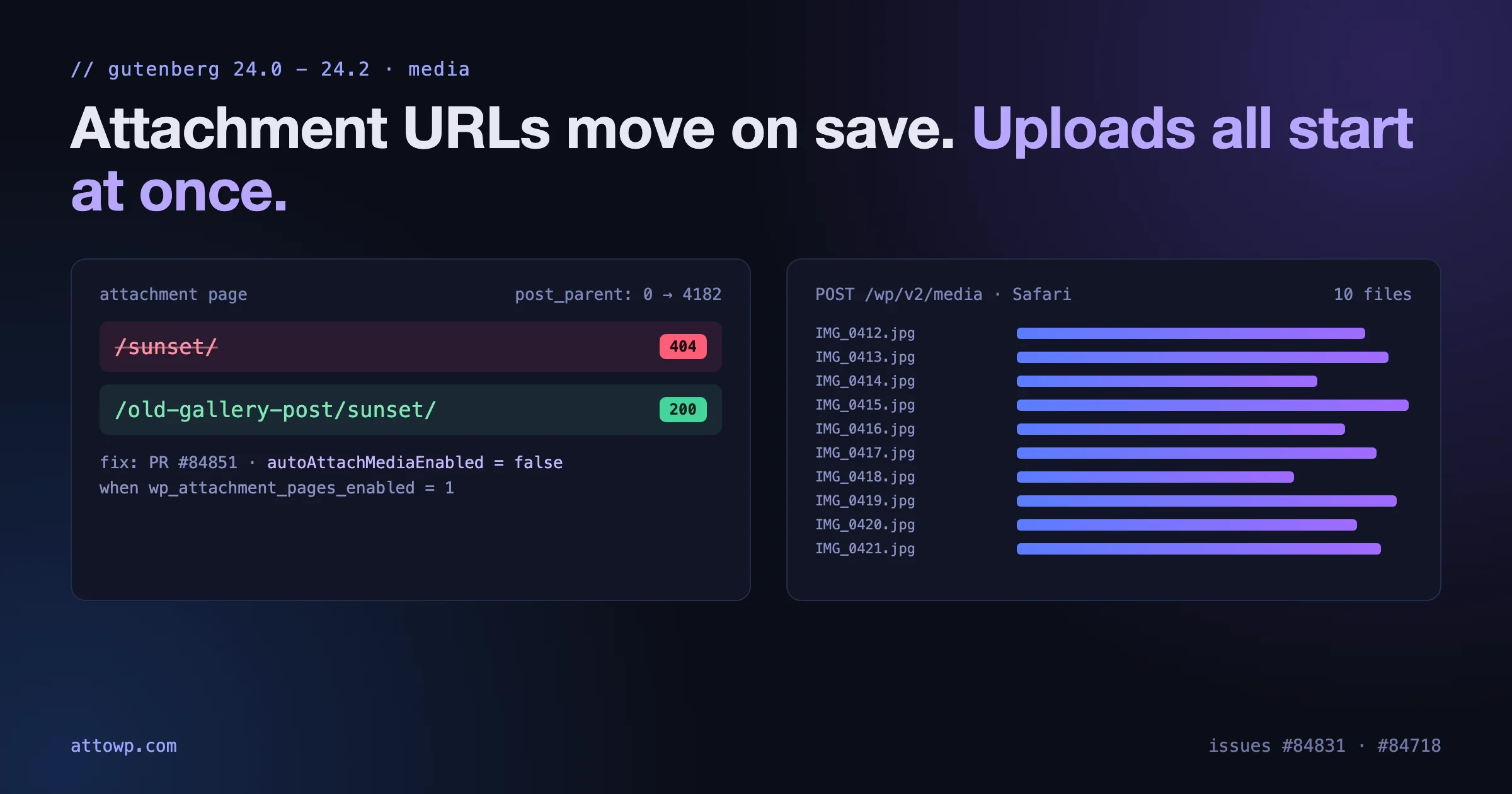
Two media changes in the Gutenberg plugin are worth ten minutes of your time this month, whether you maintain plugins or look after sites. One quietly moves attachment page URLs when an old post is saved, and the old URLs return 404s. The other sends every file in a multi-image upload to the server at the same time, which can exhaust a host’s PHP workers. Both are documented in detail on GitHub, one has a fix waiting for the next Gutenberg release, and one is still open.
This post explains what each change does, who is affected, how to check your own sites, and what to do until the fixes ship. Everything here is from the WordPress/gutenberg repository as of 18 October 2026, when Gutenberg 24.2.0 was the latest release.
The short version
Attachment URLs change on save | Uploads sent all at once | |
|---|---|---|
Introduced by | PR #81977, Gutenberg 24.0 | PR #64784, Gutenberg 19.3 and WordPress 6.7 |
Symptom | Old attachment page URLs return 404 after a post is saved | PHP workers fill up; “The response is not a valid JSON response” |
Who is affected | Sites with attachment pages enabled, using Gutenberg 24.0 to 24.2 or the WordPress 7.2 nightly | Safari and Firefox users, sites without client-side media processing, WordPress 6.7 to 7.0 |
Status | Fixed by PR #84851, milestoned for Gutenberg 24.3 | Issue #84718 open, marked in progress |
What to do now | One filter (below), and check your 404s | Upload in smaller batches; check your host’s worker limits |
Regression 1: saving a post moves attachment page URLs
What changed
PR #81977, merged on 1 September and released in Gutenberg 24.0 on 16 September, made the block editor attach unattached media to the current post when the post is saved or published. The goal was feature parity with the classic editor, where uploading into a post attached the file to it. It is on by default through an editor setting called autoAttachMediaEnabled.
The trouble is what “attach” means for attachment pages. As issue #84831 explains, on a site with attachment pages enabled and pretty permalinks, attaching an image changes its attachment page URL:
- Before:
https://example.com/image-slug/ - After:
https://example.com/post-slug/image-slug/
The old URL then returns a 404. WordPress redirects old URLs when a slug changes, but not when an attachment’s parent changes. And because auto-attach runs on any save of an existing post, editing one word on an old page with a 50-image gallery can move up to 50 URLs at once, even though nobody touched the images. The issue notes the change was also in the WordPress 7.2 nightly at the time.
Who is affected
The key question is whether attachment pages are enabled on your site. WordPress 6.4 introduced a wp_attachment_pages_enabled option, described in the core note on attachment pages:
- Sites created before WordPress 6.4 had the option set to 1 on upgrade, so attachment pages kept working. These sites are exposed.
- Sites created on 6.4 or later default to 0, which redirects attachment pages to the file. These sites are not affected, because there is no attachment page URL to lose.
That first group is large. Any site that has been running since before late 2023 and was never deliberately changed still has attachment pages on. The issue singles out photography sites as a common case: images published straight to the media library, often from Lightroom or Capture One publishing plugins, where each image’s attachment page is its permanent, linked and indexed home, and the same image appears in galleries on several posts.
You are affected if all of these are true:
- Attachment pages are enabled (
wp_attachment_pages_enabledis 1). - You use pretty permalinks.
- The site runs the Gutenberg plugin 24.0, 24.1 or 24.2, or a WordPress 7.2 nightly or pre-release that includes the change.
- Posts contain images that were unattached, or attached to a different post.
How to check
With WP-CLI, three commands tell you most of what you need:
wp option get wp_attachment_pages_enabled
wp plugin get gutenberg --field=version
wp post list --post_type=attachment --post_parent=0 --format=count
The first returns 1 if attachment pages are on. The second shows the Gutenberg plugin version, if it is installed. The third counts unattached media, which is roughly how many images could move if they appear in posts that get saved. Without WP-CLI, ask your developer or host to check the option; it has no screen in the admin.
What the fix does
PR #84851, merged on 16 October and milestoned for Gutenberg 24.3, turns auto-attach off when attachment pages are enabled. It adds a filter on block_editor_settings_all that sets autoAttachMediaEnabled to false if the wp_attachment_pages_enabled option is on. It runs at priority 0, so a site that wants auto-attach anyway can still turn it back on with its own filter. The PR also adds a backport entry for WordPress 7.2.
What to do before 24.3 ships
If you run Gutenberg 24.0 to 24.2 on a site with attachment pages enabled, you can apply the same logic yourself today. Add this to a small must-use plugin or your theme’s functions file:
<?php
/**
 * Stop the block editor from attaching media on save while attachment
 * pages are enabled. Mirrors Gutenberg PR #84851; safe to remove once
 * the site runs a Gutenberg or WordPress version that includes it.
 */
add_filter(
	'block_editor_settings_all',
	function ( $settings ) {
		if ( get_option( 'wp_attachment_pages_enabled' ) ) {
			$settings['autoAttachMediaEnabled'] = false;
		}
		return $settings;
	}
);
If you would rather turn auto-attach off on every site you manage, regardless of attachment pages, drop the if and always set it to false.
If URLs have already moved
An attachment page’s URL follows its parent, so you have two ways back:
- Detach the image, which restores the old URL:
wp post update <attachment-id> --post_parent=0. Only do this if nothing on the site depends on the new parent, such as a gallery built from attached images. - Redirect the old URL to the new one with your redirect plugin, if you want to keep the new attachment.
To find which URLs moved, check your 404 log or Google Search Console’s “Not found” report for paths that look like image slugs, and compare them with attachments whose parent was set recently. On a site with many images, a developer can list attachments with a parent set and check which old URLs now 404.
For plugin authors
Auto-attach changes data your plugin may read. If your plugin relies on post_parent for attachments, for example to build galleries from “images attached to this post”, to show an “attached to” column, or to clean up media when a post is deleted, test it against Gutenberg 24.0 to 24.2. An image that was deliberately unattached, or attached elsewhere, can now move to the last post that used it. Treat post_parent on attachments as something the editor may now change on save, not only on upload.
Regression 2: multi-file uploads all start at once
What changed
This one is older and only recently pinned down. In 2018, issue #8935 reported that dropping many images into the editor overwhelmed servers, and the fix made uploadMedia() upload one file at a time. According to issue #84718, when PR #64784 converted that code to TypeScript, the sequential loop became a map() of async calls. Since Gutenberg 19.3 and WordPress 6.7, every file in a drop starts its own POST /wp/v2/media request at the same moment.
On this path the server generates every image size, so each request holds a PHP worker for the whole resize. Drop ten large photos into a Gallery block and you have ten long-running PHP processes at once.
Who takes this path
Since WordPress 7.1, when client-side media processing is available, the editor uses a newer upload queue that caps uploads at five at a time; the issue confirms the cap in Chrome. The uncapped path is the fallback, which the issue lists as:
- Safari and Firefox. Core sends the header that enables client-side processing only to Chromium 137 and later, so other browsers fall back. The issue reports uncapped uploads on WordPress 7.1.3 in Safari 27.0.1 and in a Firefox-engine browser.
- Sites with client-side media processing disabled (
wp_client_side_media_processing_enabledfalse), or not served over HTTPS. - WordPress 6.7 to 7.0, which predate the capped queue.
So even on current WordPress, an editor working in Safari takes the uncapped path.
What it looks like
The issue describes two production sites on a host with a fixed pool of PHP workers. On one, a gallery drop ran about eleven uploads in parallel at 17 to 35 seconds each; the host started rejecting requests and switched on a bot challenge that image requests could not pass, so thumbnails in galleries and the Media Library rendered blank. On the other, editors saw “The response is not a valid JSON response”, the same error from the 2018 report.
How to reproduce it yourself
- On a test site, open a new post in Safari or Firefox.
- Open the browser’s Network panel and filter by
media. - Add a Gallery block and drop ten JPEG photos on it.
- Watch all ten
POST /wp/v2/mediarequests start together. - Repeat in Chrome 137 or later on WordPress 7.1 and you should see five start, then one more as each finishes.
What to do until it is fixed
- Upload in smaller batches on sites with tight worker limits, especially from Safari or Firefox. Five at a time is a sensible habit.
- Check your host’s PHP worker limit. If big gallery drops are a normal part of the job, a plan with more workers, or a host that queues rather than rejects, helps whatever the editor does.
- Watch for the JSON error. If editors report “The response is not a valid JSON response” during big uploads, this is a likely cause, before you go hunting for plugin conflicts.
- Follow issue #84718. It is marked in progress, and a contributor has confirmed the analysis.
For plugin authors
If your plugin hooks into upload processing, for example to generate extra image sizes, optimise images, add watermarks or sync to cloud storage, every extra second per upload multiplies here, because uploads run in parallel. Test a ten-image drop in Safari against your plugin with a small worker pool. A plugin that adds two seconds per image is invisible in a one-image test and very visible in this one.
Finding attachment URLs that may have moved
WordPress keeps no record of an attachment’s previous parent, so you cannot ask the database “which images moved?” directly. What you can do is build a short list of candidates and test them. An image is a candidate if it now has a parent, and that parent was saved after Gutenberg 24.0 reached the site. Save this as moved-attachments.php and run it with wp eval-file moved-attachments.php:
<?php
// Candidates: attachments whose parent post was saved since the site
// got Gutenberg 24.0. Change the date to when you updated the plugin.
$since = '2026-09-16 00:00:00';

$parents = get_posts( array(
	'post_type' => 'any',
	'post_status' => 'publish',
	'date_query' => array( array( 'column' => 'post_modified_gmt', 'after' => $since ) ),
	'fields' => 'ids',
	'posts_per_page' => -1,
) );

foreach ( array_chunk( $parents, 200 ) as $chunk ) {
	$attachments = get_posts( array(
		'post_type' => 'attachment',
		'post_status' => 'inherit',
		'post_parent__in' => $chunk,
		'posts_per_page' => -1,
	) );
	foreach ( $attachments as $a ) {
		$old = home_url( user_trailingslashit( $a->post_name ) );
		$new = get_permalink( $a );
		$code = wp_remote_retrieve_response_code( wp_remote_head( $old, array( 'redirection' => 0 ) ) );
		if ( 404 === (int) $code ) {
			WP_CLI::line( "{$a->ID}\t{$old}\t{$new}" );
		}
	}
}
Each line it prints is an attachment ID, the old top-level URL that now 404s, and the current URL. That is the list you either detach or redirect. Three caveats:
- It finds candidates, not proof. An image that was attached on upload years ago, and whose post was simply edited recently, will show up too if its top-level URL 404s, which it always did. Check your 404 log or Search Console before you add hundreds of redirects; only URLs that real visitors or crawlers request need one.
- It makes one HEAD request per attachment against your own site. On a site with thousands of images, run it on staging with a copy of the database, or add a short
usleep()between requests so you do not put the very load on the server that the second regression is about. - Attachment pages that a redirect plugin or SEO plugin already handles will not 404, so they will not appear. That is the right result.
If you decide to redirect rather than detach, most redirect plugins can import a CSV. Cut the first column off the output above and you have the source and target pairs.
Reproducing the URL change on staging
If you want to see the first regression before you trust any of this, it takes about five minutes on a staging copy:
- Confirm
wp option get wp_attachment_pages_enabledreturns 1. If it returns 0, set it to 1 on staging only withwp option update wp_attachment_pages_enabled 1. - Make sure permalinks are set to anything other than “Plain”.
- Upload an image through Media, Add New, so it starts unattached. Open its attachment page and note the URL, for example
/sunset/. - Edit an existing published post with Gutenberg 24.0 to 24.2 active, insert that image from the Media Library, and click Update.
- Reload
/sunset/. On an affected setup it now returns a 404, and the attachment page lives at/your-post/sunset/. - Add the filter from earlier, upload a second image, and repeat. The URL should stay where it was.
Step 6 is the useful one. It proves the stopgap works on your stack, including whatever SEO, redirect and media plugins you run, before you roll it out to live sites.
Which upload path is an editor on?
When an editor reports slow or failing uploads, it helps to know which of the two upload paths their browser took. The capped queue in WordPress 7.1 needs client-side media processing, which depends on the browser being able to use SharedArrayBuffer on the editor screen. Ask the editor to open the browser console on the post editor and run:
typeof SharedArrayBufferIf it returns "function", the browser can use client-side processing and should be on the capped path, as long as the site has not turned the feature off. If it returns "undefined", the browser falls back to the server-side path, and multi-file drops go out all at once. On current versions you should expect Chrome and Edge to return "function", and Safari and Firefox to return "undefined".
The Network panel tells you the rest. Filter by media, drop several files, and look at the timing column. Staggered start times mean a queue is in charge. Identical start times mean every upload began together.
Server-side guardrails worth having anyway
Even after issue #84718 is fixed, a site that falls over when one editor uploads ten photos is a site one busy afternoon away from trouble. A few checks are worth doing regardless of what the editor sends:
- Know your worker count. On PHP-FPM this is
pm.max_children. On managed hosts it is usually listed as “PHP workers” on the plan page. If it is in single figures, a gallery drop and a few page views can use all of it. - Measure one upload. Upload a typical photo and note how long the
POST /wp/v2/mediarequest takes in the Network panel. Multiply by the number of files your editors drop at once. If the total is longer than your PHP timeout, uploads will fail even when they are sent one at a time. - Count your image sizes. Every registered size is another resize per upload.
wp media image-sizelists them. Themes and plugins often register sizes nobody uses, and removing them shortens every upload. - Check what your security layer does under load. The sites in the issue lost thumbnails because the host’s bot protection stepped in. If your firewall or host can switch to a challenge page, make sure logged-in users and requests to
/wp-content/uploads/are not caught by it.
Why these two are worth reading closely
Neither change is reckless. Auto-attach closes a real gap for people coming from the classic editor, and the TypeScript conversion was routine modernisation. Both regressions came from reasonable code meeting real sites: years of deliberately unattached images on one side, fixed PHP worker pools and non-Chromium browsers on the other. That is the pattern worth taking away. The bugs that hurt production sites are often in the space between “the feature works” and “the feature works on a ten-year-old site with a busy editor using Safari”.
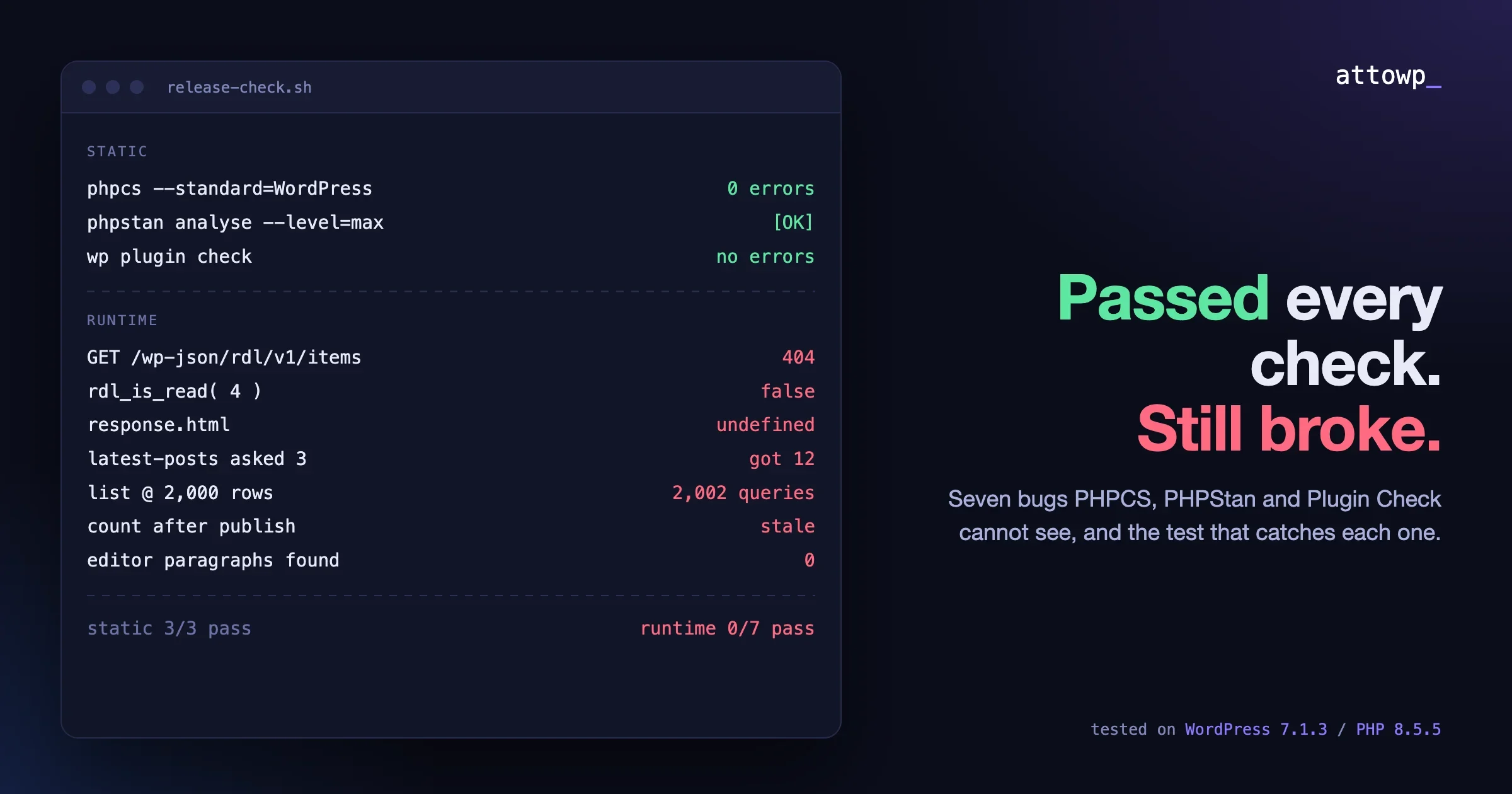
It is also a good argument for testing Gutenberg releases on a staging copy of a real site, not a fresh install. A fresh install from 6.4 onward has attachment pages off and few images, so the first regression would never show up there. We made a similar point about what static checks miss in it passed every check and still broke.
A checklist for this month
- List the sites you manage that run the Gutenberg plugin, and their versions.
- On each, check
wp_attachment_pages_enabled. If it is 1 and Gutenberg is 24.0 to 24.2, add the filter above. - Check 404 logs and Search Console for attachment URLs that started failing after mid-September.
- If you build plugins that read attachment
post_parent, test against Gutenberg 24.x. - Tell editors on Safari or Firefox to upload large galleries in batches for now.
- When Gutenberg 24.3 ships, confirm the fix is in the release notes, then remove your filter if you only added it as a stopgap.
- Keep an eye on the WordPress 7.2 cycle; our WordPress 7.2 notes for plugin authors cover the schedule and other changes to test.
Questions
Does this affect sites that do not use the Gutenberg plugin?
The auto-attach change shipped in the Gutenberg plugin from 24.0, and the issue reports it in the WordPress 7.2 nightly. Sites on a stable WordPress release without the plugin were not running it as of 18 October 2026. The upload regression has been in WordPress itself since 6.7.
Will the fix change anything if I have attachment pages disabled?
No. With attachment pages disabled, auto-attach stays on, because those pages redirect to the file and there is no URL to break.
Can I keep auto-attach with attachment pages enabled?
Yes. The fix runs at priority 0, so your own block_editor_settings_all filter at a later priority can set autoAttachMediaEnabled back to true. Just understand that saved posts may move attachment URLs.
Is there a setting in the admin for attachment pages?
No. wp_attachment_pages_enabled is a database option with no screen. Change it with WP-CLI or a small snippet, and test on staging first, because turning attachment pages off redirects every attachment page to its file.
Is the upload problem a security issue?
No, it is a load problem. A logged-in editor uploading many large images at once can tie up the server’s PHP workers, which slows or blocks the site for everyone until the uploads finish.

No comments yet