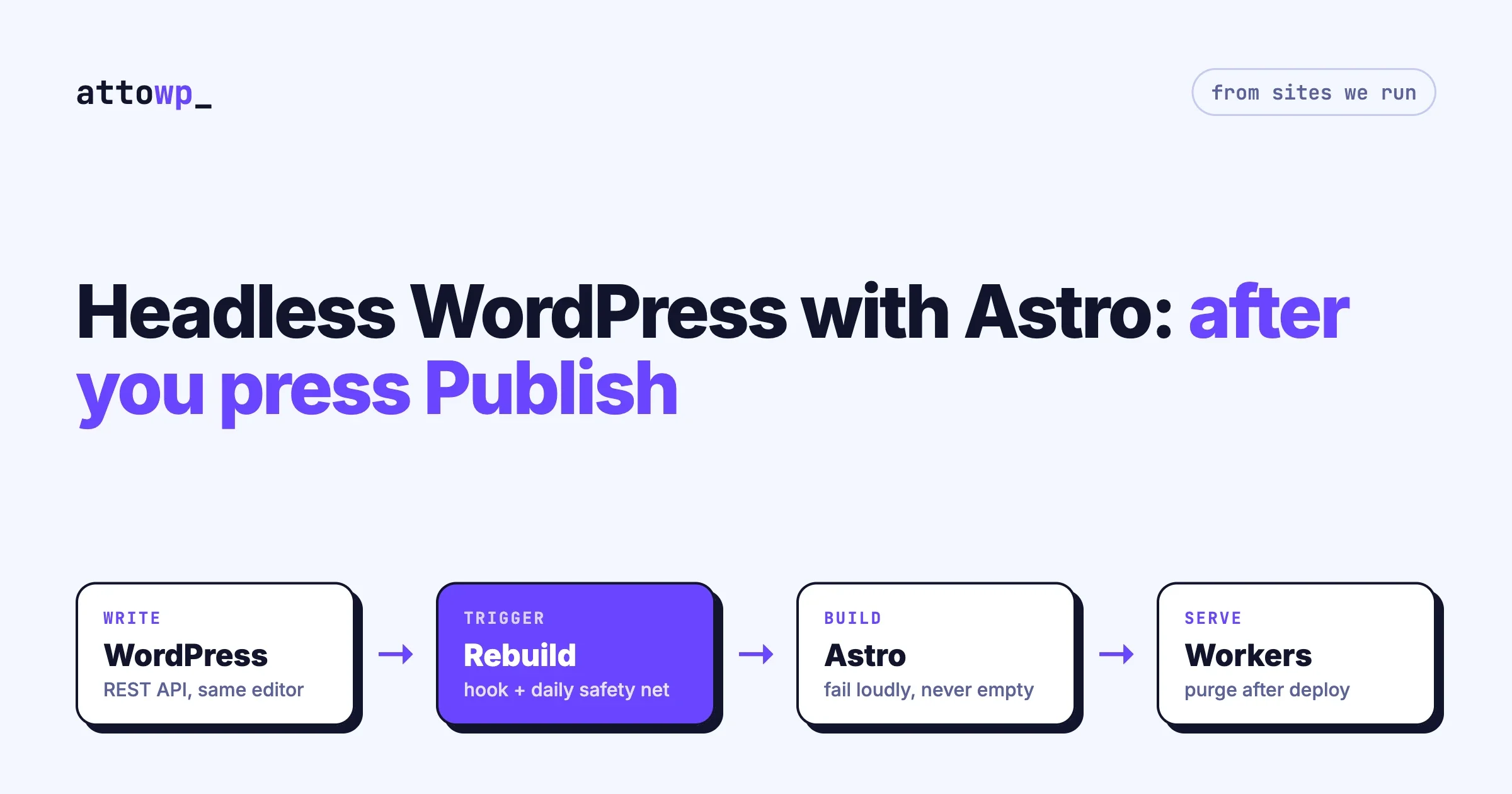
Headless WordPress with Astro means WordPress stays as the place where content is written, and a separate Astro site reads that content through the REST API and serves the pages visitors see. It suits content-led sites where page speed matters and editors want to keep WordPress. It is the wrong choice when the site depends on plugins that print things on the page, such as forms, memberships or a store, because each of those has to be rebuilt on the front end. Building the pages is the easy part. The hard part is keeping the front end in step with WordPress after someone presses Publish.
We run several sites this way on Astro 6 and Cloudflare Workers, and this guide is written from those. The code is simplified from what we run in production, and the problems described are ones we hit. Where we have not used something ourselves, such as WPGraphQL in production, we say so. We quote no benchmark figures, because the honest ones are your own, measured before and after.
In this guide
- Two ways to build it: full static rebuild, or render on request
- When it is worth it, and when it is not
- The WordPress side: what to expose and how the build signs in
- Fetching every post without ever deploying an empty blog
- Routes, permalinks and rendering WordPress HTML
- SEO: reuse what your SEO plugin already produces
- Publish in WordPress, appear on the site: the rebuild trigger and its safety net
- Three caches that will serve you old pages
- Deploying to Cloudflare Workers
- What you rebuild by hand
- A launch checklist and questions people ask
What are the two ways to build it?
Every decision later in this guide follows from one choice: when does the front end ask WordPress for content?
A. Full static rebuild | B. Render on request, with a cache | |
|---|---|---|
How it works | The build fetches every post and writes an HTML file for each one | A Worker fetches the post from WordPress when a page is first requested, renders it and caches the result |
A new post goes live | After the next build finishes | On the first request, with no build |
If WordPress is down | The site keeps serving. Only new builds fail. | Cached pages keep serving. Uncached ones fail. |
Build time | Grows with the number of posts | Stays short |
Main risk | A bad fetch at build time ships a broken or empty site | A cache holding an old or wrong answer |
Listing pages | Built with everything else | Need their own freshness plan |
Fits | Up to a few thousand posts, publishing a few times a day at most | Large archives, frequent publishing |
We run both. A personal site with several hundred posts uses pattern A, and each build takes a little under four minutes. A larger company blog uses pattern B. Neither is better in general. Pattern A is simpler to reason about, and it is where we would start.
One trap sits between them: mixing the two without noticing. On our pattern B site, individual posts render on request, and the blog index page is generated at build time. A new post was reachable at its own address within seconds and absent from the index until someone ran a deploy. If you mix patterns, write down which pages use which, because that list is your answer to “why is the new post not showing?”
When is headless WordPress with Astro worth it?
Your site | Verdict |
|---|---|
Blog, documentation or marketing site, mostly text and images | Good fit |
Editors know WordPress and you do not want to retrain them | Good fit. The editing screen does not change. |
Page speed is a business matter and the theme is the cause | Good fit, after you have confirmed the theme is the cause |
The site is slow because of large images and too many plugins | Fix those first. It is cheaper. |
Forms, comments, search, memberships or a store are central | Expect to rebuild or replace each one. Cost that before deciding. |
Editors need to see a change live within seconds, every time | Pattern B, or stay on WordPress |
Nobody on the team can look after a build pipeline | Do not go headless |
You are taking on two systems in place of one: WordPress, which still needs updates, backups and security, and a front end with its own hosting, build and caches. For the owner’s view of that trade, see Headless WordPress with Astro: What It Is, and When It Is Worth It. For the general choice between a headless setup and standard WordPress, our earlier post Headless CMS vs WordPress covers it.
What does the WordPress side need?
REST or WPGraphQL?
Both work with Astro. We use the REST API on every site, because it ships with WordPress, needs no plugin, and _embed returns the featured image and author in the same response as the post. WPGraphQL is a plugin that lets you ask for exactly the fields you want in one query, which helps when content has many custom fields and relationships. We have not run it in production, so we will not compare their performance.
If you use REST, two parameters do most of the work:
GET /wp-json/wp/v2/posts?per_page=100&page=1&orderby=date&order=desc&_embed=1per_page is capped at 100, so anything larger needs paging. _embed=1 inlines linked resources. Add _fields to trim the response once you know exactly which fields your templates read.
How does the build sign in?
Published posts are public, so a build can fetch them anonymously. We authenticate anyway, with a dedicated WordPress user and an Application Password stored as build secrets. That gives requests an identity you can allow through a firewall, and lets you fetch things the public cannot see.
Let the build through your firewall, and prove it
This one cost us an outage. A firewall in front of WordPress blocked the build’s requests because of the User-Agent string it sent. The fetch code treated the error as “no posts”. The build succeeded, and the blog index went live with no articles on it.
Check: run the same request your build makes, with the same headers, from outside your network.
curl -s -o /dev/null -w '%{http_code}\n' \
  -H 'User-Agent: your-site-build/1.0' \
  'https://cms.example.com/wp-json/wp/v2/posts?per_page=1'
Fix: give the build a distinctive User-Agent and add an explicit allow rule for it, combined with authentication. Prevent: the safeguard in the next section, so a blocked request fails the build.
How do you fetch every post without deploying an empty blog?
In pattern A, whatever the fetch returns is what gets deployed over your live site. The most important property of the fetch code is that it fails loudly. A transient error from WordPress must stop the build, so the previous good deploy stays live.
This is simplified from the function we run. It pages through the endpoint, retries each page, and then compares what it got with what WordPress says exists.
// src/lib/wp-rest.ts (simplified from production)
const WP = import.meta.env.WP_REST_BASE; // https://cms.example.com/wp-json/wp/v2
const sleep = (ms: number) => new Promise((r) => setTimeout(r, ms));

async function fetchPage<T>(url: string) {
  const r = await fetch(url, {
    headers: { 'User-Agent': 'your-site-build/1.0', Accept: 'application/json' },
  });
  const total = Number(r.headers.get('x-wp-total')) || null;
  // WordPress answers 400 for a page past the last one. That is the end, not an error.
  if (r.status === 400) return { items: null, total, end: true };
  if (!r.ok) throw new Error(`WP REST ${r.status} for ${url}`);
  const body = await r.json().catch(() => null);
  // A 200 that is not an array is an error page in disguise. Never treat it as "no posts".
  if (!Array.isArray(body)) throw new Error(`Non-array body from ${url}`);
  return { items: body as T[], total, end: false };
}

export async function fetchAllPosts<T>(perPage = 100): Promise<T[]> {
  const out: T[] = [];
  let expected: number | null = null;

  for (let page = 1; page <= 60; page++) {
    const url = `${WP}/posts?per_page=${perPage}&page=${page}&orderby=date&order=desc&_embed=1`;
    let res;
    for (let attempt = 1; attempt <= 4; attempt++) {
      try { res = await fetchPage<T>(url); break; }
      catch (e) { if (attempt === 4) throw e; await sleep(1500 * attempt); }
    }
    if (page === 1) expected = res!.total;
    if (res!.end || !res!.items?.length) break;
    out.push(...res!.items);
    if (res!.items.length < perPage) break;
  }

  // Safeguards: refuse to build from an empty or partial result.
  if (out.length === 0 && expected !== 0) {
    throw new Error('Fetched 0 posts. Aborting so the previous deploy stays live.');
  }
  if (expected && out.length < Math.floor(expected * 0.95)) {
    throw new Error(`Fetched ${out.length} of ${expected} posts. Aborting.`);
  }
  return out;
}
Three details in there came from real failures:
- A 200 response that is not an array. A caching layer or firewall can return an HTML page with status 200. Code that does
return (await r.json()) || []turns that into an empty blog. - The
X-WP-Totalheader. WordPress tells you how many posts exist. Comparing your count with it catches a fetch that stopped halfway. - The 400 at the end of paging. It is WordPress’s normal signal that you asked for a page beyond the last one. Treat it as the end, and every other error status as a failure.
A cap on the number of pages stops a paging bug from looping forever. Raise it if your archive is larger than it allows.
How do routes, permalinks and content rendering work?
Keep the addresses WordPress already gave you
Search engines and other sites link to your existing URLs. The front end must answer on the same paths. If WordPress uses /%postname%/, the Astro route is src/pages/[slug].astro:
---
// src/pages/[slug].astro
import Layout from '../layouts/Layout.astro';
import '../styles/post-content.css';   // global on purpose, see below
import { fetchAllPosts } from '../lib/wp-rest';

export async function getStaticPaths() {
  const posts = await fetchAllPosts();
  return posts.map((post) => ({ params: { slug: post.slug }, props: { post } }));
}

const { post } = Astro.props;
---
<Layout title={post.title.rendered}>
  <article>
    <h1 set:html={post.title.rendered} />
    <div class="post-content" set:html={post.content.rendered} />
  </article>
</Layout>
If your permalinks include the category or the date, mirror that structure in the route and build the same path WordPress would. Before launch, fetch your WordPress sitemap and request every URL on the new front end. Any that do not answer 200 need a route or a redirect.
Styling HTML you did not write
The post body arrives as a string of HTML and is inserted with set:html. Astro’s scoped styles do not reach it, because scoping works by adding an attribute to elements in the component’s own template, and the injected markup does not have it. So the styles for post content have to be global. Put them in one stylesheet under a wrapper class, and cover what the block editor produces: headings, lists, tables, images with captions, quotes, code blocks, embeds and buttons.
Titles and excerpts come with HTML entities already encoded. Use set:html for those as well, or decode them, or an apostrophe shows up as ’.
Images
WordPress has already made several sizes of each upload, and _embed returns their URLs and dimensions under media_details.sizes. The simplest correct approach is to use them: output an <img> with srcset, and always set width and height so the page does not shift as images load. Astro can also optimise remote images through its image component once you allow the remote host in its configuration. Check the current Astro documentation for the exact option names, since they have changed between major versions.
Decide early where images are served from. If image URLs point at the WordPress host, that host is still public and still carrying traffic.
How do you keep SEO intact?
On a normal WordPress site, the SEO plugin writes the title, description, canonical link, Open Graph tags and structured data into each page. A headless front end has to output all of that itself. The reliable approach is to reuse what the plugin already computed and avoid rebuilding its logic.
- Yoast SEO adds a
yoast_head_jsonfield to REST responses, with the title, description, canonical, Open Graph values and schema. - Rank Math provides a REST endpoint that returns the rendered head for a given URL. We call it once per post during the build, twelve requests at a time so the build does not overload WordPress.
Three checks before launch:
- Canonical URLs point at the front end, not at the WordPress host. View source on a built page and read the canonical link.
- The WordPress host is not indexable. Otherwise search engines find the same content at two addresses.
- The sitemap comes from the front end.
@astrojs/sitemapgenerates one from the built routes.
How does a published post reach the site?
In pattern A the answer is a rebuild, started by WordPress.
The trigger
A small must-use plugin listens for a post being published or updated and calls the build system. Ours calls GitHub’s workflow_dispatch API. A deploy hook on your host does the same job.
<?php
// wp-content/mu-plugins/headless-rebuild.php (simplified)
add_action( 'transition_post_status', function ( $new, $old, $post ) {
	if ( 'post' !== $post->post_type ) { return; }
	if ( 'publish' !== $new && 'publish' !== $old ) { return; }   // only changes that affect the live site
	if ( wp_is_post_revision( $post ) ) { return; }

	wp_remote_post(
		'https://api.github.com/repos/OWNER/REPO/actions/workflows/deploy.yml/dispatches',
		array(
			'timeout'  => 5,
			'blocking' => false,   // do not make the editor wait for GitHub
			'headers'  => array(
				'Authorization' => 'Bearer ' . HEADLESS_DEPLOY_TOKEN,   // defined in wp-config.php
				'Accept'        => 'application/vnd.github+json',
			),
			'body'     => wp_json_encode( array( 'ref' => 'main' ) ),
		)
	);
}, 10, 3 );
The failure you will not see
Look at 'blocking' => false. It keeps the editor fast, and it also means WordPress never reads the response. Our deploy token expired. Every publish after that sent a request that was refused, and nothing told anyone. Posts were published in WordPress and did not appear on the site.
Symptom: a new post returns 404 on the front end minutes after publishing. Check: look at your build system’s run list for a run started at the time of the publish. If there is none, the trigger did not arrive. Fix: renew the token and start a build by hand. Prevent: two things.
- A scheduled rebuild as a safety net. Ours runs once a day. If the trigger is broken, a post is at most a day late, not missing until someone notices.
- A reminder before the token expires, and a monthly test: publish a test post and confirm a build starts.
# .github/workflows/deploy.yml (the triggers)
on:
  push:
    branches: [main]
  schedule:
    - cron: '30 4 * * *'      # daily safety net
  workflow_dispatch:           # WordPress publish hook, and manual runs

concurrency:
  group: deploy-${{ github.ref }}
  cancel-in-progress: true     # three quick edits become one build
The concurrency block matters for editors who save several times in a row. Without it, builds queue up. With it, a newer run replaces the older one.
Tell editors what to expect
With a full rebuild, “Publish” means “live in a few minutes”. Say that in your handover. If you check a new URL before the build finishes you get a 404, which is expected, and the next section explains why checking too early can cause trouble in pattern B.
Which caches will serve old pages?
When a page shows old content after a successful build, one of three caches is responsible. Check them in this order.
1. The CDN’s copy of your HTML
Astro puts a content hash in the filenames of CSS and JavaScript, so those refresh by themselves. HTML files keep the same name on every build. The CDN can go on serving the previous index.html after a deploy.
Fix: purge the CDN as the last step of the deploy, and make that step fail the run if the purge fails. We use a separate API token for it, because the token that deploys a Worker does not have permission to purge, and there is no reason to give a deploy token more rights than it needs.
resp=$(curl -sS -X POST "https://api.cloudflare.com/client/v4/zones/${ZONE_ID}/purge_cache" \
  -H "Authorization: Bearer ${PURGE_TOKEN}" -H "Content-Type: application/json" \
  --data '{"purge_everything":true}')
echo "$resp" | grep -q '"success":true' || { echo "Cache purge failed"; exit 1; }
2. A cached copy of the REST response
If WordPress sits behind a CDN or a page cache, list endpoints such as /wp/v2/posts can be cached by URL. A build then fetches yesterday’s list and deploys a site without the newest post, even though the build ran after publishing. We met exactly this: several rebuilds in a row, and the new post still missing.
Check: request the list URL your build uses and look at the first item and at the response’s cache headers. Fix: add a parameter that changes on every build to list requests, such as a timestamp, so each build gets a fresh response. Or exclude /wp-json/ from caching on the WordPress host.
3. Your own cache, in pattern B
Rendering on request needs a cache in front of WordPress. We keep rendered lookups in a key-value store. Two behaviours caught us out:
- Remembering that something does not exist. To avoid asking WordPress repeatedly for a missing address, the renderer stores a “not found” marker. If anything requests a post’s URL before it is published, such as a link checker or a person testing, that marker is stored. The post is then published and keeps returning 404 until the marker expires or is deleted. Purging the CDN does not help, because the stale answer is in your store, not at the edge.
- Edits to an existing post. A cached post stays as it was until its entry expires, unless WordPress tells the front end to drop it.
Fix for both: have WordPress delete the specific cache keys when a post is published or updated, give “not found” markers a short lifetime, and do not request a new post’s public URL until it is published.
How do you deploy to Cloudflare Workers?
We deploy to Cloudflare Workers with static assets. The Astro build writes HTML and assets to dist/, and a Worker serves them. The Worker also gives you a place for the few things that need code: a contact form handler, redirects, or passing certain paths through to WordPress.
# wrangler.toml
name = "your-site"
main = "src/worker.ts"
compatibility_date = "2026-05-23"

[assets]
directory = "./dist"
binding = "ASSETS"
not_found_handling = "404-page"
run_worker_first = true

[[routes]]
pattern = "example.com/*"
zone_name = "example.com"
// src/worker.ts (the minimum)
export default {
async fetch(request: Request, env: { ASSETS: Fetcher }) {
// custom handling goes here: forms, redirects, proxied paths
return env.ASSETS.fetch(request);
},
};The deploy job is short: install, build with the WordPress credentials available as environment variables, deploy with Wrangler, purge.
    steps:
      - uses: actions/checkout@v4
      - uses: actions/setup-node@v4
        with: { node-version: '22', cache: 'npm' }
      - run: npm ci
      - run: npm run build
        env:
          WP_APP_USER: ${{ secrets.WP_APP_USER }}
          WP_APP_PASSWORD: ${{ secrets.WP_APP_PASSWORD }}
      - uses: cloudflare/wrangler-action@v3
        with:
          apiToken: ${{ secrets.CLOUDFLARE_API_TOKEN }}
          accountId: ${{ secrets.CLOUDFLARE_ACCOUNT_ID }}
          command: deploy
      # then the purge step shown earlier
If the build fails at npm run build, for example because the safeguard in the fetch code threw, nothing is deployed and the live site is untouched. That is the behaviour you want.
Where WordPress itself lives is a separate decision. It only needs to serve the API and the admin, so it can sit on modest hosting behind a firewall. Our guide to headless WordPress with Docker covers a containerised setup.
What do you have to rebuild by hand?
Everything a plugin used to print on the page. List these before you commit, and decide each one.
Feature | On a headless front end |
|---|---|
Contact and lead forms | A form that posts to a Worker or a form service. Add spam protection yourself. |
Comments | Fetch and post through the REST API, use a hosted comment service, or drop them |
Search | A static search index built at deploy time, or a search service. WordPress’s own search form is gone. |
Draft preview | A preview route that fetches a draft with authentication. Plan it early. Editors miss it first. |
Redirects set in a WordPress plugin | They stop applying. Export them and serve them from the front end. |
Shortcodes and blocks that load scripts | The HTML arrives. The script that makes it work may not. Test each one. |
Memberships, logins, gated content | A large piece of work. Often a reason not to go headless. |
Store, cart and checkout | Keep on WordPress, or treat as a separate project |
Analytics and consent banners | Add to the front end’s layout |
A common and sensible result is a hybrid: the blog and marketing pages on Astro, and the store or member area still served by WordPress on its own paths. The Worker routes each path to the right place.
A launch checklist
- Every URL in the WordPress sitemap answers 200 on the front end, or has a redirect.
- Canonical links, titles, descriptions and Open Graph tags match the WordPress originals on a sample of posts.
- The fetch code throws on a non-array body, an empty result and a partial result.
- The build’s User-Agent is allowed through any firewall, tested from outside.
- Publishing a test post starts a build, and the post appears.
- A scheduled rebuild exists as a safety net.
- The deploy purges the CDN and fails if the purge fails.
- List requests at build time cannot be served from a stale cache.
- In pattern B: publishing and editing clear the right cache keys, and “not found” markers expire quickly.
- Forms deliver, search returns results, and redirects from the old site work.
- The WordPress host is not indexable and its admin is protected.
- Editors know how long “Publish” takes to show, and who to call when it does not.
- You measured the old site’s speed before launch, so you can compare after.
Questions people ask
What is headless WordPress with Astro?
WordPress is used only for writing and managing content, and an Astro site fetches that content through the REST API or WPGraphQL and generates the pages visitors see. The two are deployed and hosted separately.
Do I need WPGraphQL to use Astro with WordPress?
No. The REST API is built into WordPress and is enough for posts, pages, categories, media and authors. WPGraphQL is useful when your content has many custom fields and relationships that you want in one query.
How does a new WordPress post appear on a static Astro site?
WordPress triggers a rebuild when a post is published or updated, and the post appears when the build finishes. Add a scheduled rebuild as well, so a failed trigger delays a post by hours and does not leave it missing.
Why does my new post return 404 on the Astro site?
Most often the build has not run or has not finished. Check for a build started at publish time. If you render on request, check whether your cache stored a “not found” answer for that address before the post was published.
Why does the site still show the old version after a deploy?
HTML files are not renamed between builds, so a CDN can keep serving the previous copy. Purge the CDN at the end of each deploy. If the content itself is old, check whether the build fetched a cached REST response.
Can I keep WooCommerce or a membership area with an Astro front end?
Yes, by leaving those parts on WordPress and routing their paths there, while Astro serves the content pages. Rebuilding cart, checkout or member logins on the front end is a much larger project.
Is Astro faster than a WordPress theme?
Pre-built HTML served from a CDN removes the work a WordPress server does on each request, so it is usually faster for content pages. How much depends on your current theme, plugins and hosting. Measure your own pages before and after.
For how Astro compares with other front ends for the same job, see Nuxt vs Svelte for Headless WordPress. For a step-by-step introduction to headless WordPress in general, see our Headless WordPress Guide. We also wrote up the rough edges of running sites on a newer Astro-based CMS in What EmDash Still Needs to Fix.
If you are planning a move to this setup and want the build, the rebuild trigger and the caches designed before launch, get in touch through the contact page on attowp.com.

No comments yet