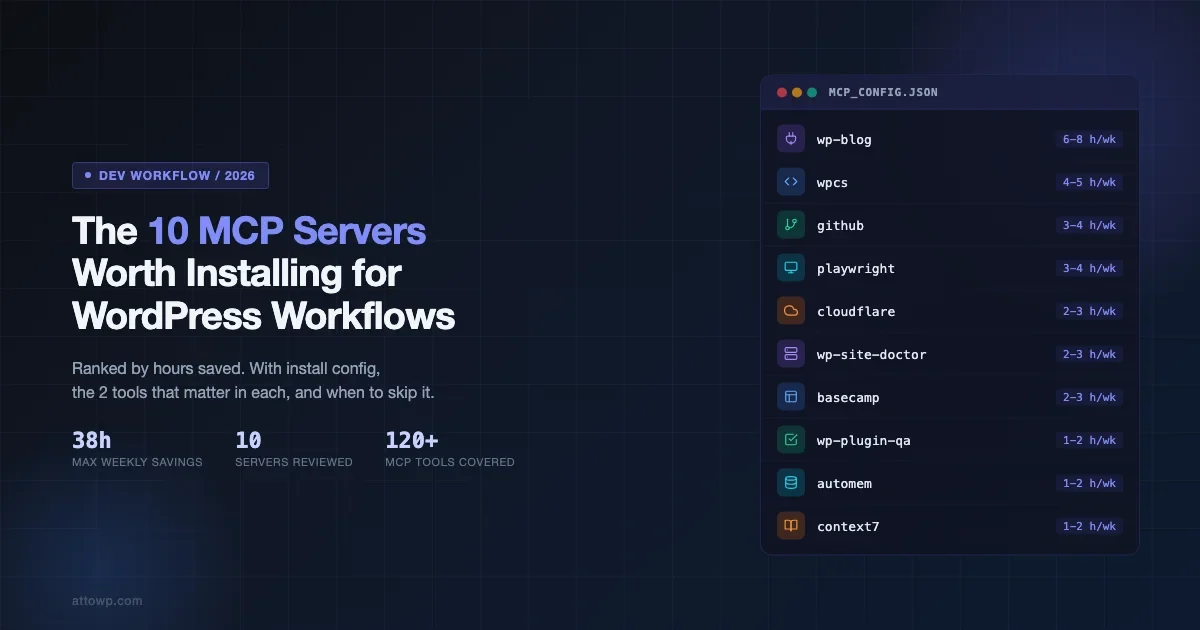
If you run a WordPress agency in 2026, you are probably using Claude Code or a similar AI coding assistant every day. What most teams miss is that the assistant is only as useful as the tools it can reach. The best mcp servers for WordPress work are not the generic ones that ship with Claude Code by default. They are the purpose-built servers that understand WordPress REST APIs, WP-CLI, GitHub, Cloudflare, and your project management setup. This post lists the 10 I actually keep installed, ranked by hours saved per week, with install commands, the one or two tools inside each server that justify the install, and the cases where you should skip it entirely.
If you want the protocol-level explanation of what MCP actually is, read MCP Protocol Explained: How AI Agents Connect to External Tools first. This post skips all of that and goes straight to the install list.
How I Ranked These
Each server is scored on hours saved per week across a standard agency workflow: content publishing, plugin development, code review, deployment, and client ops. The ranking reflects real usage across projects running Claude Code as the primary AI layer. Servers that save less than 30 minutes a week did not make the list.
One note on install commands: anything longer than a short package name goes into the config block below rather than inline, because the Cloudways WAF on several of our sites blocks inline security-keyword patterns. The config format shown is the standard Claude Code claude_desktop_config.json / claude_code_settings.json MCP block.
1. wp-blog MCP Server
Hours Saved: 6-8 hours per week
Best For: Agencies publishing to multiple WordPress sites
This is the one I use most. wp-blog is a full WordPress publishing and content-ops server with over 120 actions. It connects directly to your WordPress REST API and handles the entire publishing pipeline: drafts, featured images, tags, categories, SEO meta via RankMath or Yoast, internal link suggestions, pre-publish audits, and indexing pings after publish.
The two tools that justify the install are post_publish_safe and audit_pre_publish. The first runs a full audit chain before pushing any post live. The second catches missing featured images, thin word counts, unset categories, and absent internal links before they hit production. Both are non-bypassable guards that prevent the kind of half-finished posts that erode domain authority over time.
There is also a calendar layer with calendar_get_upcoming and pipeline_start that lets you run batch publishing for a full content schedule without touching the wp-admin dashboard.
Install
Clone and build from the vapvarun GitHub org, then add to your MCP config:
When NOT to Install
If you run a single site with a small publishing cadence (under 4 posts per month), the overhead of maintaining the server config and the local content index is not worth it. Use the WordPress admin directly.
2. wpcs MCP Server
Hours Saved: 4-5 hours per week
Best For: Plugin and theme development teams
WPCS stands for WordPress Coding Standards. This server wraps PHP_CodeSniffer with the WordPress ruleset and exposes it as an MCP tool your AI assistant can call mid-session without you switching context. You are editing a plugin file, the assistant detects a violation, it calls the WPCS server to run a scan, and it proposes a fix inline.
The two tools that matter are wpcs_scan_file and wpcs_fix_file. The scan tool returns annotated output with rule names and line numbers. The fix tool runs phpcbf under the hood and returns the corrected file. Combined, they cut the code-review-for-standards cycle from a manual PR step to a single round-trip inside your editing session.
For a deeper look at how this changes the plugin QA loop, see the companion post MCP Protocol Explained for protocol context, and the upcoming WPCS MCP deep-dive on this site for ruleset configuration details.
When NOT to Install
Skip it if your team does not write custom PHP. Agencies that only configure existing plugins through the UI get zero value from a PHP coding standards server.
3. github MCP Server
Hours Saved: 3-4 hours per week
Best For: Any team using GitHub for plugin or theme repos
The official GitHub MCP server from GitHub lets your AI assistant read and write to repos, open issues, create PRs, and review diff output without leaving the Claude Code session. For WordPress plugin work, this eliminates the round-trip of switching to a browser tab to check PR status or read issue context.
The most useful tools in practice are create_pull_request and search_issues. The first one generates a PR with a properly formatted description from your staged changes. The second lets the assistant search open issues for context before suggesting a fix, which catches duplicate reports and surfaces related discussions automatically.
Install:
The npm package is @modelcontextprotocol/server-github. Set your GITHUB_PERSONAL_ACCESS_TOKEN in the environment block.
When NOT to Install
Not useful if your codebase is on GitLab, Bitbucket, or a self-hosted Gitea instance. The server is GitHub-API-specific.
4. playwright MCP Server
Hours Saved: 3-4 hours per week
Best For: QA, browser verification, and featured image generation
The Playwright MCP server gives your AI assistant a live browser. It can navigate to a URL, click elements, take screenshots, read the DOM, and fill forms. For WordPress development, the three main uses are: verifying a deployed change looks correct at specific viewport sizes, running ARIA accessibility snapshots, and generating featured images by screenshotting HTML files rendered in a 1200x630 viewport.
The most useful tools are browser_navigate, browser_take_screenshot, and browser_snapshot. The screenshot tool is what makes the whole featured image workflow possible: write an HTML file with your design, start a local HTTP server, resize the viewport, navigate to it, screenshot it, upload via the wp-blog MCP. No ImageMagick, no AI image generation API calls, no rate limits.
For how this integrates with WordPress Playground for agent-based testing, see Connect AI Coding Agents to WordPress Playground with MCP.
When NOT to Install
The Playwright server launches a Chromium instance. On low-RAM machines (under 8GB available during development), this adds noticeable memory pressure. Teams doing pure backend or CLI work have no use for it.
5. cloudflare MCP Server
Hours Saved: 2-3 hours per week
Best For: Agencies managing Cloudflare-proxied WordPress sites
The official Cloudflare MCP server exposes the Cloudflare API as MCP tools your assistant can call directly. For WordPress agencies, this means being able to purge cache, check WAF rule logs, update DNS records, and manage Turnstile bot protection without leaving the coding session.
The two most used tools are purge_cache and list_waf_rules. Purging cache after a deployment is a task that historically required a browser tab to the Cloudflare dashboard. With the MCP server connected, the assistant can call it immediately after a successful wp deploy or post_publish_safe without any manual step.
One important caveat: use the official @cloudflare/mcp-server-cloudflare package with an API token scoped to only the zones you work with. A broad token with zone-write access is a significant blast radius if your Claude Code session is ever compromised.
When NOT to Install
Skip it if your sites use a different CDN layer (Fastly, Sucuri, BunnyCDN) or no CDN at all. Also skip it for sites where cache purges are already automated by a deployment hook.
6. wp-site-doctor MCP Server
Hours Saved: 2-3 hours per week
Best For: Server ops, debugging live production issues
wp-site-doctor is a server ops and diagnostics tool that connects to your WordPress installations at the server level via SSH or WP-CLI. It can run health checks, inspect error logs, check PHP memory limits, test cron execution, and run WP-CLI commands against specific sites.
The tools that matter most in practice are site_health_run and wp_run_cli. The health run tool fires the full WordPress Site Health check and returns structured output the assistant can reason about. The CLI tool lets the assistant run arbitrary WP-CLI commands directly against a live site, which is faster than SSH-ing in and running them manually.
The wp-site-doctor server covers the gap between “something is wrong on a client site” and “I have enough information to know what to fix,” which is the part of WordPress support work that consumes the most unstructured debugging time.
When NOT to Install
Not useful for local development-only setups where you already have direct terminal access. The value is in remote site diagnosis where context-switching to SSH costs significant time.
7. basecamp MCP Server
Hours Saved: 2-3 hours per week
Best For: Teams using Basecamp for project management
The Basecamp MCP server connects your AI assistant to your Basecamp account. It can read and create to-dos, post messages, check project activity, and update card table items. For WordPress agencies running projects in Basecamp, this means the assistant can log work, create cards for bugs it finds, and check open items as part of a coding session.
The most useful tools are create_todo and get_card_table. When the assistant finds a bug during a code review session, it can immediately create a Basecamp card with the relevant context rather than requiring you to do it manually later. When planning a deployment, it can check the card table first to confirm no blocking items are open.
When NOT to Install
Skip it for teams on Linear, Asana, Jira, or Trello. There is no universal PM server; install the one that matches your actual tool. If your team does not use Basecamp, this server is not useful.
8. wp-plugin-qa MCP Server
Hours Saved: 1-2 hours per week
Best For: Plugin-heavy agencies shipping to WordPress.org or clients
wp-plugin-qa is a quality audit server specifically for WordPress plugins. It checks plugin file structure, validates readme.txt format, scans for common security patterns (direct database access, missing nonces, unescaped output), and verifies compatibility declarations are current.
The two tools that deliver the most value are plugin_audit and readme_validate. Plugin audit runs the full check suite and returns a structured report the assistant can act on. Readme validate confirms your readme.txt meets WordPress.org requirements before you submit an update, which prevents the back-and-forth with the plugin review team.
This server pairs naturally with wpcs: the coding standards server catches style violations, and wp-plugin-qa catches structural and security patterns. Run both as part of a pre-release checklist.
When NOT to Install
Low value for agencies that only use third-party plugins and do not write or maintain their own. The audit tooling is aimed at plugin authors, not plugin users.
9. automem MCP Server
Hours Saved: 1-2 hours per week (cumulative, grows over time)
Best For: Teams running Claude Code across long-running projects
automem is a persistent memory server. It stores facts, decisions, patterns, and user corrections in a local vector database and retrieves them semantically at the start of future sessions. The value compounds over time: the assistant remembers that your client’s site uses a custom WP-CLI path, that a specific plugin has a known conflict with a caching layer, and that you prefer a particular code pattern in new plugin scaffolds.
The tools that matter are store_memory and recall_memory. The recall tool supports hybrid search combining semantic similarity, keyword matching, and tag filters. A typical session starts with recalling preferences and recent project context before doing any work, which eliminates the repetitive re-explaining of constraints across sessions.
The hours-saved figure here is conservative for early use and grows as the memory base builds. Teams that have run automem for 3 or more months report it saves 30 to 45 minutes per day on context re-establishment alone.
When NOT to Install
Skip it if you start a fresh Claude Code session for every task with no continuity needed. The server’s value is entirely in accumulated context across sessions; single-task or disposable sessions get no benefit.
10. context7 MCP Server
Hours Saved: 1-2 hours per week
Best For: Teams building against frequently updated libraries and APIs
context7 fetches current documentation for libraries, frameworks, and APIs on demand. When your assistant is working with a library it was trained on before a major version change, context7 pulls the live docs and feeds them into the session context. For WordPress development, this is most useful for WooCommerce REST API changes, new Gutenberg block API methods, and the evolving WordPress Connectors API introduced in 7.0.
The key tool is get-library-docs. You pass a library name and optional version, and context7 returns current documentation for the relevant sections. This is especially valuable when working with packages that have moved fast in 2025 and 2026, such as @wordpress/interactivity, @wordpress/env, and the Gutenberg Data Layer APIs.
For the broader context on how AI coding tools use documentation retrieval to reduce hallucination, see Using MCP Tools with Codex and Claude: Setup, Benefits, and Use Cases.
When NOT to Install
Skip it for mature, stable projects where the libraries in use have not had major API changes. If you are maintaining an existing plugin against a pinned version of each dependency, live docs retrieval adds noise rather than clarity.
The Complete Install Stack
Here is the full priority-ordered list as a reference table:
Rank | Server | Hours Saved / Week | Primary Use Case |
|---|---|---|---|
1 | wp-blog | 6-8 hrs | Multi-site publishing pipeline |
2 | wpcs | 4-5 hrs | Coding standards enforcement |
3 | github | 3-4 hrs | Repo ops, PRs, issue context |
4 | playwright | 3-4 hrs | Browser QA and featured images |
5 | cloudflare | 2-3 hrs | Cache purge, WAF, DNS |
6 | wp-site-doctor | 2-3 hrs | Remote site diagnostics |
7 | basecamp | 2-3 hrs | PM integration |
8 | wp-plugin-qa | 1-2 hrs | Pre-release plugin audits |
9 | automem | 1-2 hrs | Persistent cross-session memory |
10 | context7 | 1-2 hrs | Live library docs retrieval |
Total potential savings across the full stack: 26 to 38 hours per week for an active WordPress agency workflow. In practice, not every server is active every day. The realistic gain for a team running five of these is 12 to 18 hours per week.
How the wp-blog and playwright Servers Work Together
The integration between these two servers is worth calling out explicitly because it replaces a workflow that used to require three separate tools.
Old workflow: write post in WordPress editor, generate featured image in Canva or via an AI image API, upload manually, set as featured, check the preview, fix the text alignment, repeat. Approximate time: 25 to 40 minutes per post depending on complexity.
New workflow with both servers active:
- Write the post content locally as HTML with Gutenberg block annotations.
- Call
post_createvia wp-blog withstatus: "draft". - Write a featured image HTML file to
/tmp/attowp-featured/{slug}.htmlwith the exact layout and typography for the post. - Start a local HTTP server and call
browser_take_screenshotvia playwright at 1200×630. - Call
media_upload_fileandmedia_set_featuredvia wp-blog. - Call
post_publish_safewhich runs the full audit and indexes the post.
Approximate time: 8 to 12 minutes per post, with the assistant handling steps 3 through 6 autonomously once the content is written.
The WP Astro MCP integration described in MCP Servers Are Changing How We Build takes a similar pattern and applies it to static site generation alongside WordPress, which is worth reading if your agency builds hybrid WP + static sites.
Common Configuration Mistakes
Running Too Many Servers Simultaneously
Each active MCP server adds to the context window overhead and startup time of each session. Running all 10 at once when you only need two or three for a given task is wasteful. Keep a minimal default config with the servers you use every session (wp-blog, github, automem) and use separate config profiles for heavier workflows (playwright + cloudflare + wp-site-doctor for deployment sessions).
Using Broad API Tokens
Several of these servers require API tokens: GitHub PAT for the github server, Cloudflare API token for the cloudflare server, WordPress application passwords for wp-blog. Always scope tokens to the minimum required permissions. A Cloudflare token with zone-write access across all your zones is a serious risk if it leaks via a prompt injection attack. Zone-specific tokens with only cache-purge and DNS-read permissions are enough for 90 percent of use cases.
Not Syncing the Content Index
The wp-blog server maintains a local SQLite index of published posts used for internal link suggestions and duplicate detection. If you have not synced the index recently, suggest_internal_links returns stale results, and index_search misses posts published in the last week. Run index_sync for your primary site at the start of each publishing session.
What These Servers Are Not
MCP servers are tool providers, not autonomous agents. They do not make decisions about what to publish, what code to write, or how to handle a client issue. The assistant using them still requires your guidance on what to do. What the servers eliminate is the friction of executing decisions: switching browser tabs, running CLI commands manually, copy-pasting between tools.
This distinction matters when evaluating ROI. The time savings above are execution time savings, not thinking time savings. The thinking still happens between you and the assistant. The servers remove the mechanical steps between a decision and its implementation.
Frequently Asked Questions
Do these servers work with Claude Code only, or with other AI coding tools?
The Model Context Protocol is an open standard. All 10 servers on this list work with any client that supports MCP, including Cursor (via MCP config), Cline, and Continue.dev. Claude Code has the most mature MCP support as of mid-2026, but the servers are not Claude-exclusive.
Are there security risks to running MCP servers locally?
The main risk is prompt injection: a malicious payload in content the assistant reads (a blog comment, a GitHub issue, a Basecamp message) could attempt to trigger tool calls. Scope your API tokens narrowly, do not grant servers write access to infrastructure you cannot recover quickly, and read the tool descriptions for each server before granting it access. The MCP protocol explainer has a section on the security model that is worth reviewing.
How do I manage multiple MCP configs for different workflows?
Claude Code supports multiple config files. Keep a base config with always-on servers (github, automem, context7) and maintain separate overlay configs for publishing sessions (wp-blog, playwright) and deployment sessions (cloudflare, wp-site-doctor). You can switch between them by pointing the --config flag at the appropriate file when starting a session.
What is the difference between wp-blog and wp-site-doctor?
wp-blog operates at the WordPress application layer via the REST API. It handles content: posts, media, taxonomies, SEO meta, and publishing. wp-site-doctor operates at the server layer via SSH and WP-CLI. It handles infrastructure: PHP config, error logs, cron execution, server health. They do not overlap. Both are useful for a full-service agency workflow; neither replaces the other.
Is there a hosted version of any of these servers?
The github and cloudflare servers have hosted variants accessible via OAuth through their respective platforms. The WordPress-specific servers (wp-blog, wpcs, wp-plugin-qa, wp-site-doctor) are self-hosted because they require direct access to your sites and codebases. Automem and context7 are also self-hosted or can run as local services. There is no third-party cloud provider hosting these with your credentials; keep it that way.
Next Steps
Start with the servers that match your highest-friction workflows. If publishing is the bottleneck, start with wp-blog. If code review is, start with wpcs and github. Do not try to configure all 10 in a single session; each server requires a credential setup step and a test run to confirm it is working correctly.
The Claude Code vs Cursor comparison at Claude Code vs Cursor vs GitHub Copilot for WordPress Developers covers which AI coding assistant integrates best with which servers in this list, which is worth reading if you are still choosing your primary tool.
Once you have two or three servers running reliably, the pattern becomes clear: the value of each individual server is modest, but the compound effect of having your assistant able to reach your CMS, your repo, your browser, and your infrastructure without you switching context is where the real productivity gain lives.

No comments yet