
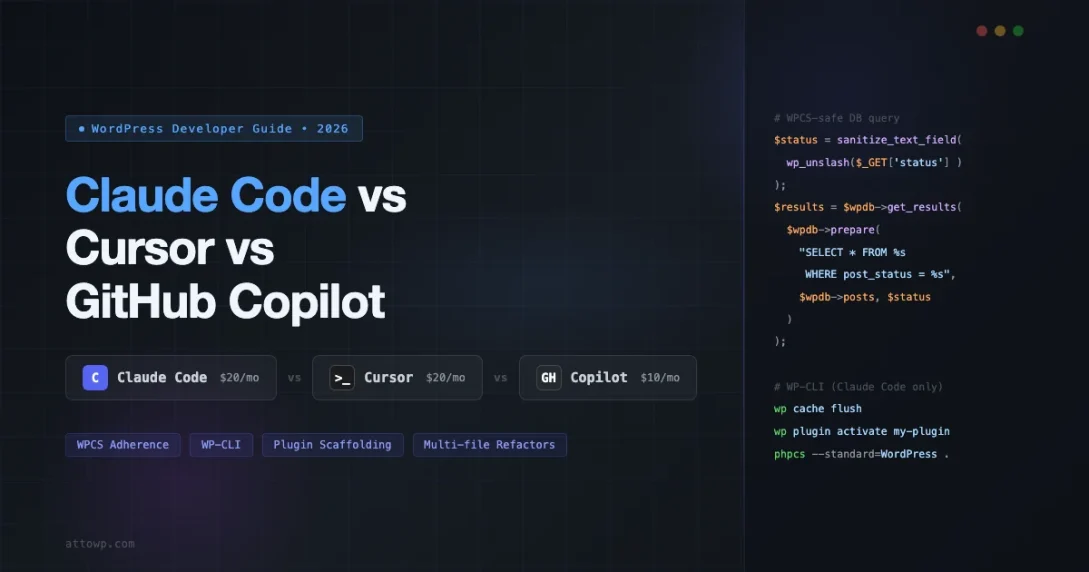
Three AI coding tools have pulled ahead of the pack in 2026: Claude Code, Cursor, and GitHub Copilot. Each one takes a different approach to AI-assisted development, and each has a different value proposition for WordPress developers. This post breaks down where each tool shines, where it falls short, and which one fits different WordPress workflows best.
This is not a general-purpose comparison. The goal here is WordPress-specific: how does each tool handle functions.php refactors, WPCS compliance, WP-CLI usage, plugin architecture, and the debugging loops that define day-to-day WordPress development?
The Three Tools at a Glance
Before going deep on WordPress specifics, here is a quick orientation on what each tool actually is and how it works.
Claude Code
Claude Code is Anthropic’s terminal-based agentic coding tool. It runs in your shell, reads your file system, executes commands, and loops through tasks autonomously. You give it a goal, and it figures out how to get there: reading files, making edits across multiple files, running tests, and fixing what it broke.
Pricing: included in the Claude Pro plan at $20/month. It runs on the Claude Sonnet and Claude Opus models depending on task complexity.
The core mechanic is agentic: Claude Code is not just completing your next line of code, it is reasoning about your codebase as a whole and executing multi-step tasks. That is a fundamentally different interaction model from the other two tools in this comparison.
Cursor
Cursor is an AI-native IDE built as a fork of VS Code. You get the full VS Code experience plus AI features layered in: inline completions, a chat panel, and Composer mode for multi-file edits. Cursor works with multiple AI models including GPT-4o, Claude, and Gemini.
Pricing: $20/month for the Pro tier, which unlocks unlimited fast completions and access to premium models.
The strength here is the in-editor flow. If you spend most of your day inside an IDE and want AI assistance that feels native to that environment, Cursor delivers that. Composer mode lets you describe a change and have it applied across multiple files, which is useful for refactors but works differently from Claude Code’s autonomous loop.
GitHub Copilot
GitHub Copilot is the original AI coding assistant. It runs as a plugin inside VS Code, JetBrains IDEs, Neovim, and other editors. Its primary value is inline completion: as you type, Copilot suggests the next line or block of code. It also has a chat panel and, more recently, multi-file editing features via Copilot Workspace.
Pricing: $10/month for individual developers. GitHub offers a free tier with limits for individual accounts.
Copilot’s biggest advantage is ubiquity. It works inside whatever IDE you already use, and it has trained on more public code than either competitor, which makes its completions feel natural for common patterns.
Comparison Table
| Feature | Claude Code | Cursor | GitHub Copilot |
|---|---|---|---|
| Price | $20/mo (Pro) | $20/mo (Pro) | $10/mo (Individual) |
| Interface | Terminal / CLI | IDE (VS Code fork) | IDE plugin |
| Agentic mode | Yes (core feature) | Yes (Composer) | Limited (Workspace) |
| Multi-file edits | Yes | Yes | Partial |
| Runs shell commands | Yes | No | No |
| WP-CLI integration | Direct | Manual only | Manual only |
| WPCS awareness | Good (with context) | Good (with linter) | Moderate |
| Model flexibility | Claude only | Multiple models | GitHub models |
| Free tier | No | No | Yes (limited) |
WordPress-Specific Evaluation
WPCS and Security Standards Adherence
WordPress Coding Standards (WPCS) exist for a reason: they catch real security problems before they ship. Missing nonce checks, direct database queries without $wpdb prepared statements, unescaped output, improper capability checks. These are the issues that create vulnerabilities in plugins. For a deeper look at how AI tools handle full plugin audits, see AI code review for WordPress plugins using Claude and Copilot.
Here is how each tool handles WPCS in practice.
Claude Code has shown strong WPCS awareness in practice, particularly when you include a brief in your first prompt about the standards you expect. It will flag things like missing sanitize_text_field() calls and direct SQL queries. Because it can read your entire codebase before writing a line, it picks up patterns from your existing code and applies them consistently. That said, it is not running PHPCS against its own output by default. You need to either ask it to run phpcs on its changes or set that up in your workflow.
# Ask Claude Code to run PHPCS on its own changes
phpcs --standard=WordPress --extensions=php /path/to/plugin
Cursor benefits from having PHPCS running in the terminal panel alongside the editor. If you have a .phpcs.xml config in your repo, the linter output shows up in the problems tab, and you can ask Cursor’s AI to fix the flagged issues. The inline AI does not automatically apply WPCS rules, but it responds well when given the linter feedback directly in the chat context.
GitHub Copilot is the weakest here. It generates code that looks right but often skips security-specific WordPress patterns. In practice, it will write a direct $wpdb->query() call when it should use a prepared statement, or output user input without escaping. You need an active PHPCS linter in your IDE workflow to catch these issues; Copilot will not surface them on its own.
Here is a typical example of the kind of code that WPCS would flag:
// Problematic: Direct query without preparation
$results = $wpdb->query( "SELECT * FROM {$wpdb->posts} WHERE post_status = '" . $_GET['status'] . "'" );

// Correct WPCS approach
$status = sanitize_text_field( wp_unslash( $_GET['status'] ) );
$results = $wpdb->get_results(
    $wpdb->prepare(
        "SELECT * FROM {$wpdb->posts} WHERE post_status = %s",
        $status
    )
);
Claude Code is most likely to write the correct version first. Cursor with linting feedback gets there faster than Copilot. Copilot gets there if you flag the issue explicitly.
Plugin Scaffold Quality
When starting a new plugin, you want a scaffold that follows the right structure: a main plugin file with a proper plugin header, a class-based architecture with autoloading, separate directories for admin, public, and includes, and proper hooks registration via init and activation/deactivation hooks.
/**
 * Plugin Name: My Plugin
 * Plugin URI:  https://example.com/my-plugin
 * Description: A brief description of the plugin.
 * Version:     1.0.0
 * Author:      Your Name
 * License:     GPL-2.0-or-later
 * Text Domain: my-plugin
 */

if ( ! defined( 'ABSPATH' ) ) {
    exit;
}

define( 'MY_PLUGIN_VERSION', '1.0.0' );
define( 'MY_PLUGIN_PATH', plugin_dir_path( __FILE__ ) );
define( 'MY_PLUGIN_URL', plugin_dir_url( __FILE__ ) );

function my_plugin_init() {
    require_once MY_PLUGIN_PATH . 'includes/class-my-plugin.php';
    My_Plugin::get_instance()->init();
}
add_action( 'plugins_loaded', 'my_plugin_init' );
Claude Code produces complete scaffolds consistently when asked. It will generate the full directory structure, write the main plugin file, set up the class architecture, and wire up hooks. If you ask it to follow WordPress Plugin Boilerplate conventions, it does so accurately. Where it shines is that it can also explain what it created and why, making it easier to onboard to a new structure.
Cursor is good at scaffold generation when you use Composer mode. Give it a clear prompt about what you need and it will create multiple files. The advantage of Cursor here is that you see the files appear in your project tree in real time and can intervene if something looks wrong before the full scaffold is committed.
GitHub Copilot does not excel at full-project scaffolding. It is better suited for filling in individual files once the structure exists. If you use WP-CLI’s scaffold command to generate the boilerplate and then open the files in your editor, Copilot works well for completing the implementation logic.
WP-CLI Usage
WP-CLI is a core part of professional WordPress development. Database migrations, user management, cache flushing, running custom commands from plugins, running PHPUnit tests via WP-CLI test runner. If your AI tool can use WP-CLI directly, it unlocks a lot.
Claude Code is the only tool in this comparison that can actually run WP-CLI commands during a task. Since it has shell access, you can ask it to run a database migration, flush caches after a code change, or run tests before finishing a refactor. In practice this works well:
# Claude Code can execute these autonomously during a task
wp cache flush
wp cron event run --due-now
wp plugin activate my-plugin
wp eval 'echo get_option( "my_plugin_version" );'
This is genuinely useful for tasks like “migrate this custom table schema and update all existing records to the new format” where the code change and the data migration are part of the same task.
Cursor and GitHub Copilot both require you to manually run WP-CLI commands in your terminal. They can suggest the right command to run, but they cannot execute it. That adds friction to workflows where the AI and the WP-CLI output need to be connected. If you are running a full deployment pipeline, pairing any of these tools with a solid WordPress CI/CD setup with GitHub Actions can compensate for the manual gap.
Debugging WordPress Errors
Debugging in WordPress means different things in different contexts: PHP fatal errors, unexpected hook behavior, AJAX returning 0, REST API endpoints returning 403, transient cache serving stale data. Each scenario requires different debugging approaches.
Claude Code is particularly useful for debugging multi-file issues. You can paste a debug.log error, describe what behavior you expected versus what happened, and Claude Code will search through the relevant files, trace the hook chain, and identify where the problem is. Because it has context of the full codebase, it is less likely to suggest fixes that break something else.
A typical debugging prompt that works well with Claude Code:
# Effective Claude Code debugging prompt
"The AJAX handler for my_plugin_save_settings is returning 0.
Check the nonce verification, the action name in the JS,
and whether the function is hooked correctly. The JS file
is at assets/js/admin.js and the PHP handler is in
includes/class-admin.php."
Cursor handles debugging well through its chat interface. You can paste an error, ask about it, and get a detailed explanation with fixes. The multi-file context window in Cursor Pro means it can look at multiple files in one pass. Anecdotally, Cursor’s inline chat is faster to reach for when you are already in the editor staring at the code that broke.
GitHub Copilot chat is reasonable for individual-file debugging but weaker on cross-file issues. If the bug involves a hook registered in one file affecting behavior in another, Copilot often needs you to manually provide both files as context. It is improving with Copilot Workspace, but it is not at the level of the other two for complex WordPress debugging.
Multi-File Refactors
Refactoring a WordPress plugin across multiple files is where the differences between these tools become most visible. Common examples: renaming a hook prefix across the whole plugin, extracting a utility class from a monolithic file, converting procedural functions to a class-based structure, adding a new settings panel that touches admin menus, option registrations, settings rendering, and sanitization.
Claude Code handles this best. You describe the refactor goal, it reads the relevant files, plans the changes, and applies them. It can do a rename across 15 files in one pass and still maintain consistency because it is reasoning about the whole change, not just individual snippets. The tradeoff is that you are trusting the agent to make a lot of changes autonomously, which requires review before committing.
Cursor’s Composer is strong here too. You can describe a multi-file change and Composer will show you diffs for each file before applying. The human-in-the-loop at each diff is slower than Claude Code’s autonomous approach but gives more confidence on changes that are hard to reverse.
GitHub Copilot with Workspace is attempting to solve this problem, but anecdotally it is less reliable on complex WordPress refactors. It tends to miss edge cases in hook registrations and does not always maintain naming consistency across files.
Speed on Typical WordPress Tasks
To give you a grounded sense of where each tool is fastest, here is how they compare on tasks a WordPress developer runs into every week.
Writing a REST API Endpoint
All three tools are competent here. Claude Code and Cursor both generate well-structured endpoints with proper permission callbacks, sanitization, and REST response formatting. Copilot is fast for basic endpoints but tends to skip permission_callback or use '__return_true' without prompting, which is a security concern.
register_rest_route(
    'my-plugin/v1',
    '/settings',
    array(
        'methods'             => WP_REST_Server::READABLE,
        'callback'            => array( $this, 'get_settings' ),
        'permission_callback' => function() {
            return current_user_can( 'manage_options' );
        },
        'schema'              => array( $this, 'get_settings_schema' ),
    )
);
Adding an Admin Settings Page
Claude Code and Cursor both produce complete settings pages with proper nonce verification, settings_fields(), do_settings_sections(), and sanitize callbacks. Copilot is solid on the HTML structure but sometimes skips the sanitize callback or uses outdated patterns like direct $_POST access without wp_unslash().
Writing a Block with block.json
Cursor is fastest here because it can see your existing blocks and match patterns. Copilot has been trained on a lot of Gutenberg block code and produces reasonable completions inline. Claude Code is competent but takes longer since it needs to read the project structure before writing and operates outside the editor environment where your block build tooling runs.
Debugging a Hook That Fires Too Early
Claude Code wins here because it can trace through the hook chain across multiple files. Cursor with chat is a close second if you give it context. Copilot without extra context tends to give generic hook-timing advice that may not match your specific setup.
Real Tradeoffs to Consider
The Trust Problem with Agentic Tools
Claude Code’s autonomy is a double-edged capability. It can complete a complex refactor faster than any other tool in this list. It can also make changes that look correct but introduce subtle bugs. The right workflow with Claude Code is to treat it like a junior developer: give it clear instructions, review the diff before committing, and run tests. If you give Claude Code free rein without review, you will eventually ship something you did not expect.
Cursor’s Composer and Copilot Workspace keep more human checkpoints in the loop. That is slower but the right call for production codebases where a bad merge costs hours.
Terminal vs IDE Workflow
Claude Code works in the terminal. If your workflow is heavy on IDE features like debugging with breakpoints, database GUIs, or custom extensions, Claude Code does not replace your IDE. It works alongside it. Some developers run Claude Code in one terminal window while working in their IDE in another, which is an effective setup but requires context switching.
Cursor and Copilot live inside your editor. If you prefer keeping your context in one place, they have a real ergonomic advantage over the terminal-based approach.
Model Lock-In
Claude Code is locked to Anthropic’s models. Cursor lets you switch between Claude, GPT-4o, Gemini, and others, which means you can choose the best model for each task or fall back when one model is having a rough patch. GitHub Copilot uses GitHub’s model selection which has expanded but is still less flexible than Cursor.
In practice, Claude’s models are strong enough that lock-in is not a blocker for most WordPress tasks. But if you are doing specialized tasks that benefit from different model behaviors, Cursor’s flexibility is genuinely useful.
Cost at Scale
At $10/month, GitHub Copilot is the clear price leader, especially for teams. Many WordPress agencies will have Copilot available through GitHub Team or GitHub Enterprise licensing, making it effectively zero marginal cost per developer. For freelancers evaluating where to spend $20, the choice between Claude Code and Cursor comes down to workflow: terminal-native agentic tasks versus IDE-integrated assistance.
Which Tool for Which WordPress Developer?
Use Claude Code If…
- You work on complex plugin architecture tasks that span many files
- You want to automate tasks that combine code changes with WP-CLI commands
- You are comfortable in the terminal and prefer giving high-level instructions
- You are doing a large refactor and want the AI to handle the mechanical parts while you review the output
- You build or maintain plugins with custom CLI tools or test suites that need to run as part of the task
Use Cursor If…
- You want AI-native features inside your editor without leaving VS Code’s ecosystem
- You prefer to review diffs file-by-file before applying changes
- You want the flexibility to switch models for different tasks
- You are working on Gutenberg blocks or React-heavy WordPress projects where inline completion is very useful
- You collaborate in an environment where sharing a workspace context makes sense
Use GitHub Copilot If…
- You want the lowest cost option with broad IDE support
- Your team already has GitHub Team or Enterprise and Copilot is included
- You primarily need fast inline completions rather than full-task autonomy
- You work in JetBrains IDEs like PHPStorm, which is popular with WordPress developers and has solid Copilot support
- You are working on smaller, well-defined tasks where the gap in security-pattern awareness is less relevant
Can You Use More Than One?
Yes, and many developers do. A common setup: Copilot running in PHPStorm for day-to-day completion, and Claude Code for larger tasks that benefit from agentic execution. Or Cursor as the primary editor with Claude Code invoked from the integrated terminal for big refactors.
The tools are not mutually exclusive. You pay for what you use and the workflows complement each other. The risk is context fragmentation: if you are switching between three AI tools, you lose the accumulated context each one builds up during a session. Pick a primary tool and use the others as supplements.
The Honest Bottom Line
If you are a WordPress developer who works on complex plugins and wants an AI tool that can take on full tasks autonomously, Claude Code is the strongest option in 2026. It understands codebase context, can run the commands your workflow requires, and handles multi-file changes well. The terminal-only interface is a real limitation for developers who rely on IDE features.
Cursor is the best option if you want a complete AI-powered IDE experience without giving up VS Code’s ecosystem. Its model flexibility and in-editor flow make it a practical daily driver for most WordPress tasks. It does not match Claude Code on autonomous task execution, but for developers who want to stay in control of each change, that is a feature, not a bug.
GitHub Copilot is the practical choice for price-sensitive teams or for developers who primarily need fast inline completions. It is weaker on WPCS enforcement and multi-file tasks, but it is improving and the $10/month price is hard to argue with when you already live in your IDE.
None of these tools is a replacement for knowing WordPress well. They all make mistakes, miss edge cases in WordPress’s hook system, and produce code that needs review. The developers getting the most value from these tools are the ones who use them to handle the mechanical parts of development while staying responsible for the architecture and security decisions.
AI Coding Tools AI in WordPress Claude Code Cursor IDE GitHub Copilot WP-CLI
Last modified: April 30, 2026