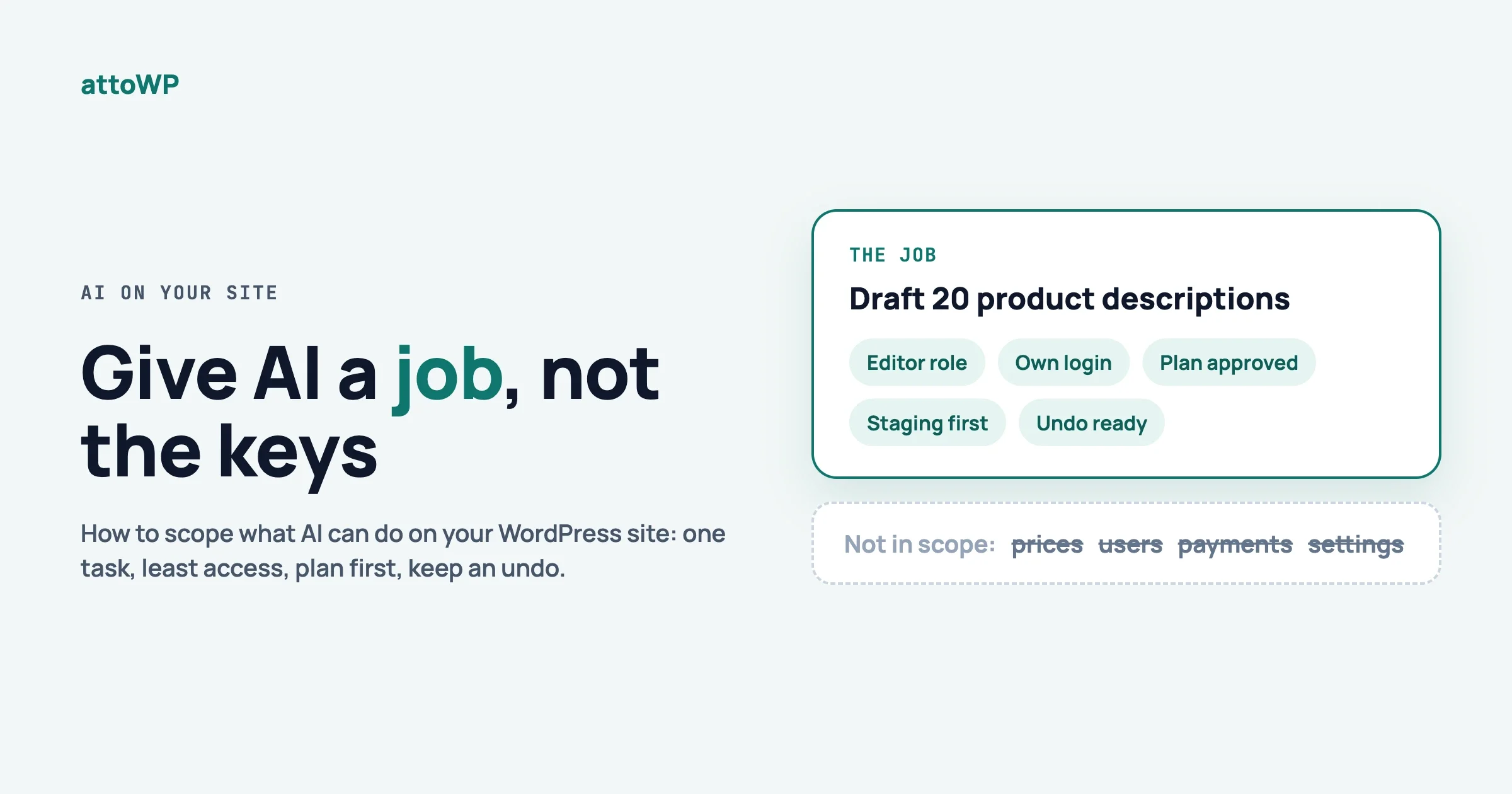
To scope AI on a WordPress site, give it one written job, a separate login with the lowest role that can do that job, only the tools that job needs, and a rule that it proposes before it changes anything. Then try it on a staging copy, and keep a way to undo the result.
That is the short answer to how you scope AI on WordPress. The reason is simple. An AI that can do a lot will choose its own plan, and its plan may not be yours. It can do more than you asked, change the wrong thing, or fix a problem you did not have. This guide shows five steps to prevent that, a table of how much freedom each kind of task deserves, and what the plugins you already use actually allow today.
In this guide
- Why full power goes wrong
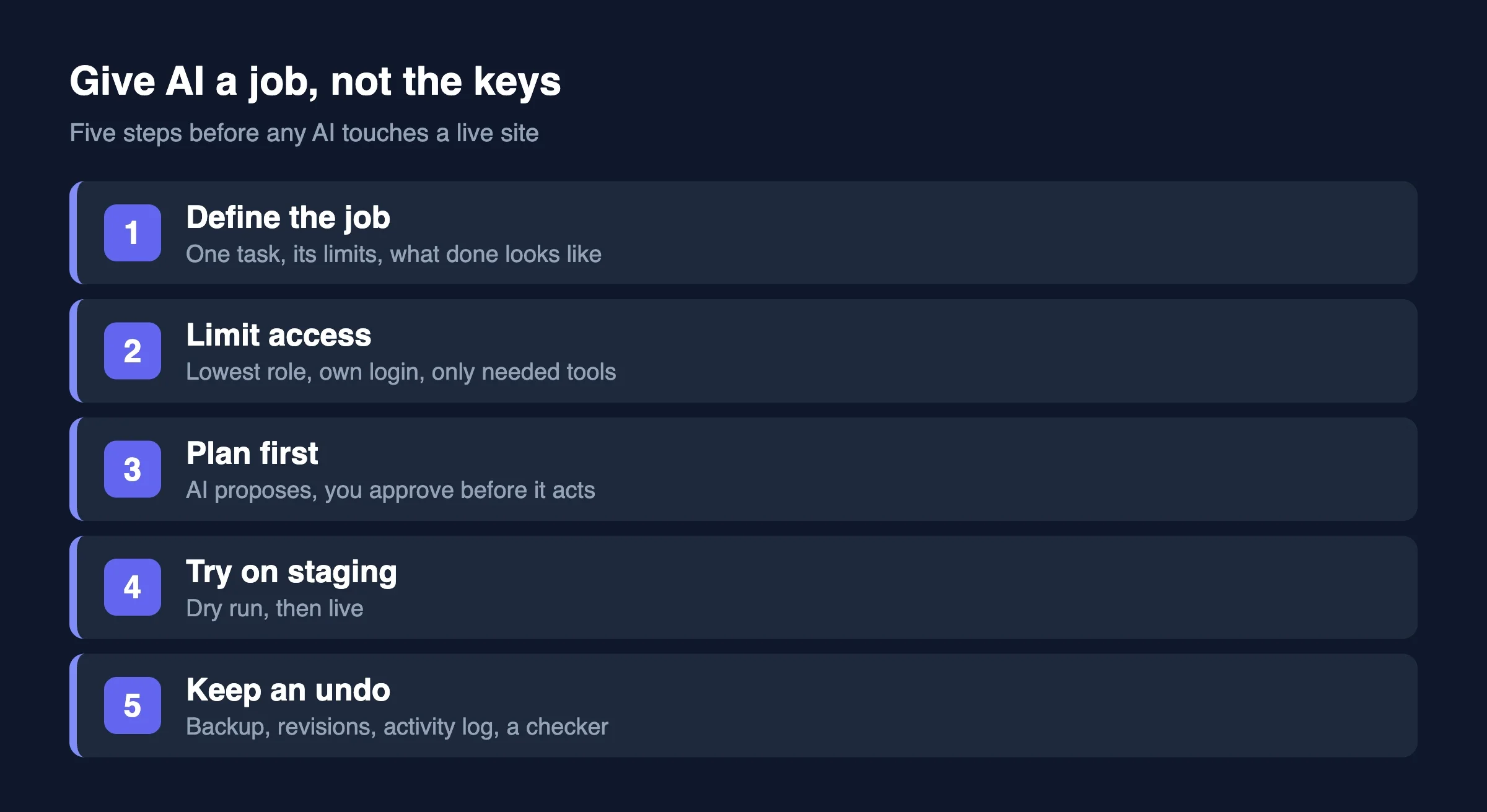
- Step 1: define the job in writing
- Step 2: limit what it can touch
- Step 3: make it plan first
- Step 4: try it on staging
- Step 5: keep an undo
- How much freedom each task deserves
- What plugin AI features and WooCommerce allow today
Why does giving AI full power go wrong?
It goes wrong because capable is not the same as aligned. A tool that can edit your whole site will happily do so, and it will pick the steps itself. You asked for a better product description. It also rewrote the title, changed the price format and “tidied” the category. Every change looked reasonable to it.
Three patterns show up again and again:
- It does more than asked. A small request turns into a site-wide edit because nothing told it to stop.
- It fixes the wrong thing. It finds a problem that looks like yours and solves that one instead.
- Its plan hides inside its work. If it plans and acts in one step, you only learn the plan after the fact.
Plugins add to this. WooCommerce, page builders and course plugins now ship AI features, and each one comes with its own default reach. A site-wide agent or an MCP connection adds another. You may have three or four of these switched on without a clear picture of what each can touch. Our sister site wppioneer lists six quiet ways this goes wrong in AI on Your WordPress Site: The Quiet Mess It Makes, and Varun explains why instructions alone do not hold in Why Written Rules Do Not Reliably Govern AI Agents. This post is the practical answer: how to scope AI on WordPress so the limits do not depend on the AI behaving.
Step 1: How do you define the job in writing?
Write one task, its limits and what “done” looks like, in a few lines, before you connect anything. If you cannot write it in a few lines, the job is too big to hand over.
A good job description has four parts:
- The task. “Draft short descriptions for the 40 products in the Boots category.”
- The limits. “Draft only. Do not publish. Do not touch prices, titles or categories.”
- What done looks like. “One draft per product, saved as a draft, 40 to 60 words, in the style of the three examples.”
- Who checks. “A person reads every draft before it goes live.”
Notice what is missing: any request to “improve the store” or “fix SEO”. Open-ended jobs are exactly where an AI invents its own plan. A narrow job gives it nothing to invent.
Step 2: How do you limit what the AI can touch on WordPress?
Give it its own user, with the lowest role that can do the job, and connect it with its own revocable credential. Then enable only the tools or abilities that job needs. This is the step that does not depend on the AI behaving.
Use a separate user with the lowest role
Do not connect an AI tool with your own admin account. Create a user just for it. A content drafting job rarely needs more than the Author or Editor role. A report-reading job may only need to read. A WordPress user can only do what its role allows, so the role is your hard limit.
Use one application password per tool
Application passwords are built into WordPress. Each belongs to a single user, is separate from the login password, and can be revoked on its own. WordPress records when each was last used and from which address. Make one per tool, name it for the tool, and delete it when the job ends.
The WooCommerce MCP documentation says the same thing in its own words: use a dedicated WordPress user with only the capabilities the client needs. The WordPress developer blog gives the same advice about MCP access in production: create a specific role or user with limited capabilities.
Expose only the abilities it needs
Since WordPress 6.9, core has an Abilities API. It lets plugins register units of work, each with a name like namespace/ability-name, a typed input and output, and a permission check. A separate, official MCP Adapter plugin can then offer those abilities to AI clients. Two details protect you:
- Abilities are private by default. The adapter’s documentation says to set
meta.public(ormeta.mcp.public) totrueto expose one. - Each ability has its own permission callback, and the WordPress developer blog advises checking the minimum capability needed, and avoiding
__return_truefor destructive operations such as deleting content.
That means you can choose, ability by ability, what an AI client may see. Here is the shape of a read-only ability that exposes one narrow thing and checks a capability:
add_action( 'wp_abilities_api_init', function () {
    wp_register_ability( 'myplugin/get-draft-titles', array(
        'label'               => __( 'List draft titles', 'myplugin' ),
        'description'         => __( 'Returns the titles of draft posts.', 'myplugin' ),
        'category'            => 'content',
        'output_schema'       => array( 'type' => 'array', 'items' => array( 'type' => 'string' ) ),
        'execute_callback'    => function () {
            $ids = get_posts( array( 'post_status' => 'draft', 'fields' => 'ids', 'numberposts' => 50 ) );
            return array_map( 'get_the_title', $ids );
        },
        'permission_callback' => function () {
            return current_user_can( 'edit_posts' );
        },
        'meta'                => array( 'show_in_rest' => true ),
    ) );
} );
This is a sketch of the pattern, written for this guide. Check the shape of the arguments against the developer handbook for your WordPress version before you use it, and register the category on the matching categories hook.
If a plugin registers abilities you do not want offered, you can change the exposure from outside. The WordPress developer blog shows this filter turning on three core abilities for the MCP adapter. The reverse is the same idea: leave a flag unset and the ability stays private.
add_filter( 'wp_register_ability_args', function ( array $args, string $ability_name ) {
    $allowed = array( 'core/get-site-info' );
    if ( in_array( $ability_name, $allowed, true ) ) {
        $args['meta']['mcp']['public'] = true;
    }
    return $args;
}, 10, 2 );
Tip: Review each plugin’s AI settings page the day you install it, and again after every major update. New versions add new reach, and the default is not always the safest setting.
Step 3: How do you make the AI plan first?
Ask it to propose steps and wait for your approval before it changes anything. A plan you can read is the cheapest safety check there is, because mistakes are easy to see in a list and hard to see after the fact.
The simplest way is to build the pause into the job description: “First list every change you intend to make, with the page or setting it affects. Stop. Wait for my approval.” Then read the list against the job from step 1. Anything outside the job is a reason to say no.
Some products build this approval in. The Divi 5 AI Agent labels its tools by risk (safe, moderate and destructive), and Elegant Themes’ help documentation says destructive and high-impact actions need your approval before they run. Crocoblock’s AI structure builder works the same way, one step at a time: you review the suggested result and press Generate only when you are happy, and the result is added to your existing structure and does not replace it.
Where a product does not offer this, you provide it. Keep the AI to drafts, queues and suggestions, and let a person press the button that publishes or applies.
Step 4: Should you try it on staging first?
Yes. Run the job once on a copy of the site with real-looking data, look at the result, and only then run it on the live site. Staging is where a wrong plan costs you nothing.
A quick staging check:
- Copy the site, or the affected part of it, to a staging environment.
- Connect the AI with the same user and credential you will use on live.
- Run the job exactly as written.
- Compare before and after. Did it touch anything outside the job?
- If it did, tighten the role or the abilities and run again.
Using the same credential matters. It tests the limit, and not only the task. If the AI managed to edit something on staging that your job description forbids, your role is too broad.
Step 5: How do you keep an undo?
Make sure every change can be reversed, and that a person looks at the result. Backups, revisions and an activity log are the three tools, and you need them before the first live run, not after the first mistake.
- A backup you have actually restored once, taken just before the job.
- Revisions for posts and pages, so an edit can be rolled back to the earlier text.
- An activity log that records which user changed what. With a separate AI user, the log tells you exactly what the AI did.
- A named person who checks the results on a schedule.
That last point is the one most often skipped. A log nobody reads only helps after a disaster. Put a check in someone’s calendar: a quick look at the AI user’s activity each week while the job is new, and monthly once it is boring. For the undo side, wppioneer has a plain guide in How to Undo Changes in WordPress, and Varun’s Who Owns It at 3am makes the case for knowing who is responsible when something breaks.
What does a finished AI job description look like?
It reads like a work order for a careful contractor. Here is a real shape you can copy and adapt. Keep it in the place where the AI tool reads its instructions, and keep a copy in your own notes.
JOB: Write short descriptions for products in the Boots category.
USER: ai-drafts (Author role). Application password: "drafts-tool".
MAY: read products in Boots; save new text as a draft in the description field.
MAY NOT: publish, change price, title, stock, category or images.
STEP 1: List the products you will change. Stop. Wait for approval.
DONE WHEN: every product has one draft of 40 to 60 words.
CHECKED BY: the store manager, before anything goes live.
UNDO: restore the post revision from before the run.
Two things make this work. The “may not” line says what is off limits in plain words. And the user in the second line makes those limits real, because the Author role cannot change a price however the AI reads the instructions. The text is a request. The role is a rule.
Common scoping mistakes
- Using your own admin login. It works on day one and fails on the first misread request. Create the separate user.
- Sharing one credential across tools. If one tool misbehaves you have to cut off all of them. One application password per tool means one revoke.
- Granting a role “just in case”. If the job needs Editor later, change it later. Roles are quick to raise and slow to notice when too high.
- Leaving a finished job connected. When the project ends, delete the password and the user. An unused connection is a standing invitation.
- Trusting the prompt as the limit. Written instructions help, but they are not enforcement. The limit has to live in the role, the ability or the approval step.
How do you scope AI on WordPress for each task?
Match the freedom to the damage a mistake can do. Here is a simple table we use.
Task | Risk | How much freedom |
|---|---|---|
Drafting posts or product copy | Low | Draft only, a person reviews |
Writing alt text or excerpts | Low | Apply in bulk after a sample check |
Editing products or prices | Medium | Approve each change |
Changing page layouts or templates | Medium | Staging first, then approve |
Changing settings, plugins or users | High | Never unattended |
Anything touching payments or orders | High | Never unattended |
Deleting content | High | A person does it |
The pattern is that freedom drops as reversibility drops. A draft can be thrown away. A refund cannot be un-sent.
What do plugin AI features and WooCommerce actually allow today?
It varies a lot, and most of it is opt-in. The facts below come from each vendor’s own documentation, read on 5 October 2026. They change quickly, so check the current page before you rely on them.
Tool | What the AI can do | Control we found documented |
|---|---|---|
WooCommerce MCP (developer preview) | Query, create, update and delete products. Query orders, update order status, add order notes. | Application Passwords; each ability has its own permission check |
Divi 5 AI Agent | Build and edit pages, manage design settings, and manage the site | Risk tiers; approval for destructive and high-impact actions |
Crocoblock JetPlugins AI | Generate post types, fields, queries and listings, and (with its MCP server) let external AI tools reach the data structure | You review the result before it is applied; it is appended, not replaced |
Tutor LMS AI Studio | Generate course outlines, lessons and quizzes from a prompt | Needs your own AI provider key; we could not read the full documentation page |
WooCommerce
WooCommerce’s MCP integration is, in its own documentation, in developer preview, and the documentation warns that details may change. It is off by default. You enable it with a feature flag, or with a WP-CLI command:
wp option update woocommerce_feature_mcp_integration_enabled yesThe documentation says remote connections need WordPress Application Passwords, and not the older REST API keys or an account password. The default server requires an authenticated user with the read capability, and each WooCommerce ability enforces its own permission callback. It also warns that order and customer operations may expose personal data such as names, email addresses, addresses and payment details, and asks you to apply least privilege and rotate credentials.
In practice: connect it on staging first, with a user who can only do what the job needs. For a product-description job, that user should not be able to read orders at all.
Page builders and course plugins
Divi 5’s agent is the clearest example of built-in tiers. Its help pages describe three risk levels and a confirmation step for the dangerous ones. That is a good model, but it does not remove step 2. An approval prompt protects you only when someone reads it. Crocoblock’s tools append and ask you to confirm, which is a helpful default. For Tutor LMS, we confirmed that AI Studio exists and that it needs your own AI provider key, and we could not read the setup page in full, so check what it applies automatically before you turn it on.
We also looked for FunnelKit’s AI and MCP features. We could not find an official statement describing what they can change, so we have left them out. If you use FunnelKit, ask the vendor what its AI can reach, and apply the same five steps.
WordPress core
The pieces are now in core. WordPress 7.0, released on 20 May 2026, added a core AI Client alongside the Abilities API that arrived in 6.9. The MCP Adapter that bridges abilities to MCP clients stays a separate plugin, and the official repository describes it as the WordPress package for this job. If you want a deeper look at where this is heading for visitors that are agents, read our piece on webMCP: When Your Website’s Next Visitor Is an AI Agent.
Verified against vendor documentation, the WordPress developer handbook and the MCP Adapter repository on 5 October 2026. The PHP above is a pattern sketch and was not run on a live site.
When don’t you need all five steps?
You can relax them for read-only uses, such as asking an assistant to summarise your analytics export or explain an error message you paste in. Nothing is connected to your site, so nothing can be changed.
You also can relax them on a throwaway test site, where a mistake costs only time. The moment real customers, real data or real money are on the site, use all five.
FAQ
Is it safe to give an AI plugin admin access?
Not by default. Use the lowest role that can do the job, and a separate user, so the role limits what a mistake can touch. Admin should be the exception and should be temporary.
What is the WordPress Abilities API?
It is a core API, available since WordPress 6.9, that lets plugins register units of work with typed inputs and outputs and a permission check. AI clients can discover and call them, and the MCP Adapter plugin is the official bridge.
Do I need MCP to use AI on my site?
No. Many AI features are built into plugins and work without it. MCP matters when you want an outside AI tool, such as a chat assistant, to act on your site, and that is when scoping matters most.
Can AI see my customers’ data through WooCommerce?
If you connect it with a user who can read orders, yes. WooCommerce warns that order and customer operations may expose personal data. Give a product job a user that cannot read orders.
How do I know what the AI changed?
Give it its own user and read the activity log for that user. Revisions show what changed inside a post, and a backup lets you go back further.
What should you do next?
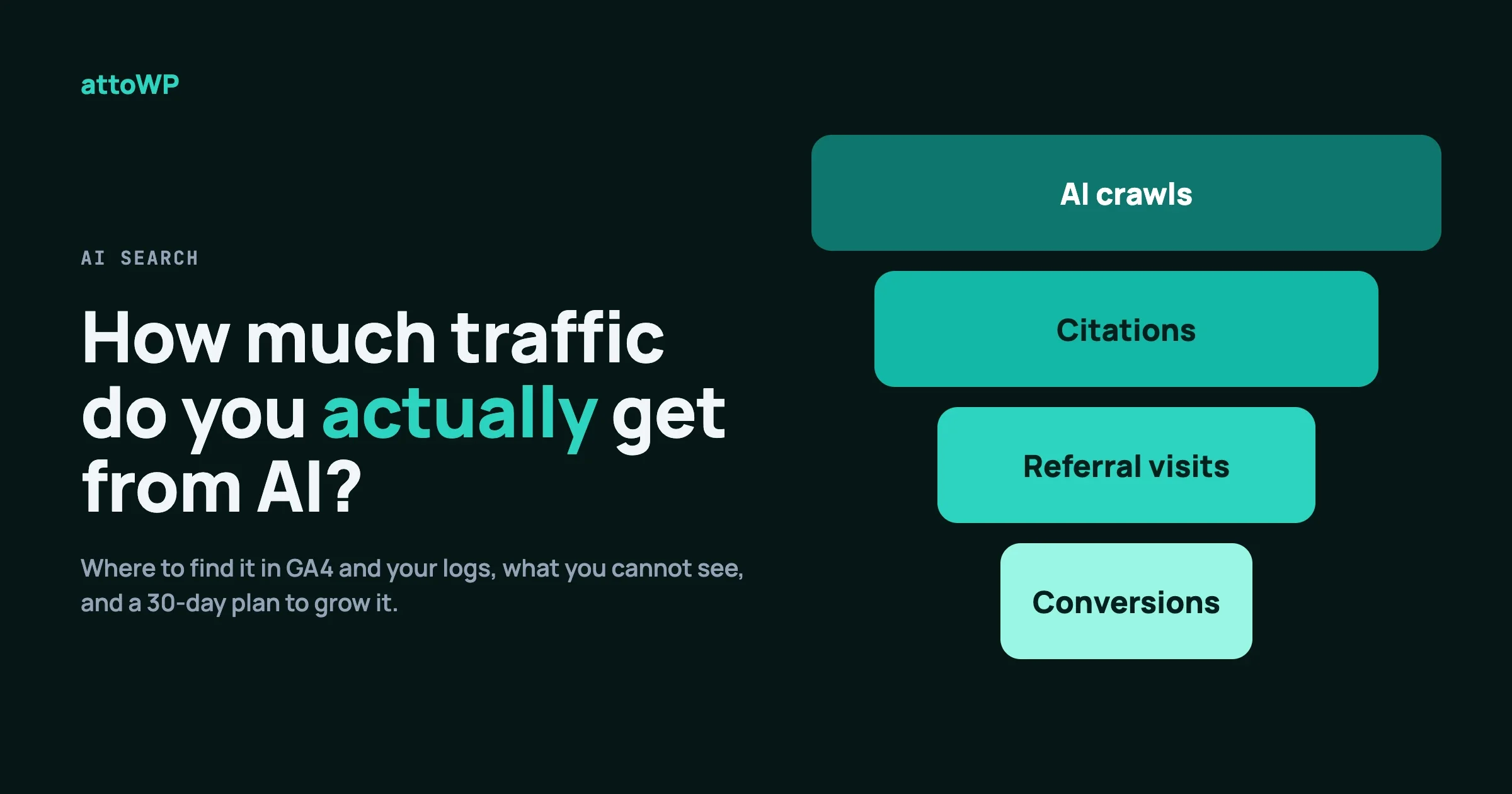
Pick one AI task you already want to hand over and write its four-line job description today. Then create the user and the application password for it, and run it once on staging. If you want a hand with the setup, including abilities for your own plugin, our team at Wbcom Designs builds and reviews this kind of integration. If you are also watching how AI changes the traffic you get, read How Much Traffic Do You Actually Get From AI?.
Related reading
- AI on Your WordPress Site: The Quiet Mess It Makes on wppioneer.com
- Why Written Rules Do Not Reliably Govern AI Agents on vapvarun.com
- Who Owns It at 3am: The Real Line Between Vibe Coding and Engineering on vapvarun.com
- AI Shoppers at Checkout: What WooCommerce and EDD Stores Should Do Now on wbcomdesigns.com

No comments yet