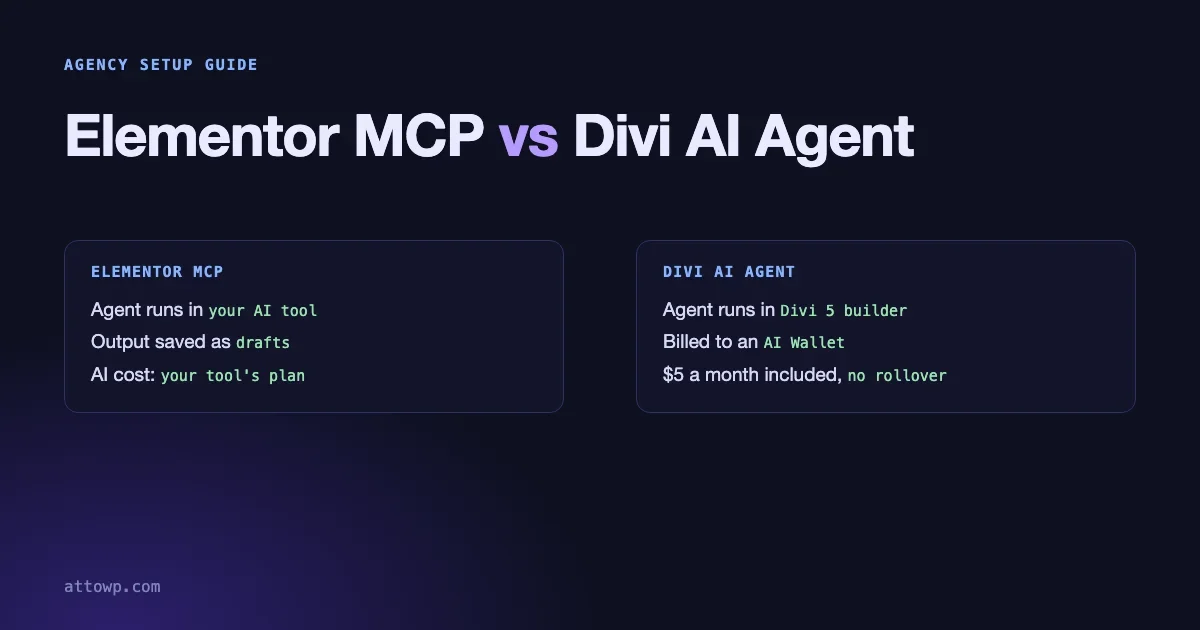
In the last month both of the big WordPress page builders gave AI agents a way into your client sites. Elementor MCP lets an outside AI tool such as Claude Code or Cursor build pages in Elementor. The Divi AI Agent puts a chat sidebar inside the Divi 5 Visual Builder. They solve the same job from opposite ends, they bill in different ways, and an agency should set both up with limits before a junior designer pastes a prompt into a client site.
This is a comparison for agency owners and technical leads. We read both vendors’ own pages while writing it: Elementor’s Elementor MCP launch post, and Elegant Themes’ help article The Divi AI Agent in Divi 5 and its Divi AI page. We have not run either one on a client project for this article, so we describe what the vendors document, and we mark what they do not say. Prices and limits change, so check the vendor page on the day you decide.
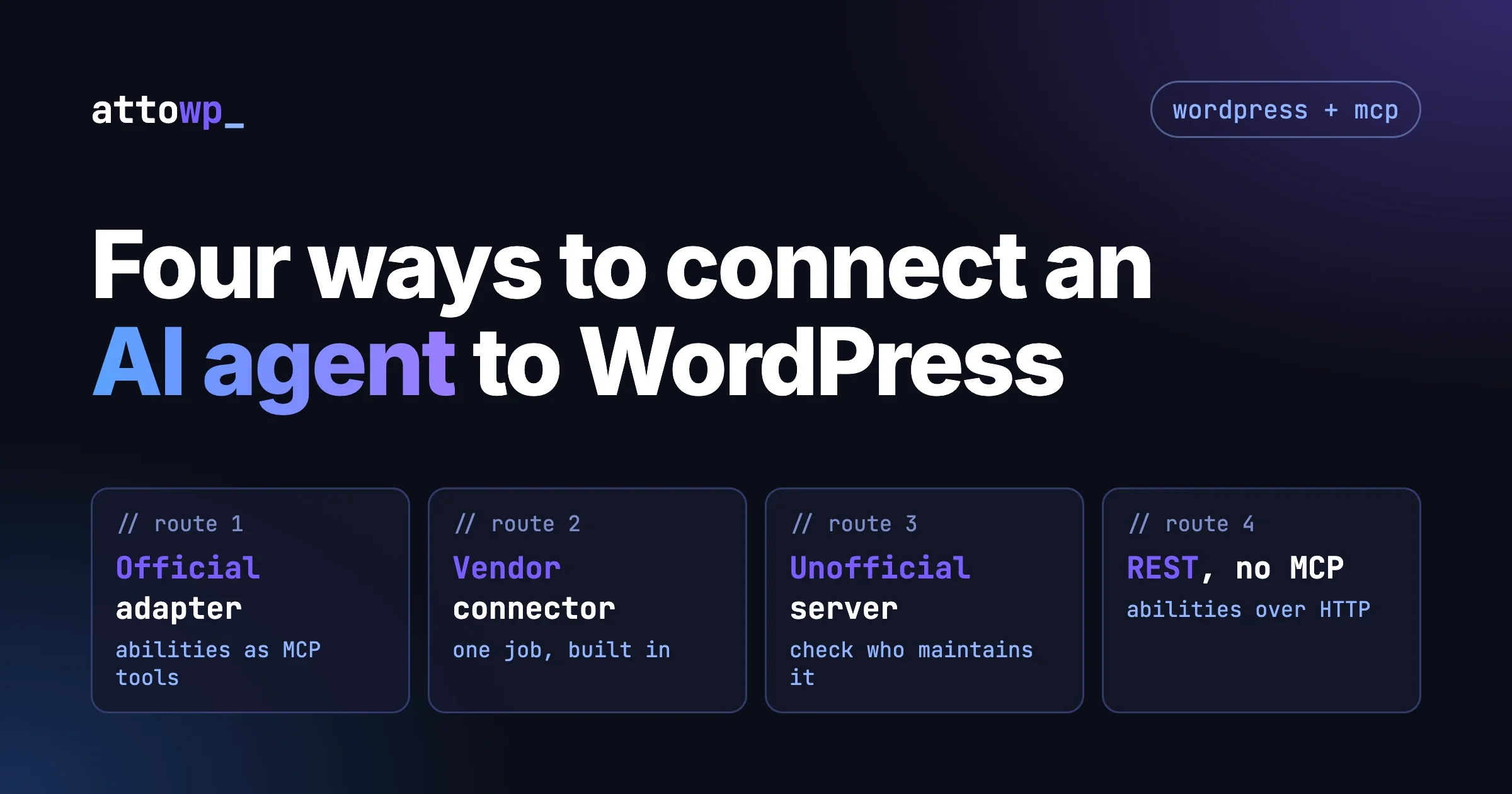
We already wrote the general guide to connecting an agent to WordPress, covering the official MCP Adapter, Elementor MCP, unofficial servers and the Abilities REST API. If you want that wider map first, read four ways to connect an AI agent to WordPress. This post narrows to the two builder-native options and the agency questions around them.
The one-paragraph difference
With Elementor MCP, you bring the AI. The agent is your own tool (the setup page lists Claude Code, Claude Desktop, Codex, Cursor and an “Other” option for any MCP-compatible tool), and Elementor exposes the site to it. The cost of the AI is whatever that tool charges. With the Divi AI Agent, the builder brings the AI. It runs in the Visual Builder sidebar, reaches models through OpenRouter, and bills usage to a wallet that Elegant Themes manages. The cost of the AI is a metered wallet balance.
Elementor MCP | Divi AI Agent | |
|---|---|---|
Where the agent runs | In your own AI tool, outside the editor | In the Divi 5 Visual Builder sidebar |
How it connects | An MCP connection with a WordPress application password, set up from a page in the Elementor menu | Built into Divi 5; requires internet access |
Who can use it | Site admins; connection is per site | Divi AI subscribers on Divi 5 |
What it produces | Saved as drafts, not published | Real Divi sections, rows and modules; the vendor page also says it can create and publish pages |
Who pays for the AI | You, through your AI tool’s own plan | Your AI Wallet, with a monthly allowance |
Free tier | Connecting is free; basic sections and features are free, Pro features need a Pro plan | No free trial |
What does Elementor MCP actually do?
Elementor’s launch post, dated 29 September 2026 on the page (its structured data lists 23 September as the original date), says the MCP lets AI tools “build pages, edit elements, and work with your design system as real, editable Elementor structure.” The post lists what an AI tool can reach:
- atomic pages and layouts, built or edited;
- the design system: classes, variables, states and breakpoints;
- theme parts such as headers, footers and popups;
- components, and dynamic content connections.
Three details matter for agencies. First, everything generated is saved as a draft rather than published. You finish in the visual editor. Second, access is limited to site admins, and the connection is per site. Third, the standard Elementor Editor remains unchanged, so a team member who does not want AI can ignore it. The post also says that if the editor and an AI tool change the same page at the same time, Elementor notifies you and lets you refresh or discard changes. That is the right behaviour, and it is also a reminder that two people and an agent can collide on one page.
How the connection works
On the site, a page under the Elementor menu generates a setup prompt for the tool you choose. Behind the scenes, Elementor creates a WordPress application password and puts it into that prompt. There is also a manual configuration option. You paste the prompt into your AI tool, and the tool connects.
The application password is the part to understand, because it is a real credential that can act as an admin. It is the same mechanism WordPress has used for REST API clients since 5.6. If you have not looked at it recently, our application passwords guide for developers covers how they work and what they can and cannot do. Two practical consequences:
- Anyone who has the setup prompt has the password. Do not paste it into a shared chat, a ticket or a screenshot.
- You can see and revoke application passwords per user. With WP-CLI:
# List the application passwords for a user
wp user application-password list admin

# Revoke one by its UUID
wp user application-password delete admin 00000000-0000-0000-0000-000000000000

# Revoke all of them for that user
wp user application-password delete admin --all
Put that list in your offboarding checklist. When a freelancer leaves, or when a project ends, the connection they set up on their laptop is still a valid login until someone revokes it.
What Angie adds
The launch post says several capabilities need the Angie add-on installed: custom widgets and admin experiences, bulk content management, debugging and SEO fixes, and acting as a single entry point to WordPress through the Abilities API, for example for WooCommerce, Yoast, WPForms and ACF. That is a large step in reach. An agent that can use every ability registered on the site can do more than edit a page. For the agency, the decision about Angie is a separate security decision from the decision about the MCP connection. We would treat it that way.
What is not stated
The post does not list technical requirements such as WordPress or Elementor version numbers, and it does not describe limits beyond admin-only access, per-site connections and drafts. If you have clients on older Elementor versions, test before you promise anything.
What does the Divi AI Agent actually do?
Elegant Themes’ help article describes an agent in the Divi 5 Visual Builder sidebar. You click the Agent icon, type a request and press Enter, and the chat stays open while you edit. The article says it can:
- build layouts from a written brief, a screenshot or mockup, a website URL or a moodboard, as real Divi sections, rows and modules;
- edit existing layouts: redesign sections, change colours and typography, rewrite content;
- make sweeping changes in one pass, such as adding alt text, consolidating colours into global variables and fixing responsive layouts;
- use rules (saved instructions), commands (saved prompts) and context from your site;
- handle site-level tasks such as pages and posts, menus, Theme Builder templates, Divi Library items and supported Theme Options, with the article noting that these outside-the-builder skills are more limited than the in-builder ones.
It requires Divi 5. The article says it does not work in Divi 4. It also works on local and staging sites, but needs internet access.
Models, OpenRouter and where your content goes
Divi reaches models through OpenRouter, which the article says offers “hundreds of models.” You can pick a model from a dropdown, choose “Configure models” for any available model and its reasoning settings, or let Divi automatically select an efficient model for each task. The article says that page content the agent reads is sent to the AI provider you selected, and links to provider privacy policies.
That sentence belongs in your client contract conversation. If a client has rules about where their content may be processed, the model choice is not a design detail.
Who pays, and how much?
This is where the two diverge most.
Elementor MCP: you pay your AI tool, not Elementor
The launch post says connecting is free, and that AI tool costs depend on that tool’s pricing and credits. Basic sections and features are free with the MCP, and Pro features require a Pro plan. So the cost of an Elementor MCP workflow is the cost of whichever AI tool the designer uses, plus an Elementor Pro licence if the client site needs Pro features. For an agency that already pays for Claude Code or Cursor seats, the marginal cost may be close to nothing. For an agency that does not, it is a new line item.
Divi AI Agent: a wallet with a monthly allowance
Agent usage is billed to an AI Wallet, not to the Divi AI subscription. The details from the vendor pages, as read on the day we wrote this:
- Each Divi AI subscription includes a $5 balance for Agent usage, which resets monthly on your subscription date. “Unused balance does not roll over.” The Divi AI page describes this as $60 of complimentary agent spend per year.
- After that balance runs out, purchased funds are used. You can add funds at any time.
- Elegant Themes passes through each model provider’s price and adds “a small percentage” for transaction and business costs.
- The balance is shared across every site on your Elegant Themes account.
- Purchases are covered by a 30-day refund policy, and only unused funds are refundable.
- Text, image and code generation outside the Agent stays covered by the subscription. The Divi AI page says the unlimited generation “does not apply to AI Agent usage.”
The Divi AI page lists the subscription at $193 billed yearly ($16.08 a month) or $21.36 a month billed monthly, and Divi Pro at $277 billed yearly, with a Lifetime plus Pro option at $297. Those are the figures on the page we read on 23 October 2026. They can change, and a discount banner may be running when you read this.
What we could not find
Two things you may have heard are not on the vendor pages we read. We do not repeat them. First, per-task dollar examples: the help article describes cost only in relative terms, with simple requests on efficient models costing “very little” and full-page rebuilds on top-tier models costing more. Second, named “Auto” price tiers: the article describes automatic model selection, not a tier list. If a blog or a video quotes exact per-section costs, treat them as that author’s tests.
How do I cap spend?
For the Divi AI Agent, we could not find a spending cap described in the help article. It says you can add funds at any time, and that the Agent cannot be removed from the role editor. The practical control is therefore the wallet balance itself: because the Agent runs on the wallet, the most it can spend is what is in it. Keep the balance small, add funds deliberately, and do not enable any top-up behaviour you cannot see. Because the balance is shared across every site on your account, one runaway session on one client’s site draws down the same pool as everyone else’s. Ask Elegant Themes support whether per-site or per-user limits exist, and get the answer in writing.
For Elementor MCP, the cap is in the AI tool, not in Elementor. Most AI tools let you set a usage limit or a monthly budget at the account or team level. Set one. Also keep in mind that an MCP-connected agent can run many steps for one instruction, and each step uses tokens.
One agency rule works for both: one shared pool, one owner. Someone in the agency owns the wallet or the AI tool subscription, sees the usage and decides when to top up. Do not let each designer attach a personal card.
What should an agency set up before the first prompt?
Here is the list we would use. It applies to both tools unless noted.
- Work on staging, always. The Divi article says the agent works on local and staging sites. Elementor’s drafts-only output helps, but drafts still live in the production database if you connect there. Connect to staging first.
- Take a backup before an agent session. Divi’s article does not mention undo or drafts, and we did not find that it does. Do not assume a way back. A one-click restore point costs less than a bad afternoon.
- Use a named, minimal-purpose login. For Elementor MCP, the connection uses an application password for an admin, since access is admin-only. Create it on a dedicated admin account whose name tells you what it is for, so the user list and the audit log make sense. Revoke it at the end of the project.
- Write the design rules first. Both tools work with the site’s design system: classes and variables on the Elementor side, global variables and saved rules on the Divi side. An agent that has your tokens produces output that fits. An agent without them invents values.
- Define what the agent must not touch. Theme Builder templates, global headers and footers, checkout pages and legal pages are places where a quick change affects every page. Say in writing that humans handle those.
- Review everything as you would a junior’s work. Check headings order, alt text, contrast, tab order, and mobile layout. An agent that builds a page that looks right can still ship a heading structure that screen readers hate.
- Decide where client content may go. With the Divi agent, content the agent reads is sent to the provider you selected. With Elementor MCP, content goes to whichever AI tool you connected. Put the answer in your data-handling terms.
- Agree who owns the output. Your contract should say whether AI-assisted work is acceptable, who signs it off and who is liable if it infringes.
- Log it. Keep a short note per project: which tool, which model, what it did, who reviewed. If a client asks next year why a page looks the way it does, you will have an answer.
- Revoke and clean up. At handover, remove application passwords, remove the Angie add-on if you do not need it on the live site, and check that no setup prompt with a credential is sitting in a shared document.
Questions to put to each vendor before you roll it out
Neither vendor page answers everything an agency needs to know. Send these to support, and keep the replies with your contracts.
For Elementor
- Which Elementor and WordPress versions does the MCP support, and which atomic editor features are required?
- Can the connection be limited to specific abilities or content types, or is it all-or-nothing for an admin?
- Is there an activity log of what an AI tool changed, and where do I see it?
- What happens to the application password if the Elementor MCP page is switched off? Is it revoked or left in place?
- If we install Angie, which Abilities API entries does it expose by default?
For Elegant Themes
- Is there a per-site or per-user spending limit, or only the shared wallet balance?
- Can we turn off the Agent for specific roles? The help article says it cannot be removed from the role editor, so what is the supported way to restrict it?
- Does the Agent keep a history we can export, and can a change be undone as a group?
- Which OpenRouter providers can we exclude for clients with data-location rules?
- What is the price per request for the model that Divi selects automatically, and can we see it before we run a task?
The point of the list is not to catch the vendors out. These are the questions a client’s security reviewer will ask you, and you will want an answer that is not “we assumed”.
A short policy you can adopt this week
If you want something in writing before the next project, this is a policy that fits on half a page.
- AI agents may be used on staging copies of client sites, never directly on a live client site without written agreement.
- Every agent session starts with a backup and ends with a human review of the changed pages.
- Agent credentials (application passwords, wallet access, API keys for the AI tool) are owned by the agency, stored in the password manager and revoked at handover.
- A named person owns the AI budget and checks usage once a week.
- Client content is only sent to AI providers the client has agreed to.
- Headers, footers, legal pages, checkout and global templates are changed by a person, with the agent’s output used only as a draft.
None of that is specific to Elementor or Divi. It is the same discipline you apply to a freelancer with admin access, applied to a faster and less tired freelancer who cannot be asked to explain a decision later.
Which one fits which agency?
Choose Elementor MCP when
- your team already works in Claude Code, Cursor or another MCP-capable tool, and wants one agent across WordPress and other work;
- you want the output saved as drafts by default;
- you want the AI bill to sit in a tool you already pay for and already control;
- your sites run on Elementor, including atomic editing.
Choose the Divi AI Agent when
- your sites run on Divi 5 and your designers work all day in the Visual Builder;
- you want the agent inside the builder with saved rules and commands;
- you like a single vendor handling model access, even with a metered wallet;
- you are comfortable that all sites on the account share one balance.
Be careful with either when
- the client site is live, busy and has no staging;
- the client has strict rules about where content is processed;
- nobody on your side is willing to review the output properly.
If you are still deciding whether to stay on a page builder at all, our comparison Block Themes vs Elementor covers the performance and lock-in side.
What should I tell clients?
Clients do not need the protocol details. They need three sentences: we use AI agents to speed up layout work on a copy of your site, a person reviews everything before it goes live, and we tell you where your content is processed. Put the third one in writing. If your client is in a regulated field, ask them first. The cost of that conversation is small compared with the cost of finding out later.
What we have not verified
We read the vendors’ pages. We have not run Elementor MCP or the Divi AI Agent on a client project for this article, so we make no claim about output quality, speed or cost per page. The Elementor post does not give version requirements, and the Divi help article does not describe spending caps, drafts or undo. Vendor pages change, so re-read them before you quote a price. If you find that either vendor adds a spend cap or a draft mode, tell us and we will update this post.
The takeaway is simple. Both tools put a capable agent next to your client’s content and your client’s login. Treat the connection like any other credential, put a limit on the spend, work on staging and review the result. The agencies that do that get the speed without the surprises.

No comments yet