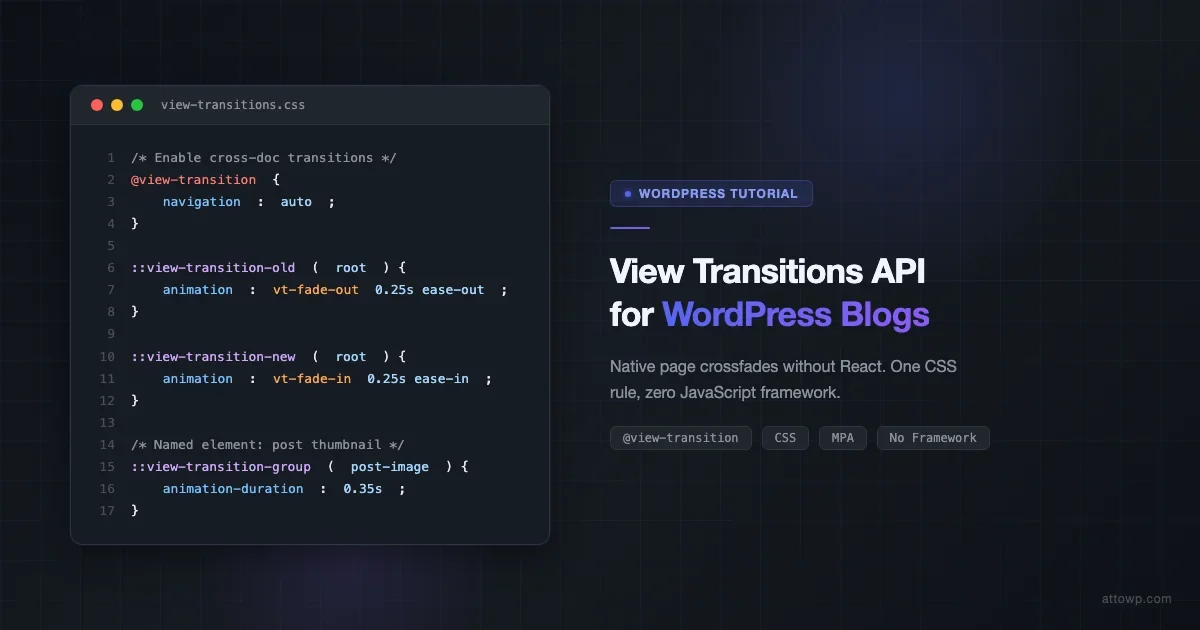
The View Transitions API gives WordPress developers a way to add native page crossfades and element-level animations without reaching for React, Vue, or any JavaScript framework. Starting with Chrome 111 and Safari 18, browsers can orchestrate smooth visual transitions between page states using nothing more than a handful of CSS declarations and, for classic WordPress multi-page setups, a single opt-in at-rule. This tutorial walks through everything: same-document (SPA-style) transitions, cross-document MPA transitions, how to wire them into a WordPress theme with a small PHP enqueue, how to name transition elements so post titles and featured images animate individually, browser support caveats, and a gotchas section covering reduced-motion, plugin conflicts, and the limits of the current MPA spec.
What the View Transitions API Actually Does
Before the View Transitions API existed, achieving a smooth crossfade between two pages required a JavaScript router, a client-side framework, or a library like Swup or Barba.js. The browser had no built-in concept of “animate from old state to new state.” Each navigation was a hard cut: the old page disappeared, the new page appeared.
The API changes this. When a transition is triggered, the browser takes a snapshot of the current page, replaces the DOM, then crossfades the snapshot out while fading the new content in. The default is a 300 ms opacity crossfade. Everything is CSS-driven: you can override timing, easing, and transform on the pseudo-elements the browser creates (::view-transition-old(root) and ::view-transition-new(root)), or you can assign named transition groups to specific elements so they animate independently from the root crossfade.
For a classic WordPress blog, this is significant. Single posts, archive pages, and category pages are all separate documents. Until cross-document transitions landed, you needed JavaScript to intercept navigation, fetch the next page, and swap content manually. Now, two lines of CSS and one at-rule are enough to get a polished fade on every click.
Same-Document vs Cross-Document View Transitions
The API has two distinct modes, and it is important to understand which one applies to your WordPress setup before writing any code.
Same-Document Transitions (SPA Mode)
Same-document transitions are triggered with JavaScript using document.startViewTransition(). You call this method with a callback that performs the DOM update. The browser handles the rest: snapshot, update, crossfade.
// Trigger a same-document view transition
document.startViewTransition(() => {
  // Perform your DOM update here
  mainContent.innerHTML = newPageHTML;
  document.title = newTitle;
  history.pushState({}, '', newURL);
});
Same-document transitions are appropriate if your WordPress theme already uses client-side routing, infinite scroll, or AJAX page loading. Block themes with the Interactivity API can use this mode. The Interactivity API’s navigate() function has built-in View Transitions support when enabled via the core/router store.
Cross-Document Transitions (MPA Mode)
Cross-document transitions work between separate HTML documents - exactly what a classic WordPress theme serves. No JavaScript router required. The browser intercepts standard anchor navigation automatically once you opt in.
As of Chrome 126 and Safari 18.2, cross-document transitions are triggered by adding a CSS rule:
/* Enable cross-document view transitions for the entire site */
@view-transition {
  navigation: auto;
}
That single at-rule tells the browser to apply the default crossfade animation on every same-origin navigation. No JavaScript, no PHP changes - just CSS. This is the primary method for classic WordPress blogs.
Cross-document view transitions are the zero-JavaScript path for WordPress blogs. One CSS rule, applied in a stylesheet, gives every page navigation a native crossfade.
Enabling View Transitions in a WordPress Theme
The correct way to add the CSS to a WordPress theme is through a properly enqueued stylesheet. Never add it to style.css directly without enqueueing, and never drop it in the theme header template. Use wp_enqueue_style() with a handle, a versioned path, and the appropriate hook.
Option A: Add to an Existing Enqueued Stylesheet
If your theme already has a main stylesheet, add the @view-transition rule at the top of that file:
/* view-transitions.css - or add to your theme's main CSS file */

@view-transition {
  navigation: auto;
}

/* Optional: customize the default crossfade */
::view-transition-old(root) {
  animation: fade-out 0.25s ease-out;
}

::view-transition-new(root) {
  animation: fade-in 0.25s ease-in;
}

@keyframes fade-out {
  from { opacity: 1; }
  to   { opacity: 0; }
}

@keyframes fade-in {
  from { opacity: 0; }
  to   { opacity: 1; }
}
Option B: Register a Dedicated Stylesheet via functions.php
For a cleaner separation, create a dedicated view-transitions.css file and enqueue it with PHP. This is the preferred approach for child themes or for adding transitions to an existing theme without editing its source files:
<?php
/**
 * Enqueue View Transitions stylesheet.
 *
 * Add this to your theme's functions.php or a site-specific
 * functionality plugin.
 */
function mytheme_enqueue_view_transitions() {
    wp_enqueue_style(
        'mytheme-view-transitions',
        get_theme_file_uri( '/assets/css/view-transitions.css' ),
        array(),
        wp_get_theme()->get( 'Version' )
    );
}
add_action( 'wp_enqueue_scripts', 'mytheme_enqueue_view_transitions' );
Then create assets/css/view-transitions.css in your theme directory and add the @view-transition rule and any customizations there.
For block themes using theme.json, you can also reference the stylesheet via the styles property, but enqueueing via PHP is universally compatible with both classic and block themes.
Naming Transition Elements: Post Titles and Featured Images
The default root transition crossfades the entire page. That is a good start, but the View Transitions API becomes much more powerful when you assign view-transition-name values to specific elements. Named elements get their own snapshot and animate independently - they can slide, scale, or morph from their position on the archive page to their position on the single post page.
For a WordPress blog, the two most impactful elements to name are the post title and the featured image. When a reader clicks from an archive listing to a single post, the title and image should appear to fly from where they were to their new larger position. This is the “shared element” pattern, sometimes called the Hero transition.
Naming Requires Per-Post Unique Values
The view-transition-name CSS property must have a unique value across the entire document. On an archive page showing 10 posts, each post title and each featured image needs a distinct name. The standard approach is to use the post ID.
In your theme template (e.g., archive.php, index.php, or a Gutenberg query loop template), output inline styles per post:
<?php
// In archive.php or content.php template part
while ( have_posts() ) :
    the_post();
    $post_id = get_the_ID();
?>
<article id="post-<?php echo esc_attr( $post_id ); ?>" <?php post_class(); ?>>

    <!-- Named featured image -->
    <?php if ( has_post_thumbnail() ) : ?>
        <div class="post-thumbnail"
             style="view-transition-name: post-image-<?php echo esc_attr( $post_id ); ?>">
            <?php the_post_thumbnail( 'medium_large' ); ?>
        </div>
    <?php endif; ?>

    <!-- Named post title -->
    <h2 class="entry-title"
        style="view-transition-name: post-title-<?php echo esc_attr( $post_id ); ?>">
        <a href="<?php the_permalink(); ?>"><?php the_title(); ?></a>
    </h2>

</article>
<?php endwhile; ?>
Then in your single post template (single.php or the equivalent block template part), output matching names using the same post ID:
<?php
// In single.php
$post_id = get_the_ID();
?>

<!-- Featured image on single post page -->
<?php if ( has_post_thumbnail() ) : ?>
    <div class="post-hero-image"
         style="view-transition-name: post-image-<?php echo esc_attr( $post_id ); ?>">
        <?php the_post_thumbnail( 'large' ); ?>
    </div>
<?php endif; ?>

<!-- Post title on single post page -->
<h1 class="entry-title"
    style="view-transition-name: post-title-<?php echo esc_attr( $post_id ); ?>">
    <?php the_title(); ?>
</h1>
When the view transition name on the outgoing page matches the name on the incoming page, the browser creates a view-transition-group() for that pair. It computes the bounding rect of the old element and the new element, then animates the size and position using a CSS transform. The title expands from its small archive size to its large single-post heading size. The featured image scales from the thumbnail to the hero image.
CSS for Named Element Transitions
You can customize the animation for named elements the same way you customize the root. Target the pseudo-elements by name:
/* Customize featured image transition timing */
::view-transition-old(post-image-8450),
::view-transition-new(post-image-8450) {
  animation-duration: 0.4s;
  animation-timing-function: cubic-bezier(0.2, 0, 0, 1);
}

/* Customize post title transition */
::view-transition-old(post-title-8450),
::view-transition-new(post-title-8450) {
  animation-duration: 0.3s;
}
A practical tip: avoid long named-element transitions on titles if your theme uses system fonts with variable metrics. The interpolation can cause brief text reflow artifacts. A 250 to 350 ms duration is the sweet spot for most blog layouts.
Browser Support and Progressive Enhancement
As of mid-2026, browser support for cross-document view transitions covers the major evergreen browsers but has gaps worth noting:
Browser | Same-Document | Cross-Document (MPA) | Version Added |
|---|---|---|---|
Chrome / Chromium | Yes | Yes | Same-doc: 111, Cross-doc: 126 |
Edge | Yes | Yes | Follows Chrome |
Safari | Yes (partial) | Yes | Safari 18 / iOS 18 |
Firefox | Flag only | Flag only | No stable support yet |
Samsung Internet | Yes | Yes | Version 25+ |
Firefox is the significant gap. As of Firefox 126, View Transitions are behind the layout.css.view-transitions.enabled flag in about:config. Firefox usage on developer-oriented WordPress sites typically runs between 8 and 12 percent of traffic, so this is not a small segment to ignore.
The good news is that progressive enhancement works perfectly here. Browsers that do not support the View Transitions API simply ignore the @view-transition rule and the view-transition-name property. Navigation happens as normal - an instant hard cut. No layout shift, no JavaScript error, no broken experience. The feature degrades cleanly to zero.
You can also detect support in JavaScript if you need conditional logic:
// Feature detection for View Transitions API
if ( document.startViewTransition ) {
  // Same-document transition support confirmed
  console.log( 'View Transitions: same-document supported' );
}

// For cross-document CSS transitions, non-supporting browsers simply
// ignore the @view-transition at-rule. No detection needed for graceful degradation.
Gotchas: MPA Support, Reduced-Motion, and Plugin Conflicts
Before shipping view transitions on a live WordPress site, there are three categories of issues worth testing explicitly.
1. MPA Cross-Document Limitations
Cross-document transitions only trigger for same-origin navigations. If your WordPress multisite uses different domains for subsites, transitions will not fire across the domain boundary. Subdomains on the same registrable domain work, but only if both pages include the @view-transition at-rule.
The browser imposes an 8-second timeout on cross-document transitions. If the new page takes more than 8 seconds to parse and render its initial view, the transition is abandoned and a normal navigation happens instead. Sites with heavy blocking scripts or slow server response times may see inconsistent transitions. Improving core web vitals - particularly TTFB and LCP - directly improves transition reliability.
Another constraint: the transition only captures what is visible in the viewport at navigation time. Sticky headers, floating CTAs, and fixed-position elements need explicit view-transition-name values if you want them to animate separately from the root crossfade. Without a name, they are part of the root snapshot and crossfade with everything else.
2. Respecting prefers-reduced-motion
The prefers-reduced-motion media query is not automatically applied to view transitions. If a user has enabled the “Reduce Motion” accessibility setting on their operating system, the browser will still play the crossfade animation unless you explicitly disable it. Add this to your view transitions CSS file:
/* Respect prefers-reduced-motion for all view transitions */
@media (prefers-reduced-motion: reduce) {
  ::view-transition-old(root),
  ::view-transition-new(root) {
    animation: none;
  }

  /* Also disable named element transitions */
  ::view-transition-group(*),
  ::view-transition-old(*),
  ::view-transition-new(*) {
    animation: none;
  }
}
This ensures users with vestibular disorders or motion sensitivity get an instant page change rather than the crossfade. The * wildcard in pseudo-element selectors for view transitions is supported in Chrome 116+ and Safari 18, matching the same browser range as cross-document transitions.
3. Plugin Conflicts
Several categories of WordPress plugins interact poorly with view transitions:
- Page transition plugins (Swup, Barba.js, WP Page Transitions): These intercept navigation events via JavaScript and perform their own DOM swap. If both a JavaScript-based transition plugin and the CSS
@view-transitionat-rule are active simultaneously, you will see both transitions firing at once. The result is a visual stutter or doubled animation. Disable JavaScript-based transition plugins before enabling the native API. - Caching plugins (WP Rocket, LiteSpeed Cache, W3 Total Cache): Aggressively deferred JavaScript can delay execution of Interactivity API scripts that manage same-document transitions. For the CSS-only cross-document approach, caching plugins cause no issues at all.
- Admin bar conflicts: The WordPress admin bar uses
position: fixed. During a cross-document transition, the root snapshot includes the admin bar. If two pages have layouts with slightly different admin bar heights, the crossfade includes a subtle jump. Fix: give the admin bar its own view-transition-name via#wpadminbar { view-transition-name: wpadminbar; }. - Infinite scroll plugins: If a plugin loads the next page’s posts into the current document via AJAX, cross-document transitions will never fire for those navigations because no navigation event occurs. This is expected behavior. Consider disabling infinite scroll if page transitions are a design priority.
Performance Considerations
View transitions are not free from a performance standpoint, but their cost is small and concentrated in specific phases. The browser takes a pixel snapshot of the current page during the capture phase. For long pages with many named elements, this can take 5 to 20 ms on mid-range hardware. Keep the number of named transition elements per page under 8 to avoid perceptible stutter on budget Android devices.
The transition itself runs on the compositor thread as a CSS animation, so it does not block the main thread. Even if the new page’s JavaScript is still parsing when the animation starts, the visual transition plays smoothly.
One technique to reduce the capture cost: use contain: layout on named transition containers. This scopes invalidation during capture to those elements rather than the full document:
/* Scope layout containment to named elements for faster capture */
.post-thumbnail.entry-title {
  contain: layout;
}
A Minimal Working Setup for WordPress
Here is the minimal working set for cross-document view transitions on a classic WordPress theme, with a root crossfade, named post titles and images, and correct reduced-motion handling.
File 1: assets/css/view-transitions.css
/* Enable cross-document view transitions */
@view-transition {
  navigation: auto;
}

/* Root crossfade: 250ms ease */
::view-transition-old(root) {
  animation: vt-fade-out 0.25s ease-out both;
}
::view-transition-new(root) {
  animation: vt-fade-in 0.25s ease-in both;
}

@keyframes vt-fade-out {
  from { opacity: 1; }
  to   { opacity: 0; }
}
@keyframes vt-fade-in {
  from { opacity: 0; }
  to   { opacity: 1; }
}

/* Named element transitions: smooth morph */
::view-transition-old(post-image),
::view-transition-new(post-image) {
  animation-duration: 0.35s;
  animation-timing-function: cubic-bezier(0.2, 0, 0, 1);
}

/* Admin bar: prevent jump on pages with different heights */
#wpadminbar {
  view-transition-name: wpadminbar;
}

/* Respect prefers-reduced-motion */
@media (prefers-reduced-motion: reduce) {
  ::view-transition-old(*),
  ::view-transition-new(*),
  ::view-transition-group(*) {
    animation: none;
  }
}
File 2: functions.php snippet
<?php
/**
 * Enqueue View Transitions CSS.
 */
function mytheme_view_transitions() {
    wp_enqueue_style(
        'mytheme-view-transitions',
        get_theme_file_uri( '/assets/css/view-transitions.css' ),
        array(),
        wp_get_theme()->get( 'Version' )
    );
}
add_action( 'wp_enqueue_scripts', 'mytheme_view_transitions' );
File 3: content.php template part (named elements per post)
<?php
$post_id = get_the_ID();
?>
<article id="post-<?php echo esc_attr( $post_id ); ?>" <?php post_class(); ?>>

    <?php if ( has_post_thumbnail() ) : ?>
        <div class="post-thumbnail"
             style="view-transition-name: post-image-<?php echo esc_attr( $post_id ); ?>">
            <?php the_post_thumbnail( 'medium_large', array( 'loading' => 'lazy' ) ); ?>
        </div>
    <?php endif; ?>

    <h2 class="entry-title"
        style="view-transition-name: post-title-<?php echo esc_attr( $post_id ); ?>">
        <a href="<?php the_permalink(); ?>"><?php the_title(); ?></a>
    </h2>

</article>
When to Use View Transitions vs Astro or Next.js
The View Transitions API does not eliminate the case for Astro, Next.js, or other framework-based solutions. The decision comes down to what you need beyond the visual transition itself.
The native API gives you a crossfade and shared-element morph on navigation, with zero JavaScript overhead, using the browser’s own rendering pipeline. What it does not give you: prefetching, streaming, partial hydration, or persistent UI islands (a music player that keeps playing across navigations). If you need any of those, a framework is the right tool.
For a classic WordPress blog - article pages, archive pages, category pages - the native API is sufficient. The majority of WordPress sites do not need persistent audio players or streaming SSR. They need posts to feel snappy and polished. The @view-transition at-rule delivers that at near-zero cost.
If you are using a headless WordPress setup with a JavaScript frontend, the decision is different. Astro 3.0 has first-class View Transitions support built into its ViewTransitions component. Next.js does not have native view transitions yet, but the App Router’s page-level animations achieve a similar effect. For headless setups, use the framework’s built-in solution rather than the CSS @view-transition approach, since cross-document transitions do not apply when the frontend is a single-page application. You can read more about this in the headless WordPress frontend framework comparison covering Nuxt vs Svelte.
Performance Monitoring After Enabling Transitions
After enabling view transitions, it is worth running your site through a performance monitoring tool to confirm no regressions. The transition animation runs on the compositor thread and should not affect LCP or FID, but heavy named-element counts can push up the time to first meaningful paint on archive pages.
Tools worth using for this check: Chrome DevTools Performance panel (look at the “Animations” track), Lighthouse in lab mode, and for production real-user monitoring, the approach outlined in the WordPress performance monitoring guide covering New Relic, Datadog, and Query Monitor gives you the baseline metrics you need to confirm the transitions are not affecting real-user paint times.
Additionally, since the CSS for view transitions adds a small stylesheet that loads on every page, ensure it is either inlined in the <head> for small deployments or served with a long cache-control header when enqueued as a separate file. The file will typically be under 1 KB, so the HTTP overhead is negligible on modern HTTP/2 connections.
Conclusion
The View Transitions API is one of the most practical browser APIs for WordPress developers working on classic multi-page themes. It solves a real, visible UX problem - jarring page navigations - with a CSS-first solution that degrades gracefully, requires no frameworks, and takes under an hour to implement on an existing theme.
The essentials: add @view-transition { navigation: auto; } to a properly enqueued stylesheet, name per-post title and image elements with the post ID, handle the admin bar edge case, and add prefers-reduced-motion overrides. Test in Chrome and Safari. Accept that Firefox users get an instant cut for now, and revisit when Firefox ships stable support.
For deeper reading on related CSS techniques you can layer on top of this foundation, the HTML and CSS best practices guide for WordPress theme developers covers complementary patterns including logical properties, custom properties, and cascade layers that pair well with the transition approach shown here.
Frequently Asked Questions
Does the View Transitions API work with the WordPress block editor?
Yes. Block themes can use cross-document view transitions via the same CSS @view-transition rule added to the theme stylesheet. The Interactivity API’s core/router store also has opt-in support for same-document transitions in block-driven navigation contexts, available as an experimental API in WordPress 6.5 and later.
Will view transitions hurt my Core Web Vitals scores?
No, and in some cases they may improve perceived performance without affecting measured metrics. LCP and FID are measured before the transition fires. The animation runs on the compositor and does not block the main thread. Google has confirmed that view transitions do not negatively affect CWV scoring.
Can I use view transitions with WooCommerce product pages?
Yes, with one caveat. Cross-document transitions work on standard navigations to product, cart, and checkout pages. In-page AJAX actions such as add to cart and quantity updates are same-document events and require document.startViewTransition() to animate, not the CSS @view-transition at-rule.
Does this require a specific WordPress version?
No. Cross-document view transitions using the @view-transition CSS rule are entirely browser-driven and require zero WordPress-specific APIs. They work on any WordPress version that serves valid HTML and supports stylesheet enqueueing - which covers every version from WordPress 3.0 onwards.
What is the difference between view-transition-name and the CSS content-visibility property?
view-transition-name identifies an element as a named transition group for the View Transitions API and controls how it animates during page navigation. content-visibility: auto is a rendering optimization that tells the browser to skip rendering off-screen content for faster initial paint. The two can be combined: apply content-visibility: auto to below-fold sections for faster initial paint, and view-transition-name to above-fold elements that will animate on navigation.

No comments yet