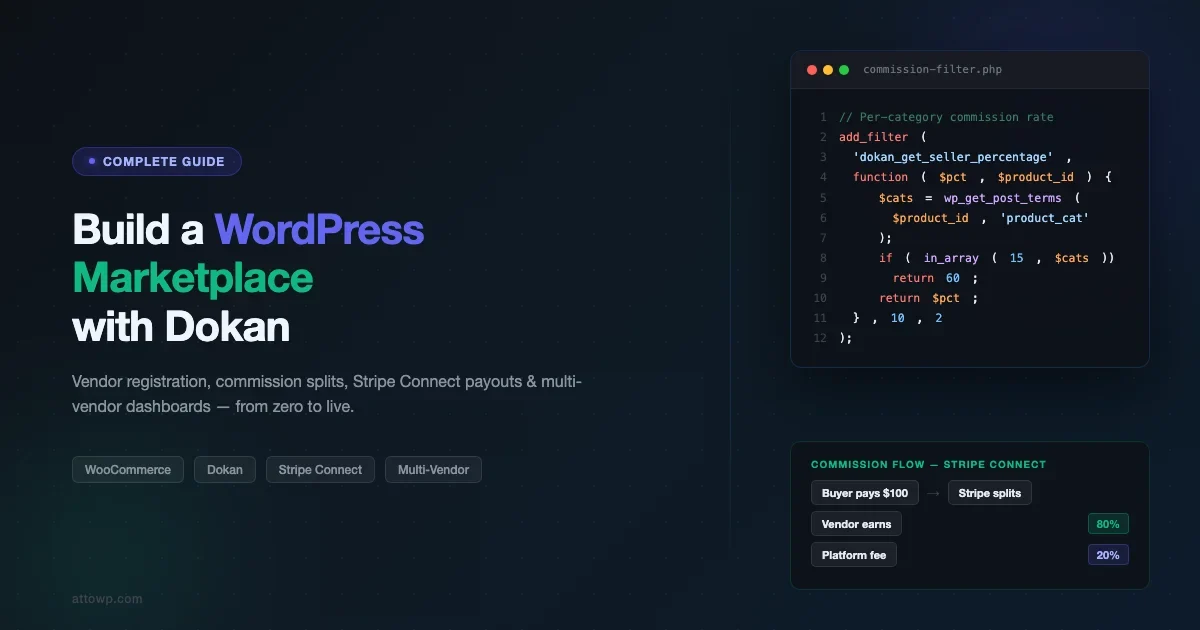
Building a WordPress marketplace with WooCommerce and Dokan is one of the most practical ways to launch a multi-vendor ecommerce platform without writing thousands of lines of custom code. You get WooCommerce’s battle-tested checkout, payment processing, and product management combined with Dokan’s vendor layer, vendor registration, individual dashboards, commission splitting, and payout automation, all running on a self-hosted WordPress installation you fully control.
This guide covers every step of the process from a blank WordPress install to a production-ready marketplace: installing and configuring Dokan on top of WooCommerce, setting up vendor registration with approval workflows, configuring commission structures, activating payment splitting via Stripe Connect or PayPal Adaptive Payments, and launching the vendor dashboard. At the end you will find a comparison of Dokan against its main alternatives so you can make an informed technology decision before you build.
What Is a WordPress Marketplace and Why WooCommerce + Dokan?
A multi-vendor marketplace is an ecommerce site where independent sellers list and sell their own products, the platform operator earns a commission on each transaction, and buyers interact with a unified storefront. Amazon, Etsy, and Envato Market are the well-known examples. Building something similar from scratch requires payment routing logic, vendor account management, dispute resolution workflows, and a frontend seller dashboard, all non-trivial engineering problems.
WooCommerce solves the ecommerce layer. It handles products, carts, checkout, orders, and payment gateways with a plugin ecosystem of thousands of extensions. Dokan sits on top of WooCommerce and solves the marketplace layer: it splits each WooCommerce order into vendor sub-orders, provides each vendor with their own product catalog and order inbox, and routes commission payouts through connected payment accounts.
Why This Stack Works
- WordPress + WooCommerce powers roughly 40% of all ecommerce sites. The talent pool, plugin availability, and documentation are unmatched. If you need a WooCommerce setup walkthrough, start there before adding the marketplace layer.
- Dokan is the most actively maintained multi-vendor plugin for WooCommerce with 60,000+ active installations and a dedicated team at WeDevs.
- Self-hosted means you pay no percentage of GMV to the platform, unlike Shopify or BigCommerce marketplaces.
- Extensible, both WooCommerce and Dokan expose comprehensive hook and filter systems, so custom commission logic, vendor vetting workflows, or branded dashboards are all achievable without forking core code.
Prerequisites and Hosting Requirements
A multi-vendor marketplace puts more load on the server than a standard WooCommerce store because every vendor action, product save, order status change, payout calculation, runs additional database queries. Under-powered shared hosting will cause timeout errors the moment you onboard more than a handful of vendors.
Resource | Minimum | Recommended |
|---|---|---|
PHP | 8.1 | 8.2+ |
MySQL / MariaDB | 8.0 / 10.6 | 8.0 / 10.11 LTS |
RAM | 1 GB | 4 GB+ |
PHP memory_limit | 256 MB | 512 MB |
Hosting type | VPS | Managed cloud (Cloudways, Kinsta, Rocket.net) |
Object cache | Optional | Redis (strongly recommended at scale) |
Beyond server specs, you will need SSL active on the domain (required for payment processing), a transactional email service such as Postmark or SendGrid configured via WP Mail SMTP, and a Stripe or PayPal developer account for payment splitting credentials.
Step 1: Install WooCommerce and Dokan
Start with a clean WordPress installation. Install WooCommerce first, complete the setup wizard to configure your store currency, country, and default shipping zones, then install Dokan.
Choosing the Right Dokan Plan
Dokan has a free tier (Dokan Lite) on the WordPress plugin repository and several premium plans. The features you actually need for a functional marketplace are distributed across these tiers:
Feature | Dokan Lite (Free) | Dokan Starter | Dokan Professional | Dokan Business |
|---|---|---|---|---|
Vendor registration and dashboard | Yes | Yes | Yes | Yes |
Commission management (global + per-vendor) | Global only | Yes | Yes | Yes |
Per-product commission | No | No | Yes | Yes |
Stripe Connect (automated splits) | No | Yes | Yes | Yes |
Vendor subscription plans | No | No | Yes | Yes |
Vendor analytics | Basic | Standard | Advanced | Advanced |
Product auction support | No | No | No | Yes |
For most marketplaces launching their first version, Dokan Starter gives you per-vendor commission rates and Stripe Connect, the two features that differentiate a real marketplace from a single-vendor store. Dokan Professional adds per-product commission rates, which matters once you have vendors selling products with different margin profiles.
Installation Steps
- In your WordPress admin, go to Plugins > Add New and search for “WooCommerce”. Install and activate it, then complete the setup wizard.
- Search for “Dokan” and install the free Dokan Lite plugin. Activate it, this creates the Dokan menu in your admin sidebar.
- If you purchased Dokan Pro, upload the ZIP via Plugins > Upload Plugin and activate it. The pro version requires Dokan Lite to be active as a dependency.
- Navigate to Dokan > Settings to begin configuration.
Step 2: Configure Vendor Registration
The vendor registration flow is the first thing prospective sellers experience. Getting it right matters for conversion and for vetting quality vendors. Dokan creates a frontend registration form at /store-registration/ (or whatever page you assign) that collects store name, slug, and contact details alongside standard WordPress user fields.
Registration Settings in Dokan
Go to Dokan > Settings > General and configure these options under the Seller Registration section:
- Enable Seller Registration: Checked. This shows the “Register as a Vendor” option on the WooCommerce my-account registration page or your dedicated registration page.
- Vendor Enablement: Set to “Manually Review” if you want to vet vendors before activating their stores. Set to “Instantly” for open marketplaces.
- New Seller Email: Enable this to receive an email notification every time a new vendor registers. This lets you act quickly on review requests.
- Seller Application (Pro): Enables a multi-step application form with custom fields so you can collect business documentation, social proof, or category intent before approving vendors.
Adding Custom Fields to the Registration Form
The default registration form is minimal. For a curated marketplace you likely need additional fields, business registration number, product categories the vendor plans to sell in, or a link to their existing online presence. Dokan exposes action hooks that let you add and save custom fields without modifying plugin files.
The snippet below adds a required “Business Type” dropdown to the vendor registration form, marks it as required in the validation layer, and saves the value to user meta after successful registration:
Add this to your active theme’s functions.php or, better, to a site-specific plugin so the customization survives theme updates.
Step 3: Configure Commission Structure
Commission configuration is where many marketplace builds get complicated. Dokan supports four levels of commission granularity, applied in descending priority:
- Per-product commission, highest priority; overrides everything for that specific product.
- Per-vendor commission, overrides the global rate for all products from a specific vendor.
- Per-category commission, applied to all products in a WooCommerce category when no product or vendor rate is set.
- Global commission, the fallback rate applied to every transaction with no more specific rule.
Setting the Global Commission Rate
Go to Dokan > Settings > Selling Options. The “Commission Type” dropdown has three options:
- Percentage: The platform takes a percentage of each order. This is the standard model. A 20% commission on a $100 order earns the platform $20 and pays the vendor $80.
- Fixed: The platform takes a flat dollar amount per transaction regardless of order value. Useful for low-margin physical goods where percentage cuts would make vendor economics unworkable.
- Percentage + Fixed (Pro): A hybrid, for example, 10% + $1.50. This model is common in service marketplaces where there is a meaningful per-transaction processing cost.
The “Admin Commission” field sets the percentage or amount the platform retains. The remainder goes to the vendor. Set “Vendor Earning” to automatically calculate the vendor’s share based on the admin commission.
Per-Vendor Commission Override
To set a per-vendor rate, go to Users > All Users, find the vendor, click Edit, and scroll to the Dokan section. Set a custom commission there. This rate overrides the global setting for all of this vendor’s products.
Programmatic Commission Control
For dynamic commission logic, tiered rates based on vendor performance, category-specific overrides, or promotional periods, use the dokan_get_seller_percentage filter. The snippet below shows how to apply a lower payout to vendors in a specific product category and a higher payout to designated premium vendors:
Step 4: The Vendor Dashboard
The vendor dashboard is the seller’s control center. Dokan creates a frontend dashboard, not an admin panel, so vendors never have access to WordPress’s wp-admin. They manage their store entirely through pages on the public-facing site, which means lower onboarding friction and a cleaner experience for non-technical sellers.
Dashboard Pages Dokan Creates Automatically
During activation, Dokan’s setup wizard creates these pages and assigns them in the settings:
Page | Default Slug | Purpose |
|---|---|---|
Vendor Dashboard | /dashboard/ | Overview: sales, orders, revenue, notifications |
Store List | /store-listing/ | Public directory of all vendor stores |
Store Registration | /vendor-registration/ (or account page) | New vendor sign-up form |
My Orders | /dashboard/orders/ | Vendor-specific order management |
Products | /dashboard/products/ | Vendor product catalog management |
Withdraw | /dashboard/withdraw/ | Vendor payout requests |
Settings | /dashboard/settings/ | Store branding, payment account, shipping |
Vendor Dashboard Capabilities
From the dashboard a vendor can add and manage products (including variable products with WooCommerce Dokan Pro), view and manage their orders, configure shipping zones and rates, set up their store header image and description, connect their payment account, and request withdrawals of their earned balance.
The platform operator controls which capabilities vendors have access to through the Dokan > Settings > Selling Options panel. You can enable or disable vendor ability to: add new products without review, offer coupons, manage shipping independently, or receive refund requests directly.
Customizing Dashboard Appearance
Dokan’s frontend dashboard is template-driven. Templates live in dokan-lite/templates/. To customize them without losing changes on plugin updates, copy the templates to your theme at your-theme/dokan/, Dokan’s template loader checks your theme directory first, exactly like WooCommerce’s template override system.
Step 5: Payment Splitting and Vendor Payouts
Payment splitting is the most technically complex part of any marketplace build. When a buyer pays $100 for a product from Vendor A on your marketplace, the money needs to get to Vendor A (minus your commission) without you manually moving funds. There are two ways to handle this with Dokan: automatic splits at checkout time, or manual disbursements from an accumulated vendor balance.
Automatic Splits: Dokan Stripe Connect
Dokan Stripe Connect (available in Dokan Starter and above) uses Stripe’s Connect platform to split payments at the moment of checkout. The buyer’s payment goes to your Stripe account, and Stripe simultaneously transfers the vendor’s share (minus your commission and Stripe’s fee) to the vendor’s connected Stripe account. No manual reconciliation required.
To activate this:
- Create a Stripe account and enable Stripe Connect in your Stripe Dashboard under Settings > Connect.
- In your WordPress admin, go to WooCommerce > Settings > Payments and activate the Dokan Stripe Connect gateway.
- Enter your Stripe publishable and secret keys, then your Stripe Connect Client ID (found in Stripe Dashboard > Connect > Settings).
- Set your preferred disbursement schedule, instant, daily, weekly, or manual.
- Vendors connect their Stripe accounts from their dashboard under Settings > Payment via an OAuth flow you don’t need to build.
Vendors who haven’t connected a Stripe account yet cannot complete sales. Their orders go into a holding state until the account is connected, this prevents you from accumulating liabilities you can’t disburse.
Programmatic Vendor Stripe Connection
If you are migrating existing vendors from another platform or building a custom onboarding flow, you can connect a vendor’s Stripe account programmatically after they complete the OAuth flow outside of Dokan’s default UI:
Manual Disbursements: Dokan’s Withdrawal System
If automatic Stripe splitting is not an option, maybe you serve vendors in countries without Stripe Connect support, or you prefer to hold funds until order completion, Dokan’s withdrawal system provides an alternative. Vendor earnings accumulate in a balance. Vendors request withdrawals from their dashboard. You approve requests and send payments manually via PayPal, bank transfer, or any method you configure.
Configure withdrawal settings at Dokan > Settings > Withdraw:
- Withdraw methods: Enable PayPal, bank transfer, or custom methods. Vendors choose their preferred method in their payment settings.
- Minimum withdraw limit: Set a threshold (e.g., $50) before vendors can request a payout. This reduces payment processing overhead from micro-transactions.
- Withdraw threshold: Number of days after order completion before earnings become withdrawable. A 14-day hold protects against chargebacks.
- Order status for disbursement: Set this to “Completed”, only pay out on fulfilled orders, not on pending or processing status.
For marketplaces handling physical goods with return windows, set the withdraw threshold to match your return policy period. Disbursing before the return window closes exposes you to balance shortfalls if buyers return products after vendors have been paid.
Step 6: Shipping Configuration for Multi-Vendor
Shipping in a multi-vendor marketplace is more complex than a single-vendor store because each vendor may ship from a different location, use different carriers, and have different rate structures. Dokan handles this by giving each vendor their own shipping settings that integrate with WooCommerce’s shipping zones.
Vendor-Managed Shipping
Enable this at Dokan > Settings > Selling Options > Allow Vendors to Configure Shipping. Once enabled, each vendor can set flat-rate, free shipping, or local pickup methods from their dashboard under Settings > Shipping. Their shipping methods apply only to their own products in the cart.
Admin-Controlled Shipping
For marketplaces where you want to control shipping centrally, such as a fulfillment model where you handle warehousing, disable vendor shipping configuration and manage all zones from WooCommerce > Settings > Shipping as you would on a standard store. The WooCommerce Table Rate Shipping plugin works well here if you need zone-based rate tables.
Step 7: Product Moderation and Quality Control
An open marketplace where vendors can publish products without review is a liability. Counterfeit goods, prohibited products, and misleading listings can expose you to legal risk and damage buyer trust. Dokan’s product moderation settings let you require admin approval before any vendor product goes live.
Go to Dokan > Settings > Selling Options and set New Product Status to “Pending”. This means every new product from any vendor enters a pending review state rather than publishing immediately. Your team reviews and approves from the WordPress admin product list, which shows all vendors’ products filterable by vendor.
You can whitelist trusted vendors, once a vendor has demonstrated consistently compliant listings, set their individual new product status to “Published” so they bypass the approval queue. This scales well as you grow: new vendors are moderated, proven vendors publish freely.
Step 8: SEO and Store Pages for Vendors
Each vendor in Dokan gets a public store page at yoursite.com/store/vendor-slug/. This is a browsable storefront that lists all of the vendor’s products. From an SEO standpoint these pages represent an opportunity, if you allow vendors to write store descriptions, these pages can rank for branded searches for the vendor’s business name.
Encourage vendors to complete their store profile: a descriptive store name, a meaningful store description with their target keywords, a banner image, and a profile photo all improve the quality signals for their store page. You can set required fields at the platform level to enforce completeness before a vendor store goes live.
For the marketplace itself, the store listing page at /store-listing/ should have a meta title and description set via RankMath or Yoast. Use structured data (Schema.org ItemList) to mark up the vendor directory, this can generate rich results in Google Search that show individual vendor names in a carousel format.
Dokan Alternatives: Choosing the Right Multi-Vendor Plugin
Dokan is not the only option for building a WordPress marketplace with WooCommerce. Three other plugins compete in this space, each with different strengths:
WCFM Marketplace (WooCommerce Frontend Manager)
WCFM has the most feature-complete free tier of any multi-vendor plugin. The free version includes most of what you would pay for in Dokan’s starter plan: flexible commissions, vendor analytics, withdrawal management, and a detailed frontend dashboard. The tradeoff is a more complex admin interface and a smaller commercial support organization behind it. WCFM is a strong choice if budget is the primary constraint.
MultiVendorX
MultiVendorX (formerly WC Marketplace) has been around since 2014 and offers a modular architecture where you enable only the modules your marketplace needs. It supports product auctions via a WooCommerce integration, service bookings, and commission rules that include category-level rates in its free tier. If your marketplace will sell services alongside physical or digital products, MultiVendorX’s booking integration makes it worth evaluating, see also our guide to building a service marketplace on WordPress.
WC Vendors
WC Vendors is a lightweight alternative with a clean codebase and good developer documentation. It lacks some of Dokan’s enterprise features, vendor subscription plans, product auctions, and the Dokan Business tier’s full analytics, but it has a lower complexity footprint if you don’t need those capabilities. WC Vendors Pro adds per-product commission rates, Stripe Connect, and commission reports.
Comparison: Dokan vs Alternatives
Feature | Dokan | WCFM | MultiVendorX | WC Vendors |
|---|---|---|---|---|
Free tier quality | Good | Excellent | Good | Basic |
Stripe Connect (automated splits) | Paid | Paid | Paid | Paid |
Per-product commission (free) | No | Yes | Yes | No |
Vendor subscription plans | Pro+ | Pro | Yes | No |
Booking/service support | Module | Module | Built-in | No |
Active installations | 60,000+ | 30,000+ | 10,000+ | 10,000+ |
Commercial support quality | High (WeDevs) | Medium | Medium | Medium |
Developer documentation | Comprehensive | Moderate | Good | Good |
For most new marketplace projects, Dokan’s combination of active development, commercial support, and WordPress ecosystem integrations makes it the lowest-risk choice. WCFM is the right pick if you need feature parity at lower cost. MultiVendorX wins for service-plus-product hybrid marketplaces.
Performance and Security Considerations
A live marketplace with active vendors and buyers surfaces performance and security concerns that a typical WooCommerce store does not encounter at the same scale.
Performance
- Object caching: Install Redis via your host’s control panel and enable it with the Redis Object Cache plugin. Dokan runs numerous get_user_meta and WooCommerce order queries; caching dramatically reduces database load at scale.
- Marketplace-specific caching rules: If you use WP Rocket or LiteSpeed Cache, configure cart and account pages, including Dokan dashboard pages, as excluded from full-page cache. Vendor dashboards are dynamic and should never be served from a page cache.
- Database maintenance: WooCommerce order and meta tables grow quickly with multi-vendor order splitting. Schedule weekly cleanup with WP-Optimize or WC’s built-in scheduled action cleanup to prevent table bloat.
Security
- Vendor capability restrictions: Dokan limits vendor capabilities to their own store context, but you should audit what capabilities the “seller” user role holds. Use a plugin like User Role Editor to verify vendors cannot access admin-level functions.
- File upload restrictions: If vendors can sell digital products, restrict allowed upload file types to prevent executable uploads. Add a filter to
upload_mimesto whitelist only the formats your marketplace supports. - Fraud prevention: Implement velocity rules in Stripe (or use Stripe Radar) to flag unusual payout requests. A vendor who suddenly requests a large withdrawal after receiving a spike in orders could indicate a compromised account or payment fraud.
Launch Checklist for Your WordPress Marketplace
Before going live, work through this checklist to verify the marketplace is production-ready:
- SSL certificate active and all HTTP traffic redirecting to HTTPS
- WooCommerce payment gateway tested with Stripe test mode, place a test order through the full checkout flow
- Vendor registration form tested, register a test vendor account and verify the approval workflow fires correctly
- Commission calculation verified, create a test product at a known price, place an order, and confirm the split amounts in Dokan’s commission report
- Vendor dashboard accessible, log in as the test vendor and confirm all dashboard sections load correctly
- Payment split verified in Stripe Dashboard, confirm test funds were transferred to the test vendor Stripe account with the correct amount
- Email notifications tested, verify new order, new vendor registration, withdrawal request, and order status change emails all deliver
- Product moderation flow tested, add a product as a test vendor, verify it enters pending state, approve it as admin, and confirm it appears on the store
- Withdrawal request flow tested, request a withdrawal as the test vendor, verify it appears in the admin withdrawal queue
- Privacy policy and terms of service pages live, with vendor agreement language covering commission terms and prohibited products
Conclusion
Building a WordPress marketplace with WooCommerce and Dokan gives you a production-grade multi-vendor platform without the development overhead of a custom build. The combination handles vendor registration, product management, commission calculation, and payment splitting through a tested, extensible system that your team can maintain without specialized marketplace engineering knowledge.
The critical decisions are commission structure design (start with a global rate, add per-vendor and per-category overrides as your vendor base matures), payment splitting method (Stripe Connect for automation, manual withdrawal for maximum control over cash flow), and vendor moderation approach (manual approval for curated marketplaces, automatic for open directories).
Once your marketplace is live, focus on vendor onboarding quality over quantity. Ten well-supported vendors with complete store profiles and quality product listings will outperform a hundred vendors with incomplete listings every time, both in buyer conversion and in search ranking for the product categories you serve.
For further reading on ecommerce platform setup, see our complete WooCommerce setup and customization guide. If you are building a service-based marketplace alongside physical products, our guide to monetizing WordPress by selling services covers the complementary workflow.
Frequently Asked Questions
Do I need Dokan Pro to build a functional marketplace?
Dokan Lite is sufficient for a basic marketplace with global commission rates and manual vendor payouts. For automated payment splitting via Stripe Connect, which eliminates manual disbursement work, you need Dokan Starter or above. Per-product commission rates require Dokan Professional. Most commercial marketplaces will need at least Dokan Starter.
Can vendors manage their own shipping rates with Dokan?
Yes. When vendor-managed shipping is enabled in Dokan settings, each vendor can configure flat-rate, free shipping, and local pickup methods from their dashboard. Their rates apply only to their own products. Alternatively, you can manage shipping centrally from WooCommerce shipping zones if you prefer a unified shipping experience for buyers.
How does Dokan handle orders with products from multiple vendors?
When a buyer purchases products from two or more vendors in a single checkout, Dokan splits the WooCommerce order into sub-orders, one per vendor. Each vendor sees only their sub-order in their dashboard. Commission is calculated separately per sub-order. Each vendor manages their own fulfillment. The buyer sees a single consolidated order but shipping and communication may come from multiple sources.
What payment gateways does Dokan support for vendor payouts?
For automatic payment splitting, Dokan supports Stripe Connect and PayPal Adaptive Payments. For manual disbursements, vendors can set up PayPal address, bank transfer details, or any custom payment method you configure. The choice of automatic versus manual disbursement depends on your operational preferences and the countries your vendors operate in, Stripe Connect has broader country coverage than PayPal Adaptive Payments.
How do I prevent vendors from accessing wp-admin?
Dokan assigns vendors a custom “seller” user role with capabilities limited to their own store context. This role does not have access to the WordPress admin backend by default. All vendor management happens through the frontend dashboard. If you find vendors can access wp-admin, for example, because they were first created as subscribers or editors, go to the Dokan vendor list and verify their role is set to “seller”, not a higher-privilege role.

No comments yet