
WordPress powers over 43% of all websites on the internet, making it the most popular content management system by a wide margin. That popularity, however, makes it a prime target for attackers. In 2025 alone, Sucuri reported cleaning malware from over 60,000 WordPress sites per quarter. WordPress security hardening is the practice of reducing your site’s attack surface through configuration changes, access controls, and proactive monitoring so that vulnerabilities are far less likely to be exploited.
This guide walks through a complete, actionable checklist for hardening your WordPress installation in 2026. Whether you manage a single blog or dozens of client sites, each item on this list addresses a real-world attack vector that has been exploited in documented incidents.
Why WordPress Security Hardening Matters in 2026
The WordPress threat landscape has shifted significantly. According to Wordfence’s 2025 annual report, brute-force login attacks account for roughly 40% of all attempted breaches, while vulnerable plugins remain the single largest entry point at 56% of compromised sites. Supply-chain attacks targeting plugin update mechanisms emerged as a new category in late 2025, with the WordPress.org plugin repository itself implementing mandatory two-factor authentication for all plugin authors.
Hardening is distinct from simply installing a security plugin. A security plugin adds monitoring and firewalls, but hardening changes the underlying configuration of WordPress, the web server, and the hosting environment to eliminate entire categories of attack. Think of it this way: a security plugin is an alarm system, while hardening is reinforcing the doors, windows, and walls themselves.
The Complete WordPress Security Hardening Checklist
This checklist is organized by priority. Start with the foundational items and work your way through. Each section includes the specific implementation steps so you can act on them immediately.
1. Keep WordPress Core, Themes, and Plugins Updated
This remains the single most impactful security measure. The WordPress security team typically patches critical vulnerabilities within 24-48 hours of disclosure. Running outdated software is the equivalent of leaving a documented, known vulnerability open for anyone with a search engine to exploit.
- Enable automatic updates for minor WordPress core releases (these are security patches)
- Review and apply major core updates within one week of release
- Enable auto-updates for plugins from trusted developers
- Remove any plugins or themes you are not actively using - deactivated does not mean safe
- Subscribe to the WordPress security mailing list and WPScan vulnerability database feeds
WordPress 6.7 introduced a vulnerability disclosure API that lets site owners programmatically check whether their installed plugins have known vulnerabilities. Use wp plugin verify-checksums via WP-CLI to verify file integrity against the official repository.
2. Enforce Strong Authentication
Brute-force attacks remain persistent because they work against weak credentials. A 2025 study by Sucuri found that 12% of compromised WordPress sites used the username “admin” with passwords shorter than 8 characters.
- Require passwords of at least 16 characters using a password manager
- Implement two-factor authentication (2FA) for all administrator and editor accounts using plugins like WP 2FA or the built-in application passwords feature
- Rename or remove the default “admin” username
- Limit login attempts to 5 per 15-minute window, then lock the IP for 30 minutes
- Implement CAPTCHA or challenge-response on the login page
- Consider passwordless authentication via WebAuthn/passkeys for high-security sites
// Disable XML-RPC to prevent brute-force amplification attacks
add_filter( 'xmlrpc_enabled', '__return_false' );

// Remove XML-RPC from HTTP headers
remove_action( 'wp_head', 'rsd_link' );
3. Secure the wp-config.php File
The wp-config.php file contains your database credentials, authentication salts, and security keys. Exposing this file means full compromise of your WordPress installation.
- Move
wp-config.phpone directory above the web root (WordPress natively supports this) - Set file permissions to 400 or 440 (read-only for the owner)
- Regenerate security keys and salts at api.wordpress.org/secret-key quarterly
- Define
DISALLOW_FILE_EDITto prevent theme/plugin editing from the dashboard - Set
DISALLOW_UNFILTERED_HTMLto prevent administrators from injecting arbitrary HTML
// Add these to wp-config.php
define( 'DISALLOW_FILE_EDIT', true );
define( 'DISALLOW_UNFILTERED_HTML', true );
define( 'WP_AUTO_UPDATE_CORE', 'minor' );
define( 'FORCE_SSL_ADMIN', true );
4. Harden the Database
SQL injection remains a top-10 OWASP vulnerability. While WordPress core has strong query sanitization, third-party plugins sometimes bypass the $wpdb prepared statements API. For a deeper look at database performance and structure, see our WordPress database optimization guide.
- Change the default
wp_table prefix to something unique during installation - Create a dedicated MySQL/MariaDB user with only the permissions WordPress needs (SELECT, INSERT, UPDATE, DELETE, CREATE, ALTER, DROP, INDEX)
- Revoke GRANT, FILE, and PROCESS privileges from the WordPress database user
- Enable MySQL query logging temporarily to audit plugin behavior
- Run regular database backups with retention (daily for 7 days, weekly for 4 weeks)
Permission | Required | Notes |
|---|---|---|
SELECT, INSERT, UPDATE, DELETE | Yes | Core CRUD operations |
CREATE, ALTER, DROP | Yes | Needed for updates and plugin installs |
INDEX | Yes | Performance optimization |
GRANT | No | Remove - privilege escalation risk |
FILE | No | Remove - filesystem access risk |
PROCESS | No | Remove - server info disclosure |
5. Implement Server-Level Protections
Many WordPress security measures operate at the web server layer, before PHP even processes the request. These rules prevent attackers from accessing sensitive files or executing uploaded scripts.
# Protect wp-includes directory
<IfModule mod_rewrite.c>
RewriteEngine On
RewriteBase /
RewriteRule ^wp-admin/includes/ - [F,L]
RewriteRule !^wp-includes/ - [S=3]
RewriteRule ^wp-includes/[^/]+\.php$ - [F,L]
RewriteRule ^wp-includes/js/tinymce/langs/.+\.php - [F,L]
RewriteRule ^wp-includes/theme-compat/ - [F,L]
</IfModule>

# Disable directory browsing
Options -Indexes

# Block access to sensitive files
<FilesMatch "^(wp-config\.php|readme\.html|license\.txt|xmlrpc\.php)$">
  Order Allow,Deny
  Deny from all
</FilesMatch>

# Prevent PHP execution in uploads directory
<Directory "/var/www/html/wp-content/uploads">
  <FilesMatch "\.php$">
    Order Allow,Deny
    Deny from all
  </FilesMatch>
</Directory>
For Nginx servers, the equivalent configuration uses location blocks with deny all directives. The WordPress developer documentation at developer.wordpress.org provides server-specific examples.
6. Configure HTTP Security Headers
HTTP security headers instruct the browser to enforce security policies. Without them, your site is vulnerable to clickjacking, MIME-type sniffing, and cross-site scripting attacks even if the WordPress application itself is secure.
Header | Value | Purpose |
|---|---|---|
Strict-Transport-Security | max-age=31536000; includeSubDomains | Force HTTPS for 1 year |
X-Content-Type-Options | nosniff | Prevent MIME-type sniffing |
X-Frame-Options | SAMEORIGIN | Prevent clickjacking |
X-XSS-Protection | 1; mode=block | Legacy XSS filter (still useful) |
Referrer-Policy | strict-origin-when-cross-origin | Control referrer information |
Permissions-Policy | camera=(), microphone=(), geolocation=() | Restrict browser APIs |
Content-Security-Policy | Site-specific (see below) | Prevent XSS and injection |
Content-Security-Policy (CSP) is the most powerful but also the most complex header. Start with a report-only policy using Content-Security-Policy-Report-Only to identify what would break before enforcing it. Tools like Report URI can collect and visualize CSP violations.
7. Protect the wp-admin Area
The WordPress admin area is the primary target for attackers. Beyond strong authentication, you can add layers of protection at the server level.
- Restrict
/wp-admin/access to specific IP addresses if you have a static IP - Add HTTP basic authentication as a second layer in front of
wp-login.php - Change the login URL using a plugin like WPS Hide Login (adds obscurity, not security, but reduces bot traffic)
- Implement login rate limiting at the server level (fail2ban for Apache/Nginx)
- Monitor the
/wp-admin/admin-ajax.phpendpoint, which is often targeted by bots
“Security through obscurity is not security, but it is a valid layer in a defense-in-depth strategy. Moving your login page will not stop a targeted attacker, but it will eliminate 99% of automated bot traffic.”
- Wordfence 2025 WordPress Security Report
8. File Permission and Ownership Hardening
Incorrect file permissions are a common misconfiguration that lets attackers write to files they should only be able to read, or execute files in directories meant for uploads only.
Path | Permission | Notes |
|---|---|---|
WordPress root | 755 | Directories |
All files | 644 | Read/write for owner, read for others |
wp-config.php | 400 or 440 | Read-only |
wp-content/uploads | 755 | Web server needs write access |
.htaccess | 444 | Read-only for all |
# Fix WordPress file permissions (run from WordPress root)
find . -type d -exec chmod 755 {} \;
find . -type f -exec chmod 644 {} \;
chmod 400 wp-config.php
chmod 444 .htaccess

# Set proper ownership (replace www-data with your web server user)
chown -R www-data:www-data /var/www/html/
9. Enable SSL/TLS Everywhere
HTTPS is no longer optional. Google has used HTTPS as a ranking signal since 2014, and modern browsers flag HTTP sites as “Not Secure.” Beyond SEO, SSL/TLS encrypts data in transit, preventing session hijacking and credential theft on public networks. Optimizing your server configuration can also speed up WordPress performance significantly.
- Install a free SSL certificate from Let’s Encrypt (auto-renews every 90 days)
- Force HTTPS site-wide by setting both
WP_HOMEandWP_SITEURLwith thehttps://prefix - Enable HSTS (HTTP Strict Transport Security) to prevent protocol downgrade attacks
- Test your SSL configuration at SSL Labs and aim for an A+ rating
- Enable TLS 1.3 and disable TLS 1.0/1.1 at the server level
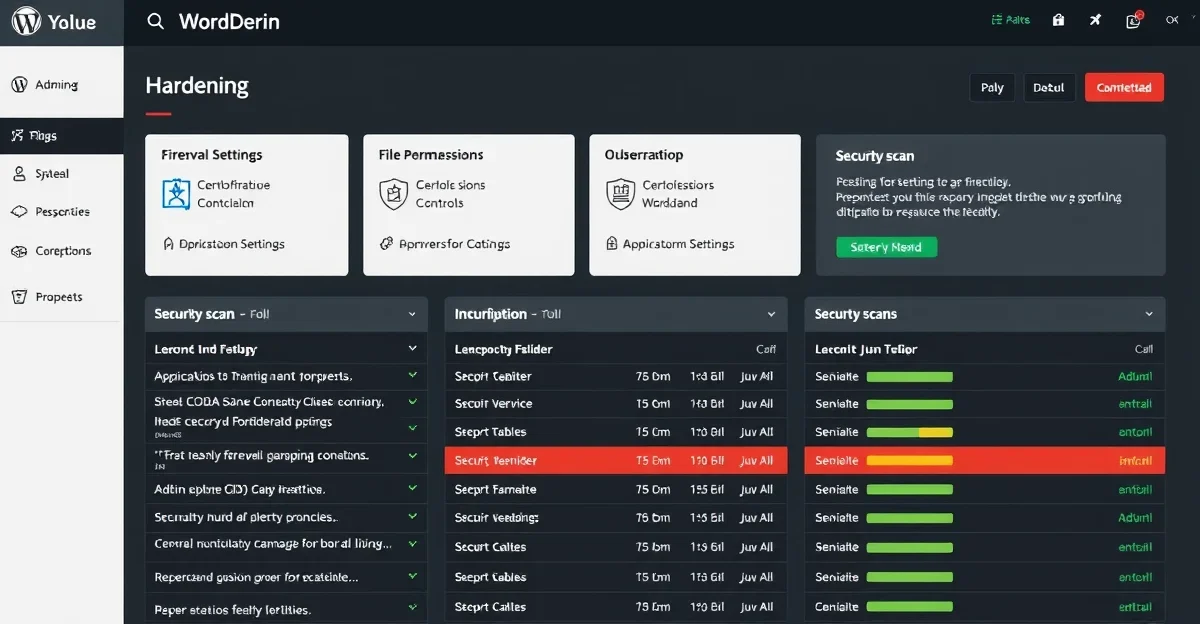
10. Implement a Web Application Firewall (WAF)
A WAF inspects incoming HTTP requests and blocks malicious patterns before they reach WordPress. This is your first line of defense against SQL injection, cross-site scripting, and file inclusion attacks.
- Cloud-based WAFs: Cloudflare, Sucuri, or AWS WAF sit in front of your server and filter traffic globally
- Application-level WAFs: Wordfence or NinjaFirewall run as WordPress plugins and inspect requests at the PHP level
- Server-level WAFs: ModSecurity with the OWASP Core Rule Set provides deep inspection at the Apache/Nginx layer
For most WordPress sites, a combination of Cloudflare (free tier) for DDoS protection and rate limiting, plus Wordfence (free) for application-level scanning, provides solid coverage without additional cost.
11. Backup Strategy and Recovery Planning
Backups are your last line of defense. If everything else fails, a clean backup lets you restore your site to a known-good state. However, backups are only useful if they are tested, stored off-site, and executed on a schedule.
- Automate daily database backups and weekly full-site backups
- Store backups in at least two locations (local + cloud storage like S3 or Google Cloud Storage)
- Test backup restoration quarterly on a staging environment
- Keep backup retention of 30 days minimum
- Use incremental backups to reduce storage costs and backup time
- Encrypt backups at rest, especially if they contain user data (GDPR compliance)
12. Monitoring and Incident Response
Security is not a one-time task. Continuous monitoring detects compromises early, often before significant damage occurs. The average time to detect a WordPress breach is 200+ days without monitoring, versus hours with proper alerting.
- Enable file integrity monitoring to detect unauthorized changes to core files
- Set up login activity logging to track all authentication events
- Monitor for new admin user creation (a common post-exploitation step)
- Configure uptime monitoring with alerts for downtime or content changes
- Implement Google Search Console alerts for security issues and manual actions
- Document an incident response plan: who to contact, how to isolate, steps to clean
// Log all login attempts (add to functions.php or custom plugin)
add_action( 'wp_login_failed', function( $username ) {
    $ip = $_SERVER['REMOTE_ADDR'] ?? 'unknown';
    error_log( sprintf(
        '[Security] Failed login for user "%s" from IP %s at %s',
        sanitize_user( $username ),
        $ip,
        current_time( 'mysql' )
    ));
});

add_action( 'wp_login', function( $user_login, $user ) {
    $ip = $_SERVER['REMOTE_ADDR'] ?? 'unknown';
    error_log( sprintf(
        '[Security] Successful login for user "%s" (ID: %d) from IP %s',
        $user_login,
        $user->ID,
        $ip
    ));
}, 10, 2 );
Advanced Hardening Techniques
Once you have the fundamentals in place, these advanced measures provide additional protection for high-value WordPress installations.
13. Content Security Policy (CSP) for WordPress
A properly configured CSP is one of the most effective defenses against XSS attacks. It tells the browser exactly which sources of scripts, styles, images, and other resources are allowed to load on your pages.
# Start with report-only mode to identify issues
Header set Content-Security-Policy-Report-Only "\
  default-src 'self'; \
  script-src 'self' 'unsafe-inline'; \
  style-src 'self' 'unsafe-inline' fonts.googleapis.com; \
  img-src 'self' data: secure.gravatar.com; \
  font-src 'self' fonts.gstatic.com; \
  connect-src 'self'; \
  frame-src 'self' youtube.com www.youtube.com; \
  report-uri /csp-report-endpoint"
WordPress relies heavily on inline scripts for the block editor and customizer. A strict CSP that removes 'unsafe-inline' will break the admin interface. Apply strict CSP only to the front-end and use a relaxed policy for /wp-admin/.
14. Disable REST API for Unauthenticated Users
The WordPress REST API exposes user enumeration by default at /wp-json/wp/v2/users. This lets attackers discover valid usernames without touching the login page. If you are building features that rely on the REST API, read our complete guide to WordPress REST API authentication for secure implementation patterns.
// Restrict REST API to authenticated users only
add_filter( 'rest_authentication_errors', function( $result ) {
    if ( true === $result || is_wp_error( $result ) ) {
        return $result;
    }
    if ( ! is_user_logged_in() ) {
        return new WP_Error(
            'rest_not_logged_in',
            __( 'You must be logged in to access the REST API.' ),
            array( 'status' => 401 )
        );
    }
    return $result;
});
Be cautious with this approach if your theme or plugins rely on public REST API access (contact forms, headless front-ends, or AJAX-powered features). Test thoroughly before deploying to production.
15. Implement Security Key Rotation
WordPress uses eight security keys and salts for cookie authentication and session management. Rotating these keys invalidates all existing sessions, forcing all users (including any attacker who may have obtained a session cookie) to log in again.
- Rotate keys quarterly using the WordPress salt generator API
- Automate rotation with WP-CLI:
wp config shuffle-salts - Rotate immediately after any suspected compromise
- Consider using environment variables for keys instead of hardcoding them in
wp-config.php
WordPress Security Hardening Checklist Summary
Here is the complete checklist in a format you can print or save for reference. Each item is categorized by priority level.
Priority | Action | Impact | Effort |
|---|---|---|---|
Critical | Update WordPress core, themes, plugins | High | Low |
Critical | Enforce strong passwords + 2FA | High | Low |
Critical | Secure wp-config.php (permissions + location) | High | Low |
Critical | Enable SSL/TLS site-wide | High | Low |
Critical | Automated backups with off-site storage | High | Medium |
High | Change database table prefix | Medium | Medium |
High | Configure HTTP security headers | Medium | Medium |
High | Set correct file permissions | Medium | Low |
High | Implement WAF (cloud or application level) | High | Medium |
High | Disable XML-RPC | Medium | Low |
Medium | Restrict REST API access | Medium | Medium |
Medium | Implement Content Security Policy | Medium | High |
Medium | File integrity monitoring | Medium | Medium |
Medium | Login activity logging | Low | Low |
Low | Change login URL | Low | Low |
Common Mistakes to Avoid
Even well-intentioned security efforts can create new problems if implemented incorrectly. These are the mistakes we see most frequently when auditing WordPress security configurations.
- Installing too many security plugins: Running Wordfence, Sucuri, and iThemes Security simultaneously creates conflicts, slows your site, and produces false positives. Pick one comprehensive solution.
- Ignoring staging environments: Test every security change on staging first. A misconfigured
.htaccessrule can lock you out of your own site. - Relying on security through obscurity alone: Changing the login URL or hiding WordPress version numbers is not a substitute for proper authentication and updates.
- Not testing backups: A backup that cannot be restored is not a backup. Test restoration quarterly.
- Overlooking shared hosting risks: On shared hosting, other compromised accounts on the same server can potentially access your files. Consider VPS or managed WordPress hosting for production sites.
- Hardcoding secrets in theme files: API keys, database passwords, and other credentials belong in environment variables or
wp-config.php, never in theme or plugin files committed to version control.
Tools for Ongoing WordPress Security
Security hardening is the foundation, but you need ongoing tools to maintain that posture. Here are the tools worth evaluating for a WordPress security stack in 2026.
Tool | Type | Free Tier | Best For |
|---|---|---|---|
Wordfence | Firewall + Scanner | Yes | All-in-one security plugin |
Cloudflare | CDN + WAF + DDoS | Yes | Edge protection, rate limiting |
WPScan | Vulnerability Database | Yes (API) | Checking plugin/theme vulnerabilities |
Patchstack | Virtual Patching | Yes (basic) | Auto-patching known vulnerabilities |
UpdraftPlus | Backups | Yes | Scheduled backups with cloud storage |
WP Activity Log | Audit Logging | Yes | Tracking all admin activity |
Conclusion
WordPress security hardening is not a single action but an ongoing process. The checklist above covers the measures that address the most common and most damaging attack vectors seen in real-world WordPress compromises. Start with the critical items: updates, strong authentication, wp-config protection, SSL, and backups. Then layer on server-level protections, security headers, and monitoring.
The key principle is defense in depth. No single measure is sufficient, but together they create overlapping layers that make successful exploitation significantly harder. An attacker who bypasses your WAF still faces strong authentication. An attacker who compromises credentials still faces 2FA. An attacker who gains access still faces file integrity monitoring that alerts you within minutes.
Review this checklist quarterly, re-run your security audits, and stay current with the WordPress security advisories. The threat landscape evolves, and your defenses need to evolve with it.
Frequently Asked Questions
Is WordPress inherently insecure?
No. WordPress core has a strong security track record with a dedicated security team. The vast majority of WordPress breaches are caused by outdated plugins, weak passwords, or misconfigured hosting environments, not by vulnerabilities in WordPress core itself. Proper hardening and maintenance make WordPress as secure as any CMS.
How often should I audit my WordPress security?
Run automated security scans weekly and perform a manual security audit quarterly. After any security incident, conduct a full audit immediately. Automate what you can (updates, scans, backups) and reserve manual audits for configuration review and penetration testing.
Do I need a security plugin if I have Cloudflare?
Yes. Cloudflare provides edge-level protection (DDoS mitigation, rate limiting, WAF rules) but does not inspect requests at the application level. A WordPress security plugin like Wordfence monitors file changes, scans for malware in the database, and provides login security features that a CDN cannot replicate. Use both for layered protection.
What is the most important security measure for WordPress?
Keeping WordPress core, themes, and plugins updated. Vulnerability data consistently shows that the majority of successful attacks exploit known, patched vulnerabilities. If you only do one thing, enable automatic updates for minor releases and review major updates promptly.
Should I disable the WordPress REST API entirely?
Not entirely. The REST API is used by the block editor, many plugins, and modern WordPress themes. Instead, restrict unauthenticated access to specific endpoints, particularly /wp-json/wp/v2/users, which exposes usernames. Block unauthenticated user enumeration while keeping the API functional for authenticated users and required public endpoints.

No comments yet