
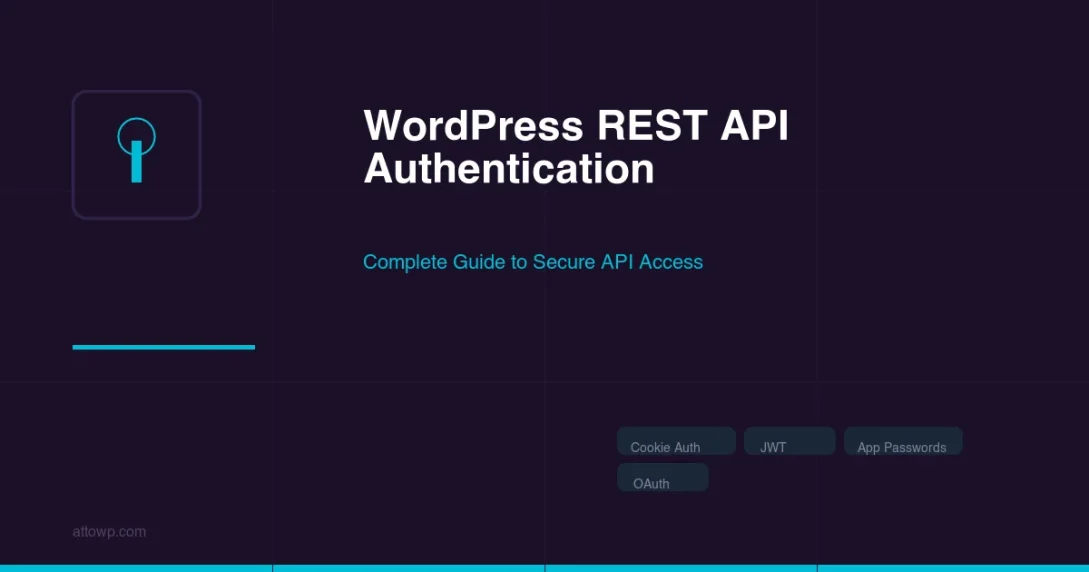
WordPress REST API authentication is the gateway to building secure, modern applications that interact with your WordPress site programmatically. Whether you are developing a headless frontend, building a mobile app, or integrating third-party services, understanding how to authenticate REST API requests is essential. This comprehensive guide covers every WordPress REST API authentication method available today — from the built-in Application Passwords and cookie-based authentication to advanced token-based approaches like JWT and OAuth 2.0.
Why WordPress REST API Authentication Matters
The WordPress REST API exposes your site’s data — posts, users, settings, and custom content — through HTTP endpoints. Without proper authentication, anyone could read private data or modify your site’s content. Authentication verifies the identity of the client making the request and ensures they have the appropriate permissions.
Starting with WordPress 4.7, the REST API became part of WordPress core, and with WordPress 5.6, Application Passwords were introduced as a native authentication mechanism. The official WordPress REST API documentation provides the canonical reference for all available endpoints. Today, WordPress supports multiple authentication methods, each suited to different use cases and security requirements.
Choosing the right authentication method depends on several factors: whether your application runs on the server or client side, whether the user is already logged into WordPress, and what level of access control you need. Let us explore each method in detail.
“The REST API is a critical part of the WordPress infrastructure. Securing API access is not optional — it is the first line of defense for any site that exposes data programmatically. Always authenticate requests that modify data, enforce HTTPS, and apply the principle of least privilege to every API consumer.”
WordPress Core Security Team, REST API Authentication Handbook
Understanding WordPress REST API Authentication Methods
WordPress provides four primary authentication methods for the REST API, each designed for specific scenarios. Here is a complete comparison before we dive into each one.
| Method | Best For | Security Level | Setup Complexity | Token Expiry |
|---|---|---|---|---|
| Cookie Authentication | Frontend JavaScript (same domain) | High (with nonce) | Low | Session-based |
| Application Passwords | Server-to-server, CLI tools, mobile apps | Medium-High | Low | Never (manual revoke) |
| JWT Authentication | SPAs, mobile apps, headless frontends | High | Medium | Configurable (15min-24hr typical) |
| OAuth 2.0 | Third-party integrations, enterprise apps | Highest | High | Access token + refresh token |
Method 1: Cookie Authentication with Nonces
Cookie authentication is the default method used by WordPress itself. When you are logged into the WordPress admin dashboard and make REST API requests from JavaScript running on the same domain, WordPress uses your existing login cookie to authenticate the request.
How Cookie Authentication Works
WordPress stores a session cookie when you log in. For REST API requests, you must also include a nonce — a one-time-use token that prevents cross-site request forgery (CSRF) attacks. The nonce proves that the request originated from a legitimate WordPress page, not from a malicious third-party site.
Implementation: Cookie Authentication
First, localize the REST API nonce in your theme or plugin so JavaScript can access it:
// In your theme's functions.php or plugin file
function attowp_enqueue_api_scripts() {
    wp_enqueue_script(
        'attowp-api',
        get_template_directory_uri() . '/js/api-client.js',
        array(),
        '1.0.0',
        true
    );

    wp_localize_script( 'attowp-api', 'wpApiSettings', array(
        'root'  => esc_url_raw( rest_url() ),
        'nonce' => wp_create_nonce( 'wp_rest' ),
    ) );
}
add_action( 'wp_enqueue_scripts', 'attowp_enqueue_api_scripts' );
Then, include the nonce in your JavaScript fetch requests:
// api-client.js - Using the WordPress REST API with cookie auth
async function createPost( title, content ) {
    const response = await fetch( `${wpApiSettings.root}wp/v2/posts`, {
        method: 'POST',
        headers: {
            'Content-Type': 'application/json',
            'X-WP-Nonce': wpApiSettings.nonce,
        },
        body: JSON.stringify({
            title: title,
            content: content,
            status: 'draft',
        }),
    });

    if ( ! response.ok ) {
        throw new Error( `API error: ${response.status}` );
    }

    return response.json();
}

// Fetch posts (GET requests don't need nonce for public data)
async function getPosts() {
    const response = await fetch( `${wpApiSettings.root}wp/v2/posts` );
    return response.json();
}

// Update a post
async function updatePost( postId, data ) {
    const response = await fetch( `${wpApiSettings.root}wp/v2/posts/${postId}`, {
        method: 'PUT',
        headers: {
            'Content-Type': 'application/json',
            'X-WP-Nonce': wpApiSettings.nonce,
        },
        body: JSON.stringify( data ),
    });

    return response.json();
}
Cookie authentication is the simplest method when your JavaScript runs on the same WordPress domain. It requires no additional plugins and leverages the existing WordPress session system.
When to Use Cookie Authentication
- Custom admin pages that interact with the REST API
- Frontend JavaScript on the same WordPress domain
- Gutenberg block editor extensions
- Custom dashboard widgets
Limitations of Cookie Authentication
- Only works on the same domain (same-origin policy)
- Requires the user to be logged into WordPress
- Cannot be used for server-to-server communication
- Not suitable for mobile applications or external SPAs
Method 2: Application Passwords (WordPress Core)
Application Passwords were introduced in WordPress 5.6 as a core feature, eliminating the need for third-party plugins for basic REST API authentication. As detailed in the WordPress Core Application Passwords integration guide, they allow you to generate unique passwords for each application or service that needs access to your WordPress site, without exposing your main account password.
How Application Passwords Work
Application Passwords use HTTP Basic Authentication. Each generated password is a 24-character string (displayed with spaces for readability) that is tied to a specific WordPress user account. The password is sent with every request in the Authorization header, Base64-encoded along with the username.
Generating Application Passwords
You can generate Application Passwords through the WordPress admin interface or programmatically via the REST API itself.
Via WordPress Admin
- Navigate to Users > Profile (or any user’s profile if you are an admin)
- Scroll down to the Application Passwords section
- Enter a descriptive name for the application (e.g., “Mobile App” or “CI/CD Pipeline”)
- Click Add New Application Password
- Copy the generated password immediately — it will not be shown again
Via REST API
# Generate a new Application Password via the REST API
curl -X POST https://yoursite.com/wp-json/wp/v2/users/me/application-passwords \
  -u "username:existing-app-password" \
  -H "Content-Type: application/json" \
  -d '{"name": "My New Integration"}'
Using Application Passwords in Code
Here is how to use Application Passwords across different programming languages and tools:
# cURL - List all posts (authenticated)
curl https://yoursite.com/wp-json/wp/v2/posts \
  -u "username:xxxx xxxx xxxx xxxx xxxx xxxx"

# cURL - Create a new post
curl -X POST https://yoursite.com/wp-json/wp/v2/posts \
  -u "username:xxxx xxxx xxxx xxxx xxxx xxxx" \
  -H "Content-Type: application/json" \
  -d '{
    "title": "My API Post",
    "content": "Created via the REST API",
    "status": "draft"
  }'

# cURL - Upload media
curl -X POST https://yoursite.com/wp-json/wp/v2/media \
  -u "username:xxxx xxxx xxxx xxxx xxxx xxxx" \
  -H "Content-Disposition: attachment; filename=image.jpg" \
  -H "Content-Type: image/jpeg" \
  --data-binary @image.jpg
// Node.js - Using Application Passwords
const credentials = Buffer.from( 'username:xxxx xxxx xxxx xxxx xxxx xxxx' )
.toString( 'base64' );
async function fetchPosts() {
const response = await fetch( 'https://yoursite.com/wp-json/wp/v2/posts', {
headers: {
'Authorization': `Basic ${credentials}`,
},
});
return response.json();
}
async function createPost( title, content ) {
const response = await fetch( 'https://yoursite.com/wp-json/wp/v2/posts', {
method: 'POST',
headers: {
'Authorization': `Basic ${credentials}`,
'Content-Type': 'application/json',
},
body: JSON.stringify({
title,
content,
status: 'draft',
}),
});
return response.json();
}# Python - Using Application Passwords with requests library
import requests
from requests.auth import HTTPBasicAuth
auth = HTTPBasicAuth( 'username', 'xxxx xxxx xxxx xxxx xxxx xxxx' )
base_url = 'https://yoursite.com/wp-json/wp/v2'
# List posts
response = requests.get( f'{base_url}/posts', auth=auth )
posts = response.json()
# Create a new post
new_post = requests.post(
f'{base_url}/posts',
auth=auth,
json={
'title': 'My Python Post',
'content': 'Created with Python and Application Passwords',
'status': 'draft',
}
)
print( new_post.json()['id'] )Application Password Security Best Practices
- Always use HTTPS — Application Passwords are sent with every request and can be intercepted on unencrypted connections
- Create separate passwords for each application or integration
- Use descriptive names so you can identify and revoke specific passwords
- Revoke unused passwords regularly from the WordPress admin
- Never commit passwords to version control — use environment variables
- Apply the principle of least privilege — create passwords for users with only the permissions needed
Security Note: Application Passwords do not expire automatically. Unlike JWT tokens, they remain valid until manually revoked. Implement a rotation policy for production environments.
Restricting Application Passwords
You can control which users can create Application Passwords and restrict their capabilities using WordPress filters:
// Disable Application Passwords for non-admin users
add_filter( 'wp_is_application_passwords_available_for_user', function( $available, $user ) {
    if ( ! user_can( $user, 'manage_options' ) ) {
        return false;
    }
    return $available;
}, 10, 2 );

// Completely disable Application Passwords (if using a different auth method)
add_filter( 'wp_is_application_passwords_available', '__return_false' );

// Limit Application Password access to specific REST API routes
add_filter( 'rest_authentication_errors', function( $result ) {
    if ( ! empty( $GLOBALS['wp_rest_application_password_status'] ) ) {
        $route = $_SERVER['REQUEST_URI'];

        // Only allow access to posts and media endpoints
        $allowed_patterns = array(
            '/wp-json/wp/v2/posts',
            '/wp-json/wp/v2/media',
        );

        $is_allowed = false;
        foreach ( $allowed_patterns as $pattern ) {
            if ( strpos( $route, $pattern ) !== false ) {
                $is_allowed = true;
                break;
            }
        }

        if ( ! $is_allowed ) {
            return new WP_Error(
                'rest_forbidden',
                'Application Password access is restricted to specific endpoints.',
                array( 'status' => 403 )
            );
        }
    }

    return $result;
} );
“The introduction of Application Passwords in WordPress 5.6 was a watershed moment for the REST API ecosystem. Before this, developers had to rely on third-party plugins or custom solutions for non-cookie authentication. Application Passwords brought a standardized, core-supported mechanism that works with any HTTP client — from cURL scripts to mobile applications — without exposing the user’s primary credentials.”
George Suspended, WordPress Core Contributor, Application Passwords Integration Guide
Method 3: JWT Authentication for WordPress REST API
JSON Web Tokens (JWT) provide a stateless, token-based authentication mechanism that is ideal for single-page applications (SPAs), mobile apps, and headless WordPress architectures. Unlike Application Passwords, JWT tokens are short-lived and self-contained, carrying the user’s identity and permissions within the token itself.
How JWT Authentication Works
- Token Request: The client sends WordPress credentials (username + password) to a token endpoint
- Token Generation: WordPress validates the credentials and returns a signed JWT token
- API Requests: The client includes the JWT token in the Authorization header for subsequent requests
- Token Validation: WordPress verifies the token signature and expiration on each request
- Token Refresh: When the token expires, the client requests a new one using a refresh token or re-authenticates
Setting Up JWT Authentication
JWT is not built into WordPress core. You need a plugin to add JWT support. The most popular options are JWT Authentication for WP REST API and Simple JWT Login. Here is how to set up the widely-used JWT Authentication plugin:
Step 1: Install the Plugin
# Via WP-CLI
wp plugin install jwt-authentication-for-wp-rest-api --activate

# Or download from WordPress.org and upload via admin
Step 2: Configure the Secret Key
Add a secret key to your wp-config.php file. This key is used to sign and verify JWT tokens:
// Add to wp-config.php BEFORE "That's all, stop editing!"
define( 'JWT_AUTH_SECRET_KEY', 'your-strong-random-secret-key-here' );
define( 'JWT_AUTH_CORS_ENABLE', true ); // Enable CORS for headless setups
Generate a strong secret key using WordPress’s built-in salt generator or a secure random string:
# Generate a secure random key
openssl rand -base64 64
Step 3: Configure .htaccess (Apache)
Apache servers may strip the Authorization header by default. Add this rule to your .htaccess file:
# Add before WordPress rewrite rules in .htaccess
RewriteEngine on
RewriteCond %{HTTP:Authorization} ^(.*)
RewriteRule ^(.*) - [E=HTTP_AUTHORIZATION:%1]
For Nginx servers, add this to your server block configuration:
# Nginx - Pass Authorization header to PHP
location / {
    try_files $uri $uri/ /index.php?$args;
}

location ~ \.php$ {
    fastcgi_param HTTP_AUTHORIZATION $http_authorization;
    # ... rest of your PHP configuration
}
Using JWT Authentication
Once configured, here is the complete flow for authenticating with JWT:
// Step 1: Obtain a JWT token
async function getToken( username, password ) {
    const response = await fetch( 'https://yoursite.com/wp-json/jwt-auth/v1/token', {
        method: 'POST',
        headers: { 'Content-Type': 'application/json' },
        body: JSON.stringify({ username, password }),
    });

    const data = await response.json();

    if ( data.token ) {
        // Store the token securely
        localStorage.setItem( 'wp_jwt_token', data.token );
        return data.token;
    }

    throw new Error( data.message || 'Authentication failed' );
}

// Step 2: Validate an existing token
async function validateToken( token ) {
    const response = await fetch( 'https://yoursite.com/wp-json/jwt-auth/v1/token/validate', {
        method: 'POST',
        headers: {
            'Authorization': `Bearer ${token}`,
        },
    });
    return response.json();
}

// Step 3: Make authenticated API requests
async function authenticatedRequest( endpoint, options = {} ) {
    const token = localStorage.getItem( 'wp_jwt_token' );

    if ( ! token ) {
        throw new Error( 'No authentication token available' );
    }

    const defaultHeaders = {
        'Authorization': `Bearer ${token}`,
        'Content-Type': 'application/json',
    };

    const response = await fetch( `https://yoursite.com/wp-json/${endpoint}`, {
        ...options,
        headers: { ...defaultHeaders, ...options.headers },
    });

    // Handle token expiration
    if ( response.status === 403 ) {
        localStorage.removeItem( 'wp_jwt_token' );
        throw new Error( 'Token expired. Please re-authenticate.' );
    }

    return response.json();
}

// Usage examples
async function main() {
    // Login
    const token = await getToken( 'admin', 'password' );
    console.log( 'Authenticated:', token.substring( 0, 20 ) + '...' );

    // Create a post
    const newPost = await authenticatedRequest( 'wp/v2/posts', {
        method: 'POST',
        body: JSON.stringify({
            title: 'JWT Authenticated Post',
            content: 'Created using JWT token authentication.',
            status: 'draft',
        }),
    });
    console.log( 'Post created:', newPost.id );
}
JWT Token Structure
A JWT token consists of three parts separated by dots: Header, Payload, and Signature. Understanding this structure helps you debug authentication issues:
// Decoded JWT Header
{
    "typ": "JWT",
    "alg": "HS256"
}

// Decoded JWT Payload
{
    "iss": "https://yoursite.com",
    "iat": 1738972800,
    "nbf": 1738972800,
    "exp": 1739059200,
    "data": {
        "user": {
            "id": 1
        }
    }
}

// The signature is created using:
// HMACSHA256( base64(header) + "." + base64(payload), JWT_AUTH_SECRET_KEY )
JWT Security Considerations
- Store tokens securely: Use httpOnly cookies or secure storage, never expose tokens in URLs
- Set short expiration times: Configure tokens to expire in 15-60 minutes for sensitive applications
- Implement token refresh: Use refresh tokens to obtain new access tokens without re-entering credentials
- Use HTTPS exclusively: JWT tokens in transit must be encrypted
- Protect the secret key: Never expose your JWT_AUTH_SECRET_KEY in client-side code or version control
- Implement token blacklisting: For logout functionality, maintain a blacklist of invalidated tokens
Method 4: OAuth 2.0 Authentication
OAuth 2.0 is the industry-standard protocol for authorization, used by platforms like Google, GitHub, and Facebook. For WordPress, OAuth 2.0 provides the most robust authentication framework, supporting delegated access where users can grant third-party applications limited access to their WordPress site without sharing their credentials.
OAuth 2.0 Grant Types for WordPress
| Grant Type | Use Case | Flow |
|---|---|---|
| Authorization Code | Web apps with a backend | User authorizes via browser, app receives auth code, exchanges for token |
| Client Credentials | Server-to-server (no user context) | App authenticates directly with client ID and secret |
| Implicit (deprecated) | Browser-based SPAs | Token returned directly in URL fragment (use PKCE instead) |
| Authorization Code + PKCE | Mobile apps, SPAs | Enhanced authorization code flow without client secret |
Setting Up OAuth 2.0 on WordPress
WordPress does not include OAuth 2.0 natively. The recommended plugin is WP OAuth Server or the open-source OAuth 2.0 Server plugin. Here is the setup process:
# Install via WP-CLI
wp plugin install oauth2-provider --activate
After activation, register your application as an OAuth client:
- Navigate to Settings > OAuth Server in the WordPress admin
- Click Add New Client
- Enter the application name and redirect URI
- Note the generated Client ID and Client Secret
OAuth 2.0 Authorization Code Flow
The Authorization Code flow is the most common and secure OAuth flow for web applications:
// Step 1: Redirect user to WordPress authorization endpoint
function initiateOAuth() {
    const params = new URLSearchParams({
        response_type: 'code',
        client_id: 'YOUR_CLIENT_ID',
        redirect_uri: 'https://yourapp.com/callback',
        scope: 'read write',
        state: generateRandomState(), // CSRF protection
    });

    window.location.href =
        `https://yoursite.com/oauth/authorize?${params.toString()}`;
}

// Step 2: Handle the callback (server-side)
// WordPress redirects to: https://yourapp.com/callback?code=AUTH_CODE&state=STATE

// Step 3: Exchange authorization code for access token (server-side)
async function exchangeCodeForToken( authCode ) {
    const response = await fetch( 'https://yoursite.com/oauth/token', {
        method: 'POST',
        headers: { 'Content-Type': 'application/x-www-form-urlencoded' },
        body: new URLSearchParams({
            grant_type: 'authorization_code',
            code: authCode,
            redirect_uri: 'https://yourapp.com/callback',
            client_id: 'YOUR_CLIENT_ID',
            client_secret: 'YOUR_CLIENT_SECRET',
        }),
    });

    return response.json();
    // Returns: { access_token, token_type, expires_in, refresh_token }
}

// Step 4: Use the access token for API requests
async function getPostsWithOAuth( accessToken ) {
    const response = await fetch( 'https://yoursite.com/wp-json/wp/v2/posts', {
        headers: {
            'Authorization': `Bearer ${accessToken}`,
        },
    });

    return response.json();
}

// Step 5: Refresh the token when it expires
async function refreshAccessToken( refreshToken ) {
    const response = await fetch( 'https://yoursite.com/oauth/token', {
        method: 'POST',
        headers: { 'Content-Type': 'application/x-www-form-urlencoded' },
        body: new URLSearchParams({
            grant_type: 'refresh_token',
            refresh_token: refreshToken,
            client_id: 'YOUR_CLIENT_ID',
            client_secret: 'YOUR_CLIENT_SECRET',
        }),
    });

    return response.json();
}
When to Choose OAuth 2.0
- Third-party integrations: When external services need access to your WordPress data
- Multi-tenant platforms: When multiple applications share a WordPress backend
- Enterprise environments: When you need granular scope-based permissions. For a broader look at decoupled architectures, see our article on embracing headless WordPress for faster, scalable sites
- User delegation: When users must explicitly grant and can revoke access
Choosing the Right WordPress REST API Authentication Method
Selecting the appropriate WordPress REST API authentication method is crucial for both security and developer experience. Use this decision framework to guide your choice:
| Scenario | Recommended Method | Reason |
|---|---|---|
| JavaScript in WordPress admin/frontend | Cookie + Nonce | Zero setup, uses existing session |
| WP-CLI scripts or cron jobs | Application Passwords | Simple setup, persistent credentials |
| CI/CD pipeline publishing posts | Application Passwords | Easy to configure in environment variables |
| React/Vue SPA (separate domain) | JWT | Stateless, works cross-domain, short-lived tokens |
| Mobile app (iOS/Android) | JWT | Token-based, no cookies, supports refresh flow |
| Headless WordPress with Next.js | JWT or Application Passwords | JWT for user-facing auth, App Passwords for build-time data fetching |
| Third-party SaaS integration | OAuth 2.0 | Users can grant/revoke access, scoped permissions |
| WordPress multisite shared auth | OAuth 2.0 | Centralized authentication across sites |
Building a Custom Authentication Middleware
For advanced use cases, you can build custom authentication middleware that integrates with WordPress’s REST API authentication system. This is useful when you need to support API keys, custom token formats, or external identity providers.
/**
 * Custom REST API Authentication Handler
 * Supports: X-API-Key header authentication
 */
class AttowP_API_Key_Auth {

    public function __construct() {
        add_filter( 'determine_current_user', array( $this, 'authenticate' ), 20 );
        add_filter( 'rest_authentication_errors', array( $this, 'check_errors' ), 99 );
    }

    /**
     * Authenticate the request using an API key
     */
    public function authenticate( $user_id ) {
        // Don't override existing authentication
        if ( ! empty( $user_id ) ) {
            return $user_id;
        }

        // Only apply to REST API requests
        if ( ! $this->is_rest_request() ) {
            return $user_id;
        }

        // Check for API key in header
        $api_key = $this->get_api_key();
        if ( empty( $api_key ) ) {
            return $user_id;
        }

        // Validate the API key against stored keys
        $user = $this->validate_api_key( $api_key );
        if ( $user ) {
            // Log the API access
            $this->log_access( $user->ID, $api_key );
            return $user->ID;
        }

        // Invalid API key
        $this->auth_error = new WP_Error(
            'rest_invalid_api_key',
            'The provided API key is invalid.',
            array( 'status' => 401 )
        );

        return $user_id;
    }

    /**
     * Extract API key from request headers
     */
    private function get_api_key() {
        $headers = array(
            'HTTP_X_API_KEY',
            'HTTP_AUTHORIZATION',
        );

        foreach ( $headers as $header ) {
            if ( ! empty( $_SERVER[ $header ] ) ) {
                $value = sanitize_text_field( $_SERVER[ $header ] );

                // Handle "Bearer <key>" format
                if ( strpos( $value, 'Bearer ' ) === 0 ) {
                    return substr( $value, 7 );
                }

                // Handle "ApiKey <key>" format
                if ( strpos( $value, 'ApiKey ' ) === 0 ) {
                    return substr( $value, 7 );
                }

                return $value;
            }
        }

        return null;
    }

    /**
     * Validate API key against database
     */
    private function validate_api_key( $api_key ) {
        $hashed_key = wp_hash( $api_key );

        $users = get_users( array(
            'meta_key'   => '_attowp_api_key',
            'meta_value' => $hashed_key,
            'number'     => 1,
        ) );

        return ! empty( $users ) ? $users[0] : null;
    }

    private function is_rest_request() {
        return defined( 'REST_REQUEST' ) && REST_REQUEST;
    }

    private function log_access( $user_id, $api_key ) {
        update_user_meta( $user_id, '_attowp_api_last_access', current_time( 'mysql' ) );
    }

    public function check_errors( $result ) {
        if ( ! empty( $this->auth_error ) ) {
            return $this->auth_error;
        }
        return $result;
    }
}

new AttowP_API_Key_Auth();
Common WordPress REST API Authentication Issues and Troubleshooting
WordPress REST API authentication can fail for many reasons. Here are the most common issues and how to resolve them:
401 Unauthorized Errors
| Symptom | Cause | Fix |
|---|---|---|
| 401 on all requests | Authorization header stripped by server | Add .htaccess RewriteRule or Nginx fastcgi_param |
| 401 with correct credentials | Application Passwords disabled for user role | Check wp_is_application_passwords_available_for_user filter |
| 401 with JWT token | Token expired or secret key changed | Request a new token; verify JWT_AUTH_SECRET_KEY unchanged |
| 401 with cookie auth | Nonce expired or mismatched | Regenerate nonce with wp_create_nonce( ‘wp_rest’ ) |
403 Forbidden Errors
// Debug: Check current user capabilities for REST API endpoints
add_action( 'rest_api_init', function() {
    register_rest_route( 'attowp/v1', '/debug-auth', array(
        'methods'             => 'GET',
        'callback'            => function( $request ) {
            $user = wp_get_current_user();
            return new WP_REST_Response( array(
                'authenticated' => is_user_logged_in(),
                'user_id'       => $user->ID,
                'user_login'    => $user->user_login,
                'roles'         => $user->roles,
                'capabilities'  => array(
                    'edit_posts'   => current_user_can( 'edit_posts' ),
                    'publish_posts' => current_user_can( 'publish_posts' ),
                    'upload_files' => current_user_can( 'upload_files' ),
                ),
            ), 200 );
        },
        'permission_callback' => '__return_true',
    ) );
} );
CORS Issues with Cross-Domain WordPress REST API Authentication
When your frontend application runs on a different domain than WordPress, you must configure CORS headers properly:
// Add CORS headers for REST API requests
add_action( 'rest_api_init', function() {
    remove_filter( 'rest_pre_serve_request', 'rest_send_cors_headers' );
    add_filter( 'rest_pre_serve_request', function( $value ) {
        $origin = get_http_origin();

        // Define allowed origins
        $allowed_origins = array(
            'https://yourfrontend.com',
            'https://app.yourfrontend.com',
            'http://localhost:3000', // Development
        );

        if ( in_array( $origin, $allowed_origins, true ) ) {
            header( 'Access-Control-Allow-Origin: ' . esc_url_raw( $origin ) );
            header( 'Access-Control-Allow-Methods: GET, POST, PUT, PATCH, DELETE, OPTIONS' );
            header( 'Access-Control-Allow-Credentials: true' );
            header( 'Access-Control-Allow-Headers: Authorization, X-WP-Nonce, Content-Type' );
        }

        return $value;
    } );
}, 15 );
Security Best Practices for WordPress REST API Authentication
Regardless of which authentication method you choose, these security best practices should always be followed:
- Enforce HTTPS everywhere: All authentication credentials and tokens must be transmitted over encrypted connections. Add
define( 'FORCE_SSL_ADMIN', true );to wp-config.php - Implement rate limiting: Protect authentication endpoints from brute-force attacks by limiting login attempts per IP address
- Use the principle of least privilege: Create dedicated WordPress user accounts with minimal permissions for API access
- Monitor and log API access: Track authentication attempts, especially failures, to detect unauthorized access attempts
- Rotate credentials regularly: Change Application Passwords and JWT secret keys on a schedule
- Disable unused authentication methods: If you only use JWT, disable Application Passwords to reduce the attack surface
- Validate and sanitize all input: Even authenticated requests can contain malicious data. Always use WordPress sanitization functions. Automated code quality tools like AI-powered WordPress coding standards checkers can help enforce secure coding practices across your API code
- Restrict REST API access by IP: For server-to-server communication, whitelist known IP addresses
“API security is not a single feature — it is a layered strategy. Combine authentication with rate limiting, input validation, output encoding, and monitoring. The WordPress REST API provides hooks at every layer through its filter system, giving developers full control over the security posture of their endpoints.”
OWASP API Security Project, adapted for WordPress REST API context
// Rate limiting for REST API authentication endpoints
add_filter( 'rest_pre_dispatch', function( $result, $server, $request ) {
    $route = $request->get_route();

    // Only rate-limit authentication endpoints
    $auth_routes = array( '/jwt-auth/v1/token', '/oauth/token' );
    if ( ! in_array( $route, $auth_routes, true ) ) {
        return $result;
    }

    $ip = $_SERVER['REMOTE_ADDR'];
    $transient_key = 'rest_auth_attempts_' . md5( $ip );
    $attempts = (int) get_transient( $transient_key );

    if ( $attempts >= 5 ) {
        return new WP_Error(
            'rest_too_many_attempts',
            'Too many authentication attempts. Please try again in 15 minutes.',
            array( 'status' => 429 )
        );
    }

    set_transient( $transient_key, $attempts + 1, 15 * MINUTE_IN_SECONDS );
    return $result;
}, 10, 3 );
Real-World Implementation: Headless WordPress with JWT
To bring everything together, here is a practical example of implementing JWT authentication in a headless WordPress setup using Next.js as the frontend framework. If you are new to headless architecture, our step-by-step guide to building a headless WordPress site covers the fundamentals before diving into authentication:
// lib/wordpress-api.js - WordPress API client with JWT auth

const WP_URL = process.env.NEXT_PUBLIC_WORDPRESS_URL;

class WordPressAPI {
    constructor() {
        this.token = null;
        this.tokenExpiry = null;
    }

    async authenticate() {
        // Use Application Passwords for server-side (build time)
        if ( typeof window === 'undefined' ) {
            return {
                'Authorization': `Basic ${Buffer.from(
                    `${process.env.WP_USERNAME}:${process.env.WP_APP_PASSWORD}`
                ).toString( 'base64' )}`,
            };
        }

        // Use JWT for client-side (runtime)
        if ( this.token && this.tokenExpiry > Date.now() ) {
            return { 'Authorization': `Bearer ${this.token}` };
        }

        return {};
    }

    async login( username, password ) {
        const response = await fetch( `${WP_URL}/wp-json/jwt-auth/v1/token`, {
            method: 'POST',
            headers: { 'Content-Type': 'application/json' },
            body: JSON.stringify({ username, password }),
        });

        if ( ! response.ok ) {
            throw new Error( 'Login failed' );
        }

        const data = await response.json();
        this.token = data.token;
        this.tokenExpiry = Date.now() + ( 24 * 60 * 60 * 1000 ); // 24 hours

        return data;
    }

    async get( endpoint, params = {} ) {
        const headers = await this.authenticate();
        const query = new URLSearchParams( params ).toString();
        const url = `${WP_URL}/wp-json/${endpoint}${query ? '?' + query : ''}`;

        const response = await fetch( url, { headers } );
        return response.json();
    }

    async post( endpoint, body ) {
        const headers = await this.authenticate();
        const response = await fetch( `${WP_URL}/wp-json/${endpoint}`, {
            method: 'POST',
            headers: { ...headers, 'Content-Type': 'application/json' },
            body: JSON.stringify( body ),
        });
        return response.json();
    }
}

export const wpApi = new WordPressAPI();
Frequently Asked Questions
Do I need authentication for reading public WordPress REST API data?
No. Public endpoints like /wp/v2/posts and /wp/v2/categories return published content without authentication. Authentication is required for creating, updating, or deleting content, accessing private posts, and managing users or settings. You can also restrict public access using the rest_authentication_errors filter if needed.
Which WordPress REST API authentication method is most secure?
OAuth 2.0 with the Authorization Code + PKCE flow is the most secure option, offering scoped permissions, token expiration, and user consent. However, it requires the most setup. For most WordPress projects, JWT provides an excellent balance of security and simplicity, while Application Passwords work well for server-to-server integrations where the simplicity outweighs the lack of token expiration.
Can I use multiple authentication methods on the same WordPress site?
Yes. WordPress processes authentication in a priority chain. Cookie authentication is checked first, followed by Application Passwords, then any custom authentication handlers (JWT, OAuth). You can have all four methods active simultaneously, with each serving different clients and use cases. The determine_current_user filter processes handlers in priority order until one succeeds.
How do I disable the WordPress REST API for unauthenticated users?
You can require authentication for all REST API requests using the rest_authentication_errors filter. Add this to your theme’s functions.php or a custom plugin:
add_filter( 'rest_authentication_errors', function( $result ) {
    if ( true === $result || is_wp_error( $result ) ) {
        return $result;
    }

    if ( ! is_user_logged_in() ) {
        return new WP_Error(
            'rest_not_logged_in',
            'Authentication is required to access this API.',
            array( 'status' => 401 )
        );
    }

    return $result;
} );
What happens if my JWT secret key is compromised?
If your JWT_AUTH_SECRET_KEY is compromised, all previously issued tokens can be forged. Immediately change the secret key in wp-config.php, which will invalidate all existing tokens. All users and applications will need to re-authenticate. Consider implementing token blacklisting and monitoring for unusual API activity as additional safeguards.
Conclusion and Next Steps
WordPress REST API authentication is a foundational skill for modern WordPress development. Whether you are building a simple automation script with Application Passwords, a headless frontend with JWT tokens, or an enterprise integration with OAuth 2.0, understanding these authentication methods gives you the tools to build secure, scalable applications on top of WordPress.
To get started with WordPress REST API authentication, begin with Application Passwords for server-side integrations — they require no plugins and work out of the box with WordPress 5.6 and later. As your needs grow, implement JWT for client-facing applications and consider OAuth 2.0 for third-party access delegation.
For deeper exploration of WordPress API development, check out our guide on building a headless WordPress site, which puts these authentication methods into practice in a real-world project. The REST API is also the backbone of community-driven platforms — see how it powers features in our complete guide to building WordPress social networks. For the full official reference, consult the WordPress REST API Authentication Handbook.
Application Passwords Authentication JWT OAuth WordPress REST API
Last modified: February 19, 2026