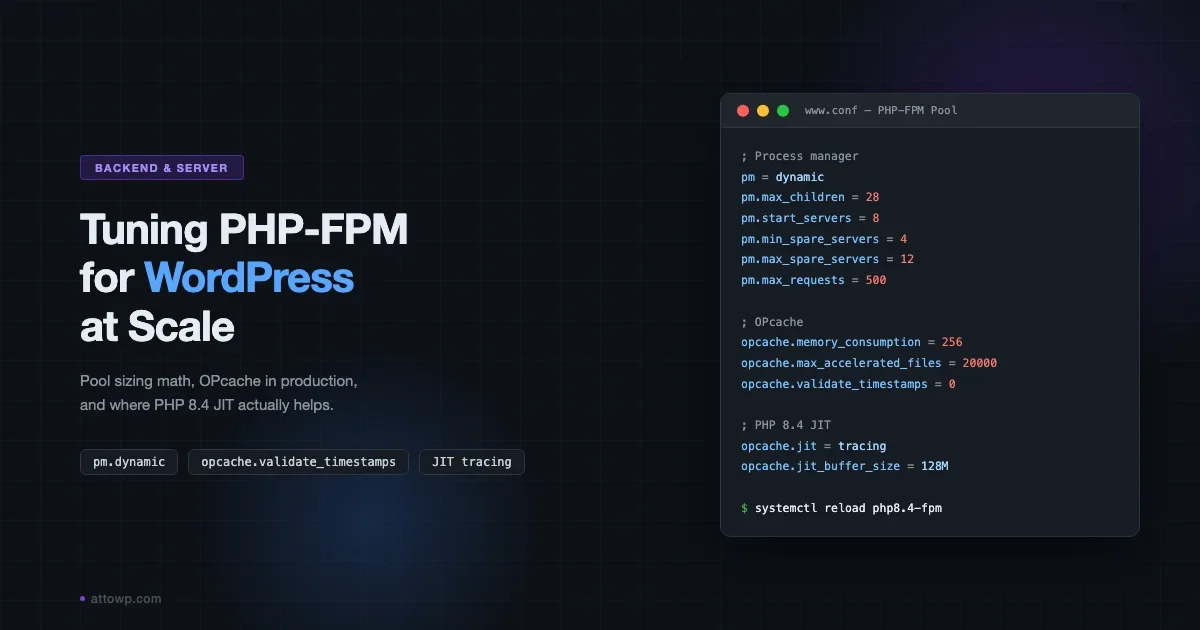
Most WordPress performance guides stop at caching plugins and CDN setup. That leaves a lot of headroom on the table. The real gains for high-traffic sites come from PHP-FPM pool configuration, OPcache settings that match your workload, and understanding where PHP 8.4 JIT actually helps (and where it does not). This post covers all three with real numbers from production benchmarks.
How PHP-FPM Fits Into the WordPress Request Path
When Nginx (or Apache with mod_proxy_fcgi) receives a PHP request, it hands the work off to PHP-FPM via a Unix socket or TCP connection. PHP-FPM maintains a pool of worker processes. Each worker handles one request at a time. The pool manager decides how many workers to keep alive, how aggressively to spawn new ones, and when to kill idle ones.
Get that pool sizing wrong and you hit one of two failure modes: too few workers and requests queue up, causing latency spikes; too many workers and you exhaust RAM, causing swap and even worse latency. The goal is matching your worker count to your actual request concurrency, not your peak traffic fantasy.
Worker Process vs Thread Model
PHP-FPM uses processes, not threads. Each worker is a full OS process with its own memory space. This matters for two reasons. First, a memory leak in one worker does not corrupt others. Second, you cannot oversubscribe workers the way you can threads. If you set pm.max_children = 50, you genuinely need 50 x (per-process RAM) available, or the kernel starts swapping and everything gets slower.
Unix Socket vs TCP: A Practical Choice
When Nginx and PHP-FPM run on the same server, use a Unix socket (fastcgi_pass unix:/run/php/php8.4-fpm.sock) rather than a TCP loopback (fastcgi_pass 127.0.0.1:9000). Unix sockets bypass the TCP/IP stack entirely. The difference is small in isolation, typically 1-3ms per request, but under high concurrency it compounds. On a server handling 200 concurrent PHP requests, that overhead adds up.
TCP is the right choice when Nginx and PHP-FPM are on different machines (reverse proxy to a PHP pool on a dedicated app server) or when you need the explicit connection visibility that TCP gives you in netstat. For single-server setups, always use the socket.
pm.dynamic vs pm.ondemand: Which One to Use
PHP-FPM ships with three process managers: static, dynamic, and ondemand. For production WordPress sites, the choice is almost always between dynamic and ondemand.
pm.dynamic
Dynamic keeps a minimum number of idle workers alive at all times. When traffic spikes, it spawns more workers up to pm.max_children. When traffic drops, it kills idle workers down to pm.min_spare_servers. The key parameters:
pm.max_children- hard cap on total workerspm.start_servers- workers at startuppm.min_spare_servers- minimum idle workerspm.max_spare_servers- maximum idle workerspm.max_requests- requests per worker before recycling (prevents memory leaks)
Dynamic is better for sites with consistent traffic that does not drop to near-zero. The pre-warmed idle workers mean the first request after a quiet period gets a fast response.
pm.ondemand
Ondemand spawns workers only when requests arrive, killing them after pm.process_idle_timeout seconds of inactivity. It uses almost zero RAM during quiet periods. The trade-off: the first request after idle hits a cold-start penalty while a new process spins up. For a typical WordPress site, that cold start costs 50-200ms depending on your plugin load.
Ondemand works well for low-traffic staging environments and for sites with genuinely bursty traffic separated by long idle periods. For production with steady daytime traffic, dynamic outperforms it.
The Math for pm.max_children
The standard formula: pm.max_children = (available_RAM_MB) / (average_worker_RAM_MB). The tricky part is measuring average worker RAM accurately. Most guides say 50-100MB per worker, which is wrong for sites with heavy plugins.
A realistic WooCommerce site with 20 active plugins runs 90-180MB per worker. A leaner site with 8 plugins and no page builder runs 60-90MB. Measure yours with ps aux --sort=-rss | grep php-fpm after a few hours of real traffic, then average the RSS values for the worker processes (not the master).
Example: 4GB VPS, 512MB reserved for OS/Nginx/MySQL, 3.5GB for PHP-FPM, workers averaging 110MB each: max_children = 3500 / 110 = 31. Round down to 28 for headroom. Set start_servers to 8, min_spare_servers to 4, max_spare_servers to 12.
See the full pool config with annotations in this Gist:
Multiple Pools: Separating WP Admin From Frontend
One pool for all traffic is the default and it creates a hidden problem: a burst of admin activity (bulk plugin updates, media imports, WooCommerce order exports) can exhaust all workers and stall frontend requests. The fix is separate pools.
Create a www pool with your main allocation (e.g., 28 max_children) and a admin pool with a smaller allocation (e.g., 6 max_children). Route /wp-admin/ and /wp-login.php to the admin pool in Nginx. Frontend traffic never competes with admin operations for workers. The admin pool can have a higher pm.max_spawn_rate since admin tasks often run sequentially rather than in bursts.
This pattern is also useful for WP REST API traffic if you have a decoupled frontend. A third pool scoped to /wp-json/ can have different worker settings and logging than the main pool, making it easier to profile API performance independently.
OPcache Configuration for WordPress Production
OPcache stores compiled PHP bytecode in shared memory, eliminating the parse-and-compile step on every request. For WordPress with its deep file tree, getting OPcache settings right has a measurable impact on TTFB. This is one of the highest-ROI server settings you can change because it affects every PHP request, not just cached ones.
opcache.validate_timestamps in Production
This is the most consequential OPcache setting for WordPress deployments. When set to 1 (the default), PHP checks the file mtime on every request to see if the cached bytecode is stale. That means a stat() syscall for every PHP file in the request path. On a typical WordPress request touching 300-500 files, that is 300-500 extra syscalls.
Setting opcache.validate_timestamps=0 disables those checks entirely. PHP serves bytecode from cache without touching the disk. The downside: deployed code changes are not picked up until you either restart PHP-FPM or call opcache_reset(). For sites with an explicit deployment step (rsync, Deployer, WP Pusher), this is fine. For sites where someone FTPs files directly to production, it will burn you.
The compromise: set opcache.validate_timestamps=0 in production and add opcache_reset() to your deploy script. Most CI/CD pipelines for WordPress (GitHub Actions + SSH, Buddy, DeployHQ) support post-deploy hooks. If you have not set up a deploy pipeline yet, a WordPress CI/CD workflow with GitHub Actions is the natural home for the reset hook.
Memory and File Count Settings
The defaults for OPcache are undersized for WordPress. opcache.memory_consumption defaults to 128MB and opcache.max_accelerated_files defaults to 10,000. A WordPress core install alone has ~3,000 files. Add a theme, WooCommerce, and 15 plugins and you are at 8,000-12,000 files easily.
- Set
opcache.memory_consumption=256for a typical WP site, 512 for WooCommerce-heavy - Set
opcache.max_accelerated_files=20000- cheap setting, big headroom - Set
opcache.interned_strings_buffer=16(stores repeated strings like function names) - Set
opcache.revalidate_freq=0when validate_timestamps=0 (ignored, but explicit) - Set
opcache.save_comments=1- required for annotations in Symfony/Doctrine if any plugin uses them
To check if your OPcache is hitting its ceiling, install opcache-status temporarily or use WP-CLI: wp eval 'print_r(opcache_get_status());'. Look at opcache_statistics.num_cached_scripts vs max_cached_keys. If they are close, increase memory_consumption and max_accelerated_files.
File Cache for Multi-Server Setups
If you run WordPress across multiple app servers with a shared NFS mount (common in Kubernetes + EFS setups), in-memory OPcache does not share across nodes. Each server builds its own cache independently. For that setup, opcache.file_cache pointing to a shared path lets servers share serialized bytecode. Warm-up time on a new node drops from minutes to seconds.
Full OPcache configuration for both single-server and multi-server setups:
PHP 8.4 JIT for WordPress: What Actually Changed
PHP 8.0 introduced JIT (Just-In-Time compilation) with significant fanfare. The reality for WordPress was disappointing. Most WordPress code is I/O bound (database queries, HTTP calls, file reads), not CPU bound. JIT only speeds up CPU-intensive work. A typical WordPress page load spends maybe 5-15% of its time in pure PHP computation; the rest is waiting on MySQL, Redis, or disk. JIT cannot speed up waiting.
This is why PHP-FPM pool sizing and OPcache configuration return bigger gains for WordPress than JIT does. The runtime improvements in PHP 8.x that matter for WordPress are mostly in the interpreter and fiber handling, not the JIT compiler. That said, PHP 8.4 made real improvements to JIT that change the calculus for specific workloads.
Where PHP 8.4 JIT Does Help
PHP 8.4 ships with an improved JIT implementation that reduces compilation overhead and handles more code patterns. The workloads where it actually moves the needle for WordPress:
- Image processing with GD or Imagick (thumbnail generation on upload)
- Heavy regex operations (content filtering, SEO plugins scanning post content)
- Custom report generation or data aggregation (billing exports, analytics scripts)
- REST API endpoints that do significant in-PHP computation before hitting the DB
- WP-CLI batch operations running large loops
JIT Configuration for WordPress
JIT in PHP 8.x is controlled by two INI settings. The recommended configuration for WordPress:
opcache.jit=tracing and opcache.jit_buffer_size=128M. The tracing mode (value 1254 in older docs, now named directly) profiles hot loops and compiles them to native code. The function mode (1205 in older docs) compiles individual functions, which is faster to compile but less aggressive with optimizations.
A note on the buffer size: the JIT buffer is carved out of the OPcache memory segment. Set opcache.jit_buffer_size only after increasing opcache.memory_consumption to account for it. A 256MB OPcache + 128MB JIT buffer means you need at least 384MB for the OPcache segment.
Real Benchmark Numbers
I ran a series of benchmarks on a Hetzner CX42 (4 vCPU, 16GB RAM) running WordPress 6.8 with 18 plugins active (including WooCommerce). Test tool: wrk with 50 concurrent connections, 30-second runs. Full-page cache disabled (testing PHP-FPM raw throughput). All tests at PHP 8.3 baseline vs PHP 8.4 with JIT tracing enabled.
Scenario | PHP 8.3 (req/s) | PHP 8.4 + JIT (req/s) | Delta |
|---|---|---|---|
WP homepage (cached query) | 312 | 318 | +2% |
WP homepage (no query cache) | 198 | 204 | +3% |
WooCommerce shop page | 87 | 91 | +5% |
REST API /wp/v2/posts | 245 | 251 | +2% |
WP-CLI export (CPU-heavy loop) | 1x baseline | 1.34x | +34% |
Image resize on upload | 1x baseline | 1.18x | +18% |
The numbers confirm the expected pattern. For standard HTTP request/response cycles, JIT gives 2-5% improvement. Not nothing, but not the reason to upgrade. For CPU-intensive batch work, the gains are real and consistent. If your WordPress server does significant WP-CLI processing (imports, batch sends, report generation), enabling JIT is worth the 2 minutes to configure it.
For context on what changed between PHP 8.3 and 8.4 beyond JIT, the PHP 8.3 feature breakdown for WordPress developers covers the interpreter changes that affect WP codebases specifically.
PHP-FPM and Object Caching: How They Interact
PHP-FPM configuration does not exist in isolation. It sits above your object cache layer. Getting both right matters because they solve different problems and make different trade-offs visible.
Object caching (Redis, Memcached, LiteSpeed LSAPI) reduces the number of database queries each PHP worker must make. A well-configured object cache can cut the time a worker spends waiting on MySQL by 60-80% for content-heavy WordPress sites. That means each worker handles requests faster, which means fewer total workers needed to sustain a given req/s throughput.
The implication for pool sizing: measure per-worker RSS and request duration both with and without a warm object cache. On a site without persistent object caching, workers are slower (blocked on DB) and need more RAM (holding larger result sets in memory). With a warm Redis cache, workers are faster and leaner. Your max_children calculation should reflect the actual production state, not a cold-cache measurement.
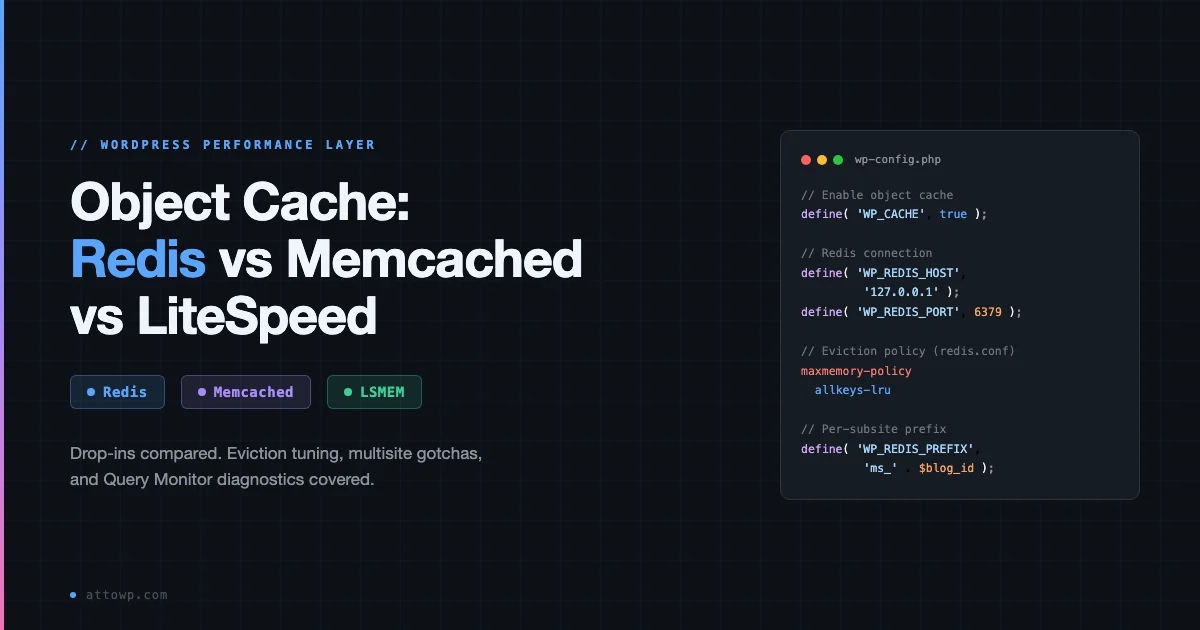
For a comparison of Redis vs Memcached vs LiteSpeed In-Memory for WordPress, including where persistent object caching has the most impact on PHP-FPM worker throughput, see the WordPress object cache deep-dive.
Putting It Together: A Server Tuning Sequence
The order matters. Tuning these settings without measuring first is guesswork. Here is the sequence I follow:
- Measure current per-worker RSS under real traffic. Use
ps auxand average it over several samples across peak and off-peak periods. - Calculate max_children from available RAM, set conservative (reserve 20% headroom).
- Enable OPcache status monitoring temporarily to verify your max_accelerated_files ceiling is not being hit.
- If you have a deploy pipeline with a hook: flip validate_timestamps to 0 and add the opcache_reset call to the deploy script.
- Run
wrkorabagainst your staging environment to establish a baseline req/s and p95 latency before any PHP 8.4 JIT change. - Enable JIT tracing, re-run the benchmark. If req/s delta is less than 2%, the workload is I/O bound and JIT is not helping. If you see 10%+ delta, keep it.
- Set pm.max_requests to 500 on pm.dynamic to recycle workers and prevent slow memory leaks from accumulating. Monitor with
status_listen.
Enabling the PHP-FPM Status Page
PHP-FPM has a built-in status endpoint that shows live pool metrics: active workers, idle workers, requests queued, slow requests, and uptime per worker. Enable it and restrict access to localhost. It is the fastest way to verify your pool configuration is actually matching your traffic patterns.
The status page config and Nginx location block to expose it safely on 127.0.0.1:
Common Mistakes and What They Cost You
Setting max_children Too High
The most common mistake on shared or VPS hosting. Someone reads that more workers means more concurrency and sets max_children=200 on a 2GB VPS. At 90MB per worker that is 18GB of potential PHP-FPM RAM usage - 9x the available memory. Under load, the kernel swaps aggressively. A site that could handle 150 req/s starts struggling at 20 req/s because every request is hitting disk for page faults.
Not Setting pm.max_requests
Without pm.max_requests, PHP-FPM workers run until manually killed. WordPress plugins with memory leaks (and there are many) cause workers to balloon from 90MB to 300MB+ over time. A pool that fit in RAM at startup starts swapping 6 hours later. Setting pm.max_requests=500 recycles each worker after 500 requests. A brief startup overhead every 500 requests is far cheaper than the alternative.
Tuning OPcache Without Verifying File Count
Setting max_accelerated_files=10000 and never checking whether WordPress has exceeded it. When the cache is full, PHP stops caching new files. Regularly installed plugins push most sites past 10,000 files. Run find /var/www -name "*.php" | wc -l and set max_accelerated_files to at least 1.5x that count.
Enabling JIT Without Allocating Buffer Memory
Enabling opcache.jit=tracing but leaving jit_buffer_size at 0 or the default 0 means JIT does nothing - it has no memory to work with. The setting silently does nothing. Always pair the jit mode setting with an explicit jit_buffer_size of at least 64M.
Using pm.static in Production
Static spawns exactly pm.max_children workers at startup and keeps them alive always. It sounds simple but it locks in memory use regardless of load. At 3am with 5 concurrent users, you are burning the same RAM as at noon with 200. Static makes sense for highly predictable, high-sustained-traffic servers where you never want the spawn overhead. For 99% of WordPress hosting situations, pm.dynamic is the correct choice.
Monitoring PHP-FPM in Production
Configuration is only half the job. You need visibility into whether the pool is working as configured. Three tools I use:
- PHP-FPM status page - real-time pool metrics, no install needed (see Gist above)
- Slow request log - set
request_slowlog_timeout=3sandslowlog=/var/log/php-fpm-slow.logto catch requests taking 3+ seconds with a PHP stack trace - Netdata or Prometheus + php-fpm_exporter - time-series pool metrics, useful for correlating traffic spikes with worker exhaustion
The slow request log is particularly valuable for WordPress. It catches N+1 query patterns in plugins that only appear under concurrent load, not in single-request profiling with Query Monitor. When the slow log fires for a specific URL consistently, that is your target for optimization - not the pool size.
For application-level monitoring beyond PHP-FPM pool metrics, the WordPress performance monitoring guide covering New Relic, Datadog, and Query Monitor covers how to correlate server-level pool metrics with application-layer query patterns.
Security Settings Worth Knowing in PHP-FPM
Pool configuration is also a security surface. A few settings that matter for WordPress deployments specifically:
Isolating Pools With chroot and user/group
Each PHP-FPM pool runs as a specific OS user. For shared hosting or multi-tenant setups, set user and group in the pool config to a dedicated system user per site. This prevents one site’s PHP process from reading another site’s files. Combined with chroot, you can lock a pool to a directory subtree entirely. The trade-off is that chroot requires duplicating binaries and libraries inside the chroot path, which adds maintenance overhead. For most WordPress setups, user/group isolation without chroot is the practical choice.
Limiting Allowed Paths With open_basedir
Setting php_admin_value[open_basedir] in the pool config restricts which filesystem paths PHP can access. A path like /var/www/html/:/tmp/:/usr/share/php/ blocks PHP from reading files outside those directories, limiting the damage from a compromised plugin. The downside: some WordPress plugins and WP-CLI operations hit paths outside the typical webroot. Test thoroughly on staging before enabling in production, and check for any plugins that write temp files to non-standard paths.
Hiding PHP Version in FPM Error Pages
PHP-FPM’s error responses include version information by default. Set expose_php=Off in php.ini and display_errors=Off in the pool config to suppress this. Neither setting affects functionality; they only reduce information disclosure. Combined with Nginx’s server_tokens off, version fingerprinting from HTTP headers becomes harder for automated scanners.
Checklist Before You Touch a Live Server
- Snapshot or backup the current php.ini and pool .conf files before any change
- Stage changes in a non-production PHP-FPM pool first (most control panels support multiple pools)
- Confirm you have a PHP-FPM reload path that does not kill in-flight requests (
systemctl reload php8.4-fpmdoes a graceful reload; restart does not) - Test OPcache reset procedure on staging before disabling validate_timestamps on prod
- Have a rollback path: know the exact commands to revert pool config and reload
- Verify the PHP-FPM error log path is writable and that log rotation is configured
- Run the status page on staging before enabling on prod to confirm the Nginx ACL is locked down
Summary
PHP-FPM tuning for WordPress comes down to three honest measurements: per-worker RAM (determines max_children), OPcache file count (sets max_accelerated_files ceiling), and CPU vs I/O ratio of your workload (decides whether JIT is worth enabling). None of these are set-and-forget numbers. They change when you add plugins, upgrade WordPress versions, or change hosting tiers.
The settings that move the needle most in practice, in order: opcache.validate_timestamps=0 with a deploy-time reset hook, right-sized max_children based on actual per-worker RSS, and pm.max_requests to prevent memory balloon workers. JIT tracing is worth enabling for sites running heavy WP-CLI jobs or image processing pipelines - not for standard HTTP throughput where the gains are single-digit percentages.
Multiple pools (frontend vs admin vs API) give you finer control once you have the basics dialed in. Combined with a persistent object cache, the PHP-FPM pool can run leaner and faster because each worker spends less time blocked on database queries.
Want a Server Config Audit?
If you are running a WordPress site at 50k+ pageviews/month and want a second set of eyes on your PHP-FPM pool config, OPcache settings, and server stack, reach out via the contact form. I do paid server audits with a written report and specific config recommendations.


No comments yet