
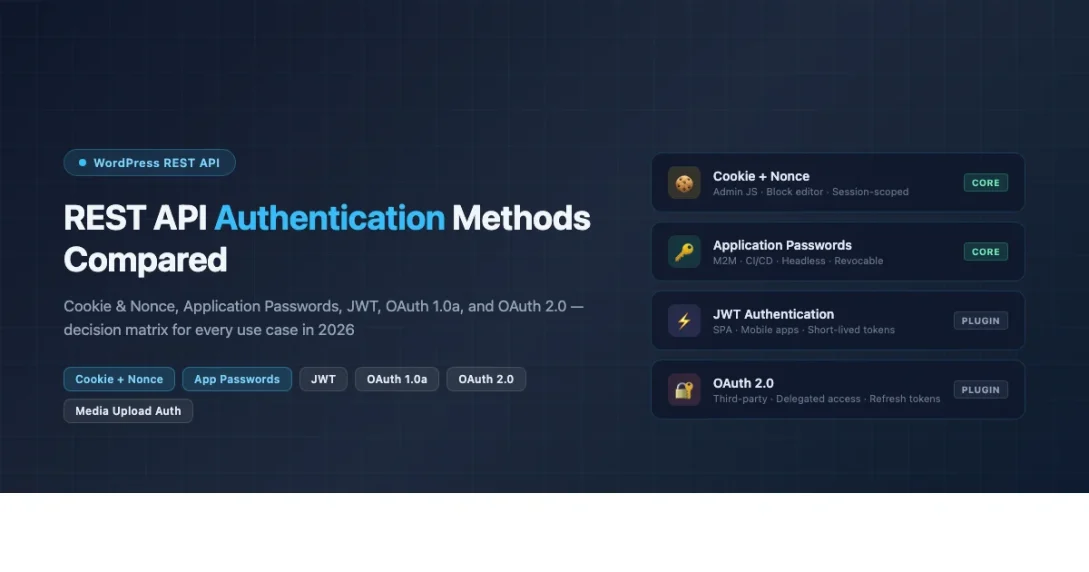
Choosing the right wordpress rest api authentication methods is one of the first decisions you make when building any WordPress-powered integration, headless site, or mobile app. The wrong choice leads to security holes, broken token refresh logic, or a plugin dependency that limits your deployment options. This guide covers every wordpress rest api authentication method available in 2026, explains how each one works under the hood, and gives you a clear decision framework for picking the right approach for your specific use case.
The Five WordPress REST API Authentication Methods
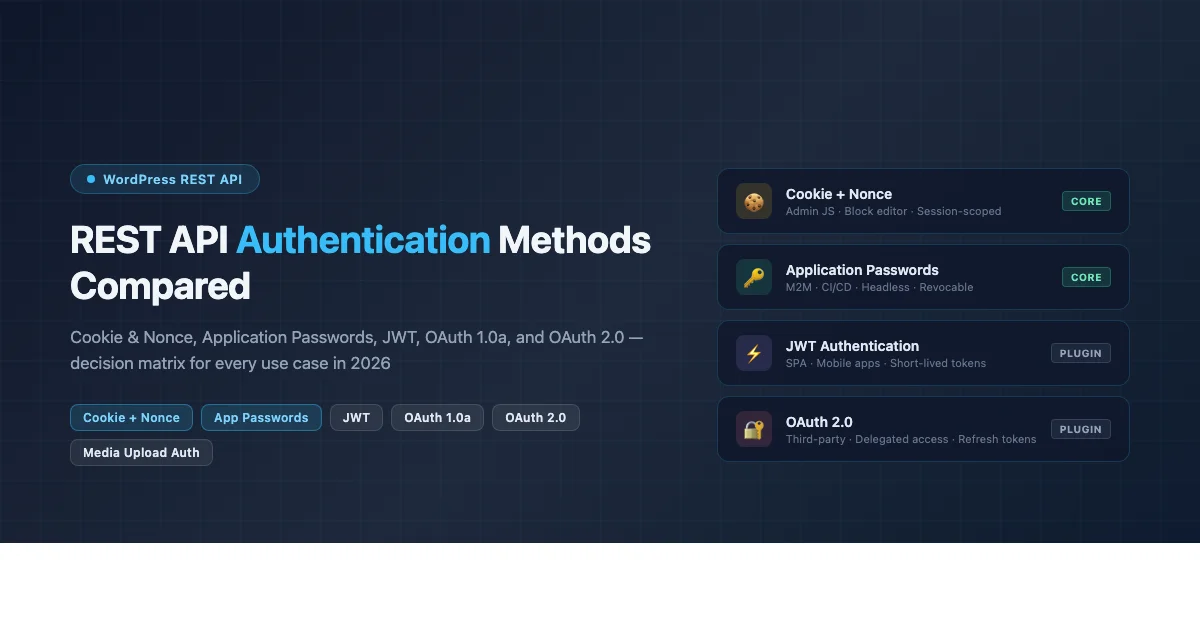
WordPress supports five distinct authentication mechanisms for REST API requests. Each method has different security characteristics, plugin requirements, token lifetime properties, and implementation complexity. Understanding the differences matters because choosing based on convenience alone is how security vulnerabilities and architectural debt accumulate. The five methods are: Cookie and Nonce authentication (built into WordPress core), Application Passwords (built into WordPress core since 5.6), HTTP Basic Auth (development only), JWT via third-party plugins, and OAuth via third-party plugins. This guide treats HTTP Basic Auth as a development utility only since it transmits credentials in plaintext base64 encoding and must never be used on production sites without a second security layer.
Decision Matrix at a Glance
| Method | Plugin Required? | Token Expiry | Best Use Case | Third-Party Access? |
|---|---|---|---|---|
| Cookie + Nonce | No | Session lifetime | Admin JavaScript | No |
| Application Passwords | No | Never (manual revoke) | M2M, headless, CI/CD | No |
| HTTP Basic Auth | No | Per-request credential | Local dev only | No |
| JWT | Yes | Configurable (minutes to days) | SPAs, mobile apps | Partial |
| OAuth 1.0a | Yes | Never (manual revoke) | Third-party plugin integrations | Yes |
| OAuth 2.0 | Yes | Short-lived + refresh token | Modern third-party integrations | Yes |
Method 1: Cookie and Nonce Authentication
Cookie authentication is the default method used by WordPress itself for all JavaScript running inside the WordPress admin and the block editor. When a logged-in user loads a WordPress admin page, WordPress includes a nonce value in the page source. JavaScript code on that page passes the nonce in a X-WP-Nonce header with every REST API request. WordPress validates the nonce, confirms the associated cookie session is still active, and authenticates the request as that user.
Cookie and nonce authentication is the only correct choice for JavaScript running inside the WordPress admin or block editor. It requires no plugin, no token management, and no credential storage. The nonce is tied to the current session and expires when the session ends or after 12 hours. This makes it safe by default since a stolen nonce is useless without the matching session cookie. You cannot use this method from an external application because the nonce is generated server-side and is specific to the current user session.
// WordPress provides wp.apiFetch which handles nonce automatically
const posts = await wp.apiFetch( { path: '/wp/v2/posts' } );

// Manual fetch requires the X-WP-Nonce header
const nonce = wpApiSettings.nonce; // Set by wp_localize_script
const res = await fetch( '/wp-json/wp/v2/posts', {
    headers: { 'X-WP-Nonce': nonce }
} );
The wp_create_nonce( 'wp_rest' ) function generates a nonce server-side. When building custom admin pages or Gutenberg blocks that need to make REST API requests, pass this nonce to your JavaScript using wp_localize_script or wp_add_inline_script. The nonce must be verified for every request that writes data. Read-only REST endpoints that are marked as public do not require authentication at all.
// PHP: generate and pass nonce to JavaScript
wp_localize_script( 'my-plugin-script', 'myPluginData', [
    'nonce'   => wp_create_nonce( 'wp_rest' ),
    'restUrl' => rest_url(),
] );
Method 2: Application Passwords
Application Passwords are 24-character tokens built into WordPress core since version 5.6. Each token authenticates via HTTP Basic Auth using the WordPress login name as the username and the Application Password token as the password. The key architectural advantage is that Application Passwords can be revoked individually without changing the account password, and each token carries an audit trail of its last-used timestamp, IP address, and user agent. There is no token expiry. Tokens remain valid until explicitly revoked.
This method is ideal for any server-to-server integration where you control both sides of the connection. CI/CD pipelines that publish posts, external services that update post meta, static site generators that pull content, and monitoring scripts that poll endpoint health are all good fits. The token is a long-lived secret that must be stored as securely as a database password, using environment variables or a secrets manager rather than source code. For a full walkthrough of capability gating, PHP class methods, and security patterns, see the WordPress Application Passwords REST API developer guide.
# Authenticate with Application Password
curl https://yoursite.com/wp-json/wp/v2/posts?status=draft \
  -u 'admin:AbCd EfGh IjKl MnOp QrSt UvWx'

// JavaScript
const creds = btoa( 'admin:AbCdEfGhIjKlMnOpQrStUvWx' );
const res = await fetch( '/wp-json/wp/v2/posts', {
    headers: { Authorization: `Basic ${creds}` }
} );
Application Passwords are disabled on HTTP sites by default. WordPress requires HTTPS because Basic Auth credentials are base64-encoded but not encrypted. On a production site served over HTTPS, this is secure because TLS handles transport encryption. In local development over HTTP, you can enable them with the wp_is_application_passwords_available filter, but remove that filter before deploying to production.
Method 3: JWT Authentication
JSON Web Token (JWT) authentication for WordPress requires a third-party plugin. The most widely used option is Simple JWT Login, available from the WordPress.org plugin directory. JWT works by exchanging credentials for a signed token that encodes the user identity and an expiry timestamp. The client stores this token and includes it in subsequent requests. When the token expires, the client must either re-authenticate to get a new token or use a refresh token if the plugin supports them.
JWT is the right choice for single-page applications and mobile apps where you want tokens to expire automatically, reducing the window of exposure if a token is stolen. The short token lifetime is the primary security advantage over Application Passwords. The tradeoff is implementation complexity: you must handle token refresh, store tokens securely in the client (localStorage has XSS risks, httpOnly cookies have CSRF trade-offs), and manage the authentication flow across multiple requests. JWT also requires the plugin to be installed and configured on the WordPress server, which adds a plugin dependency to your deployment checklist.
# Step 1: Authenticate and get JWT token
curl -X POST https://yoursite.com/wp-json/simple-jwt-login/v1/auth \
  -H 'Content-Type: application/json' \
  -d '{"username": "admin", "password": "your-password"}'

# Step 2: Use the token
curl https://yoursite.com/wp-json/wp/v2/posts \
  -H 'Authorization: Bearer eyJhbGciOiJIUzI1NiIsInR5cCI6IkpXVCJ9...'
// JavaScript: store token and use for requests
const { data } = await fetch( '/wp-json/simple-jwt-login/v1/auth', {
method: 'POST',
headers: { 'Content-Type': 'application/json' },
body: JSON.stringify( { username, password } )
} ).then( r => r.json() );
const token = data.jwt; // Store securely
const posts = await fetch( '/wp-json/wp/v2/posts', {
headers: { Authorization: `Bearer ${token}` }
} ).then( r => r.json() );The JWT payload is base64-encoded but not encrypted. Anyone who intercepts a JWT token can decode and read its contents, including the user ID and expiry. This is why HTTPS is required. The token is signed with a secret key stored on the server, so it cannot be forged without that key, but its contents are readable without the key. Never store sensitive data in the JWT payload itself.
Method 4: OAuth 1.0a
OAuth 1.0a is a signed request scheme where every API request is individually signed using a consumer key, consumer secret, access token, and access token secret. There is no bearer token to intercept in transit because the signature is derived from the request parameters at the time of the call. This makes OAuth 1.0a secure even over HTTP in theory, though HTTPS remains best practice. The WordPress REST API OAuth 1.0a plugin was an official WP-API team project and remains the standard for third-party plugins that need to access WordPress on behalf of a user without storing that user’s password.
OAuth 1.0a is appropriate when you are building a plugin or service that needs delegated access to a WordPress site on behalf of the site owner, and you cannot ask for their credentials directly. The authorization flow: your consumer registers with the WordPress site, the user is redirected to WordPress to approve access, WordPress redirects back with an access token. This flow is familiar from legacy API integrations and is still used by the WordPress.com REST API for some endpoints. The signing algorithm is complex to implement correctly. Use a well-tested OAuth 1.0a library for your language rather than implementing the signature algorithm by hand.
# OAuth 1.0a signed request using cURL (simplified, real signing requires library)
curl https://yoursite.com/wp-json/wp/v2/posts \
  -H 'Authorization: OAuth oauth_consumer_key="YOUR_KEY",
       oauth_token="ACCESS_TOKEN",
       oauth_signature_method="HMAC-SHA1",
       oauth_timestamp="1714000000",
       oauth_nonce="abc123",
       oauth_signature="BASE64_HMAC_SIGNATURE"'
Method 5: OAuth 2.0
OAuth 2.0 is the modern successor to OAuth 1.0a. It separates the authorization grant from the access token, uses short-lived access tokens with longer-lived refresh tokens, and supports multiple grant types for different use cases. The authorization code grant type is most common for web apps where a user authorizes your application to access their WordPress site. The client credentials grant type covers machine-to-machine access without user involvement. OAuth 2.0 requires a plugin on the WordPress side to act as the authorization server.
OAuth 2.0 is the right choice for modern third-party integrations where you want the full authorization grant flow, automatic token refresh, and standard compliance with OAuth 2.0 specifications. The complexity cost is higher than Application Passwords: you need to implement the authorization redirect, handle the callback, exchange the code for tokens, store refresh tokens securely, and implement the token refresh flow before each request when the access token expires. For integrations where you control both sides and do not need delegated access, Application Passwords are simpler and just as secure.
// OAuth 2.0 authorization code flow (simplified)
// Step 1: Redirect user to WordPress authorization endpoint
const authUrl = `${wpSite}/oauth/authorize?` +
    `client_id=${CLIENT_ID}&redirect_uri=${REDIRECT}&response_type=code&scope=read`;

// Step 2: Exchange code for tokens
const { access_token, refresh_token } = await fetch( `${wpSite}/oauth/token`, {
    method: 'POST',
    body: new URLSearchParams( { grant_type: 'authorization_code', code, client_id, client_secret } )
} ).then( r => r.json() );

// Step 3: Use access token
const posts = await fetch( `${wpSite}/wp-json/wp/v2/posts`, {
    headers: { Authorization: `Bearer ${access_token}` }
} ).then( r => r.json() );
Media Upload Authentication
The WordPress REST API endpoint /wp/v2/media requires authentication for POST requests because only authenticated users with the upload_files capability can create media records. This is one of the most common sources of authentication confusion because developers sometimes assume media upload authentication works differently from post creation authentication. It does not. The same authentication method that works for creating posts works for uploading media. The additional requirement for media uploads is the Content-Disposition header specifying the filename.
Using Application Passwords for media uploads is the most straightforward approach for server-side integrations. The request must include the binary file content as the request body, a Content-Type header matching the file type, and a Content-Disposition header with the filename. The WordPress REST API reads the filename from the Content-Disposition header to set the attachment title and generate the file path. Missing or malformed Content-Disposition is the most common cause of the REST API returning a 400 error on media upload attempts even when authentication is correct. Verify your installed WordPress version supports the media endpoint by checking the current WordPress stable release changelog for any media API changes.
# Upload image via REST API with Application Password auth
curl -X POST https://yoursite.com/wp-json/wp/v2/media \
  -u 'admin:AbCd EfGh IjKl MnOp QrSt UvWx' \
  -H 'Content-Type: image/jpeg' \
  -H 'Content-Disposition: attachment; filename="photo.jpg"' \
  --data-binary @/path/to/photo.jpg

# PHP equivalent
$file_data = file_get_contents( '/path/to/photo.jpg' );
$response = wp_remote_post( 'https://site.com/wp-json/wp/v2/media', [
    'headers' => [
        'Authorization'       => 'Basic ' . base64_encode( 'admin:TOKEN' ),
        'Content-Type'        => 'image/jpeg',
        'Content-Disposition' => 'attachment; filename="photo.jpg"',
    ],
    'body' => $file_data,
] );
For media uploads in JavaScript running inside the WordPress admin, use the wp.apiFetch method with FormData. The nonce is handled automatically by wp.apiFetch. Set the file in the FormData object with the key file. WordPress reads the filename from the FormData entry rather than requiring a Content-Disposition header when the request uses multipart form encoding.
// Media upload from admin JavaScript using nonce auth
const form = new FormData();
form.append( 'file', fileObject, 'photo.jpg' );
const media = await wp.apiFetch( {
    path: '/wp/v2/media',
    method: 'POST',
    body: form,
} );
When to Use Each Method: Decision Guide
The right wordpress rest api authentication methods depend on three factors: who initiates the request, whether the integration crosses trust boundaries, and how sensitive the operations are.
Use cookie and nonce authentication for any JavaScript running inside the WordPress admin, block editor, or site editor. This is the built-in method and requires no configuration. Use Application Passwords for any server-to-server integration where you manage both the WordPress site and the connecting service. This covers headless frontends, CI/CD pipelines, external schedulers, monitoring tools, and static site generators. Application Passwords are built into WordPress core, require no plugins, and provide per-token revocation with an audit trail.
Use JWT when building single-page applications or mobile apps that authenticate end users against a WordPress backend and need automatic token expiry. The short-lived token model reduces the impact of a compromised token compared to the never-expiring Application Password. Use OAuth 1.0a when building a plugin or integration that needs to access WordPress on behalf of site owners without storing their credentials, and the signing complexity is acceptable. Use OAuth 2.0 for modern third-party integrations that need delegated access with automatic token refresh and standard compliance with the OAuth 2.0 specification.
For programmatic WordPress management, Application Passwords cover 90 percent of use cases and are the lowest-complexity option that does not require plugin dependencies. The remaining 10 percent that need delegated access or automatic expiry are the cases where JWT or OAuth is appropriate.
Security Considerations Across All Methods
Every authentication method requires HTTPS in production. Application Passwords and Basic Auth send a base64-encoded credential in every request header. JWT bearer tokens are included in every request. OAuth tokens are included in every request. Without TLS, any of these credentials can be read by a network observer. Configure HTTPS at the hosting layer, set HSTS headers to prevent downgrade attacks, and enable HTTP-to-HTTPS redirects at the server level before enabling REST API authentication of any kind.
Scope your access tokens to the minimum required capability. For Application Passwords, create dedicated WordPress user accounts for each integration with only the role that matches the operations needed. For JWT and OAuth, use the narrowest scope your authorization server supports. Store all credentials in environment variables or a secrets management service. Rotate tokens after any security incident or when a team member who had access to the credentials leaves the organization. Audit your active tokens and OAuth grants at least quarterly, and revoke anything that has not been used within the past 90 days.
Choose Your Authentication Method and Start Building
WordPress REST API authentication methods each serve a specific architectural need. Cookie and nonce for admin JavaScript. Application Passwords for server-to-server integrations. JWT for short-lived SPA tokens. OAuth for delegated third-party access. Match the method to the trust model and the token lifetime requirements of your integration. Subscribe to the AttowP newsletter for REST API updates and security patches as new WordPress releases land.
api-first architecture Authentication JWT Authentication WordPress Security Releases
Last modified: April 24, 2026