
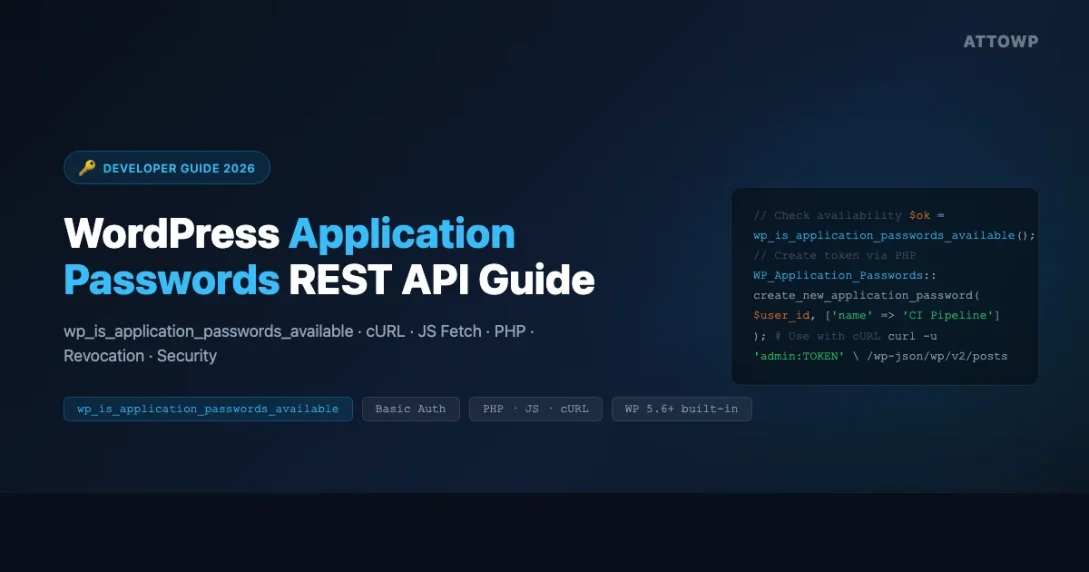
WordPress wordpress application passwords are a built-in authentication mechanism that lets you generate per-application tokens for authenticating REST API requests without exposing your main account password. Introduced in WordPress 5.6, they are the recommended approach for machine-to-machine REST API access in 2026. This guide covers everything from initial setup and token generation to capability gating, programmatic management, CI/CD integration, and security best practices for production WordPress environments running the current stable release.
What Are WordPress Application Passwords?
Application Passwords are 24-character tokens generated per user in the WordPress admin. Each token is specific to one application and can be revoked independently without affecting your main WordPress login. They authenticate via HTTP Basic Auth, using your WordPress username and the generated token as the password field.
Unlike JWT Authentication plugins or OAuth server implementations, Application Passwords require zero configuration and no additional plugins. They ship with WordPress core and work with any HTTP client that supports Basic Auth headers. The API has been stable since WordPress 5.6 and the current implementation in WordPress 6.8 adds no breaking changes from earlier versions.
Application Passwords are stored as bcrypt-hashed values in the WordPress user meta table under the meta key _application_passwords. WordPress never stores the plaintext token after creation. This is why the generated token is shown only once in the admin UI and only once in the REST API creation response. Each stored token record also carries its last-used Unix timestamp, the last IP address that authenticated with it, and the user agent string of the last request. This metadata gives you an audit trail for spotting unexpected usage patterns.
The design decision to use Basic Auth is intentional. HTTP Basic Auth is one of the oldest and most universally supported authentication schemes, which means every HTTP client library in every programming language can use Application Passwords with minimal setup. There is no token refresh cycle to manage, no expiry to track, and no additional OAuth dance to implement. The tradeoff is that the credential is long-lived and must be protected accordingly. This makes Application Passwords the right tool for server-to-server integrations where you control both sides, and a poor fit for delegated access where a third party needs to act on a user’s behalf without knowing the user’s credentials.
How Application Passwords Differ from Your Account Password
| Feature | Account Password | Application Password |
|---|---|---|
| Used for | WordPress login form | REST API and XML-RPC only |
| Revocable individually | No, one password for all | Yes, each token independently |
| Visible after creation | Not applicable | Once only, copy immediately |
| Required capability | Not applicable | edit_posts by default |
| Works on login form | Yes | No, deliberately blocked |
| Audit trail | Server login logs | Timestamp, IP, user agent per token |
Checking wp_is_application_passwords_available Before You Start
Before writing any integration code that depends on Application Passwords, verify that the feature is available on the target site. The function wp_is_application_passwords_available() returns true when the site is served over HTTPS, the site is not a WordPress.com environment, and no filter has disabled the feature. You should call this check at plugin activation or on the first API request rather than assuming the feature is available on every WordPress installation.
The companion function wp_is_application_passwords_available_for_user( $user_id ) extends this check to also verify that the specific user holds the edit_posts capability. If your plugin generates tokens on behalf of a user, always call the per-user function rather than the global one to avoid unexpected failures for lower-privilege accounts.
$available = wp_is_application_passwords_available();
$user_id = get_current_user_id();
$available_for_user = wp_is_application_passwords_available_for_user( $user_id );
Enabling on HTTP Development Environments
Local development environments running over HTTP have Application Passwords disabled by default. This is an intentional security measure because Basic Auth credentials over HTTP are sent in base64-encoded plaintext visible to anyone on the same network. To enable the feature locally, add the availability filter to a development-only plugin or your theme’s functions.php file. Remove it before pushing to production and never deploy this filter to a live server.
add_filter( 'wp_is_application_passwords_available', '__return_true' );
add_filter( 'wp_is_application_passwords_available', function( $available ) {
    return defined( 'WP_DEBUG' ) && WP_DEBUG ? true : $available;
} );
Application Passwords over HTTP send your token in base64-encoded plaintext. Only enable this filter in local development environments. Always use HTTPS in production.
Creating an Application Password
You can create Application Passwords through three paths: the WordPress admin profile page, the REST API endpoint at /wp/v2/users/{id}/application-passwords, or the WP_Application_Passwords::create_new_application_password() PHP method. The admin path is fastest for one-off setup. The REST API path is useful when provisioning tokens from an external system. The PHP class method is appropriate when a plugin needs to generate tokens programmatically during plugin activation or a guided setup flow.
Via the WordPress Admin
- Navigate to Users > Your Profile or edit any user as an admin
- Scroll to the Application Passwords section at the bottom of the profile page
- Enter a descriptive application name such as the name of your script, service, or integration
- Click Add New Application Password and copy the generated 24-character token immediately
# Create via REST API
curl -X POST https://yoursite.com/wp-json/wp/v2/users/1/application-passwords \
  -u 'admin:your-current-password' \
  -H 'Content-Type: application/json' \
  -d '{"name": "My API Client"}'
// Create via PHP
$result = WP_Application_Passwords::create_new_application_password(
$user_id,
[ 'name' => 'My Script', 'app_id' => wp_generate_uuid4() ]
);
$plaintext = is_wp_error( $result ) ? false : $result[0]; // Shown only onceAuthenticating REST API Requests with Application Passwords
Once you have a token, authenticating is straightforward. Include an Authorization: Basic header in every request. The value is the base64 encoding of username:token. The username is the WordPress login name, not the email address. The token is the 24-character string. Spaces in the token are stripped by WordPress before hash comparison, so you can include or omit them. This authentication pattern works identically for PHP server-to-server calls, JavaScript fetch requests, and cURL. It is the standard approach for React and other headless frontends consuming the WordPress REST API.
# cURL GET and POST
curl -X GET https://yoursite.com/wp-json/wp/v2/posts?status=draft \
  -u 'admin:AbCd EfGh IjKl MnOp QrSt UvWx'

curl -X POST https://yoursite.com/wp-json/wp/v2/posts \
  -u 'admin:AbCd EfGh IjKl MnOp QrSt UvWx' \
  -H 'Content-Type: application/json' \
  -d '{"title": "My Post", "status": "draft"}'
// JavaScript Fetch
const credentials = btoa( 'admin:AbCd EfGh IjKl MnOp QrSt UvWx' );
const res = await fetch( '/wp-json/wp/v2/posts?status=draft', {
headers: { Authorization: `Basic ${credentials}` }
} );// PHP wp_remote_get
$response = wp_remote_get( 'https://site.com/wp-json/wp/v2/posts', [
'headers' => [ 'Authorization' => 'Basic ' . base64_encode( 'admin:TOKEN' ) ],
] );In Postman or Insomnia, set the Authorization type to Basic Auth and enter your WordPress login name and the Application Password token. Both tools handle base64 encoding automatically. The encoded header appears in the Headers tab as a preview before you send the request.
The edit_posts Capability Gate
The capability gate controls which WordPress users can generate Application Password tokens. By default, only users with the edit_posts capability can access the Application Passwords section in their profile. This includes authors, editors, and administrators, but excludes contributors and subscribers. The gate controls who can generate tokens, not what the tokens can access. The token scope is determined entirely by the WordPress role and capabilities of the user who owns the token. A subscriber-generated token can only access REST endpoints that subscribers are permitted to use.
// Open token generation to subscribers
add_filter( 'wp_is_application_passwords_available_for_user', function( $ok, $user ) {
    return in_array( 'subscriber', (array) $user->roles, true ) ? true : $ok;
}, 10, 2 );

// Lock to administrators only
add_filter( 'wp_is_application_passwords_available_for_user', function( $ok, $user ) {
    return in_array( 'administrator', (array) $user->roles, true );
}, 10, 2 );
Managing Tokens: List, Audit, and Revoke
WordPress stores all Application Passwords for a user as a serialized array in user meta. The WP_Application_Passwords class provides static methods for listing, creating, and deleting tokens. Regular auditing is an important security practice. The last-used timestamp and last-used IP address fields let you identify tokens that are no longer active or tokens being used from unexpected locations, which can indicate a compromised secret.
$tokens = WP_Application_Passwords::get_user_application_passwords( $user_id );
foreach ( $tokens as $token ) {
    echo $token['name'] . ' last used: ' . ( $token['last_used'] ? date( 'Y-m-d', $token['last_used'] ) : 'never' );
}
WP_Application_Passwords::delete_application_password( $user_id, $uuid );
WP_Application_Passwords::delete_all_application_passwords( $user_id );
CI/CD and Scheduled Task Authentication Pattern
Application Passwords are well suited for CI/CD pipelines that interact with WordPress programmatically. Common use cases include publishing scheduled posts from an external scheduler, triggering cache flush endpoints after a deployment, updating post meta as part of a release pipeline, and fetching content for static site generators. Store the token as a CI secret variable. If a pipeline is compromised and the secret leaks, you revoke that specific token immediately without resetting any user password or disrupting other integrations that use different tokens for the same user account.
When setting up pipeline authentication, create a dedicated WordPress user account with a role scoped to exactly the capabilities your pipeline needs. A deploy pipeline that only publishes posts needs an author-level account, not an administrator account. This limits the damage if a token is ever exposed. Document the token name using a naming convention that identifies the system and environment, such as “GitHub Actions – Production Publisher” or “CircleCI – Staging Cache Flush”, so your token list remains readable during security audits months later.
curl -X POST "$WP_SITE/wp-json/wp/v2/posts/$POST_ID" \
  -u "$WP_API_USER:$WP_API_PASSWORD" \
  -H 'Content-Type: application/json' \
  -d '{"status": "publish"}'
Application Passwords vs JWT vs OAuth: Choosing the Right Method
Application Passwords are the right choice when you control both sides of the connection and need a simple, revocable, long-lived token with no plugin dependencies. JWT works better for short-lived tokens in single-page application contexts where you want automatic token expiry and do not want to store token state on the server. OAuth 2.0 is correct for third-party integrations where your application acts on behalf of users who have not given you their credentials. Cookie-based nonce authentication is the only secure option for JavaScript running inside the WordPress admin itself. Check our WordPress version tracker to verify which authentication features are built into your current WordPress core release before committing to an approach.
| Method | Best For | Plugin Required? | Revocable? |
|---|---|---|---|
| Application Passwords | M2M, headless, CI/CD | No, built into core | Yes, per token |
| JWT | SPAs, mobile apps | Yes | Complex, needs blacklist |
| OAuth 2.0 | Third-party integrations | Yes | Yes, via token endpoint |
| Cookie and Nonce | Admin JavaScript | No | Ends with session |
Troubleshooting Common Errors
A 401 Unauthorized response means authentication failed. Common causes: using an email address instead of the WordPress login name, copying the token incorrectly, or the feature being disabled on the site. Verify the feature is active by calling wp_is_application_passwords_available() in a test plugin. Some shared hosting environments intercept Basic Auth headers at the server level before WordPress processes the request. Check your .htaccess file for existing Basic Auth directives or contact your host to confirm Basic Auth headers pass through to PHP.
A 403 Forbidden response after successful authentication means the user lacks the required capability for the endpoint. Check the error code in the response body: rest_forbidden indicates the endpoint is restricted, and rest_cannot_edit indicates the user does not have edit rights on the specific post or resource. Authenticate as a user with the appropriate capability for the operation you are attempting.
A 400 Bad Request on the Application Passwords creation endpoint typically means the name field is missing or the request body is malformed. The name parameter is required when creating a token via the REST API. Each token name must be unique per user. If you attempt to create a second token with a name that already exists for that user, WordPress will return a validation error rather than silently overwriting the existing token.
Security Best Practices
- One token per integration: Create a separate wordpress application passwords token for each script, service, or integration so you can revoke one without breaking others.
- Least-privilege user accounts: Create a dedicated WordPress user for each API consumer with only the minimum capabilities needed. Do not use an administrator account for read-only API access.
- Environment variables for storage: Never hardcode tokens in source code or commit them to version control. Use environment variables, GitHub Secrets, AWS Secrets Manager, or HashiCorp Vault.
- Regular audits: Review Application Passwords in the WordPress admin and revoke any token with a last-used timestamp older than 30 to 90 days depending on your policy.
- Monitor IP metadata: Review the last-used IP address field for each token. An unexpected IP address is an early indicator of a compromised token.
- HTTPS in production: Configure HTTPS and HSTS at your hosting or load balancer layer before enabling Application Passwords on any production site.
Start Using WordPress Application Passwords in Your Integrations
WordPress application passwords are the cleanest, most maintainable approach for authenticating REST API requests in 2026. No extra plugins, built-in per-token revocation with audit trail, and full support for all REST API endpoints. Subscribe to the AttowP newsletter for WordPress REST API updates, security patches, and new authentication patterns as they land in core.
api-first architecture REST API Authentication WordPress Application Passwords WordPress Security Releases
Last modified: April 24, 2026